
Subtitles are an important part of movies, TV shows, and anime series. But what if the movie you’ve downloaded from the internet doesn’t have subtitles? Don’t worry, this post will solve this issue. It offers you two methods to load subtitles from URLs.
If your movie contains no subtitles, you can download subtitles or load subtitles from URLs directly. Now, dive into this post and learn how to load subtitles for a movie that has no subtitle track.
If you want to add subtitles to your video, you can use MiniTool MovieMaker to caption your video.
Load Subtitles from URL for Your Video
Undoubtedly, VLC media player is the world’s most popular multimedia player as it supports a wide variety of codecs and media file types. It can play almost all video, audio formats as well as stream videos from video hosting websites.
Step 1. Open VLC media player. If you haven’t installed VLC on your computer, go to the VLC official website and download the VLC media player.
Step 2. Find your movie, right-click it and open it with VLC media player.
Step 3. In the top menu bar, click View and choose VLsub.
Step 4. Then the VLsub window pops up. It offers you two methods to find subtitles: Search by hash and Search by name.
Search by hash: Based on the video file print, this method helps you search for subtitles that are synchronized with your movie.
Search by name: It will find subtitles having the same name as the movie.
Click Search by harsh or Search by name to load subtitles from URL. Then choose the right subtitle and click the Download selection button.
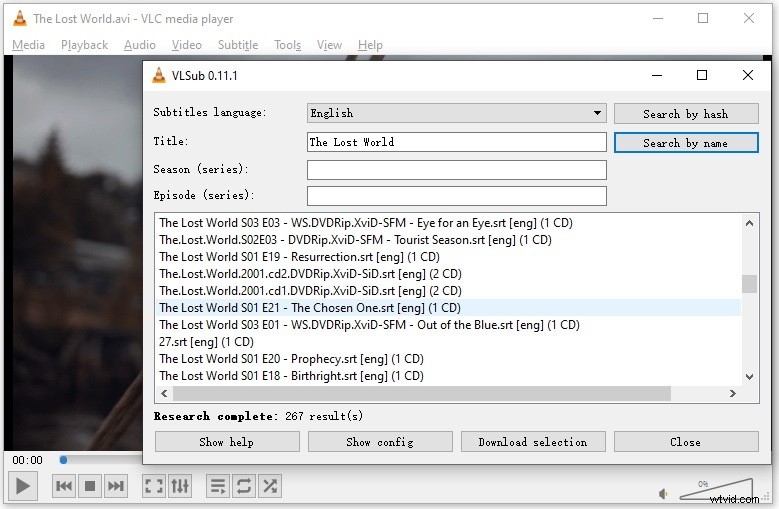
Step 5. When the subtitles loaded, close the window. Play the movie and check if the subtitles loaded successfully.
Step 6. If you still can’t see subtitles, you can head to Subtitle > Sub Track and check the downloaded subtitle track.
Load Subtitles from URLs to Play Streaming Videos with Subtitles
Another method to load subtitles from URLs is using Substital. Substital is a great chrome extension for adding subtitles to videos. It supports searching subtitles for videos online, adding subtitle files with drag and drop, and changing subtitles’ font size, color.
You can load subtitles while watching videos on online streaming websites like YouTube, Netflix, Vimeo, Dailymotion, etc.
Step 1. Go to the chrome web store and install the Substital extension: https://chrome.google.com/webstore/detail/substital-add-subtitles-t/kkkbiiikppgjdiebcabomlbidfodipjg?hl=en.
Step 2. Open the video that lacks subtitles and click the Substital extension icon. Substital will start detecting the video that is currently being played. Once the video is detected, click on it.
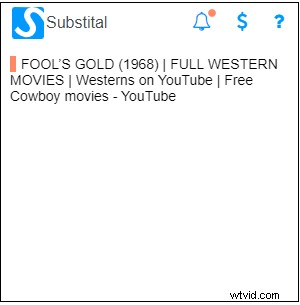
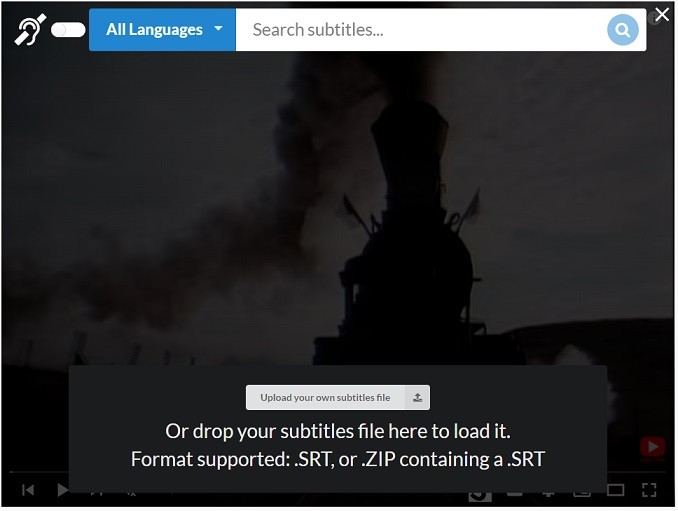
Step 3. Then you can search for subtitles by typing the video name in the search bar. Or upload your own subtitles.
5 Best Subtitles Searchers
If you can’t find subtitles for your videos with VLC and Substital, you can use the following subtitles searchers. Subtitles offered in these websites are available in a variety of languages and you can download subtitles for free without limitations.
- YIFY Subtitles
- Open Subtitles
- Subscene
- Subs4free
- Podnapisi
Conclusion
Loading subtitles from URLs is a simple way to add subtitles to video. Now, you can try the above methods and enjoy your movie with subtitles!