
There is no one-size-fits-all option to download all site videos in one go, but by using the three different options mentioned in this article, you should be able to download almost all videos from any website. If you want to edit those downloaded videos, try MiniTool software.
When you see the download button, downloading videos is easy. Unfortunately, most video sharing sites usually do not allow downloads for copyright protection. Thus, how to download videos that have no download button and are not allowed to download? This article will tell you the answer.
Here’s How to Download a Video off a Website
- VidPaw Online Video Downloader
- iTube HD Video Downloader
- Flash Video Downloader
1. Download Video from Website – VidPaw Online Video Downloader
The easiest way to download video from website is those specially made programs or web apps that look for and extract videos from webpages. VidPaw Online Video Downloader is one of the best tools to download video from website online. It’s totally free and works on popular websites like Twitter, CNN, Tumblr, YouTube, Facebook, and others.
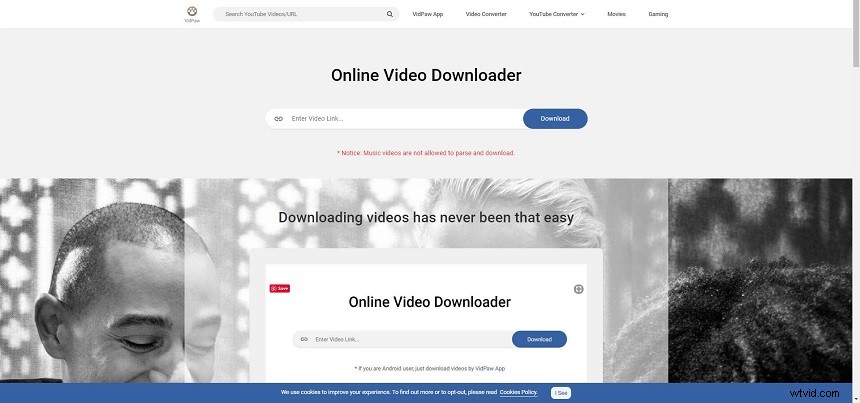
How to download a video from a website with VidPaw Online Video Downloader?
- Open your browser and go to the video that you want to download.
- Copy the video address.
- Visit Online Video Downloader in a new tab.
- Paste the video address in the blank box and click the Download button.
- Now select which format and quality you’d like to save the video to your device, and then click the Download button.
Features:
- Free and intuitive.
- Unlimited downloading.
- Supports more than 1,000 websites.
- Download YouTube videos to MP3 and MP4 without a hitch.
- Support multiple formats.
2. Download Video from Website – iTube HD Video Downloader
If you are looking for the best desktop tool to download video from website, iTube HD Video Downloader must be the final winner. It supports downloading from numerous websites and can handle 4K resolution videos. It also has a download acceleration feature to ensure the fast download of videos and the ability to convert files to any format you want.
How to download a video from a website with iTube HD Video Downloader?
Method 1:
- Once downloaded and installed iTube HD Video Downloader, open it to get its main interface.
- Navigate to the video you want to download in the built-in browser and play it.
- Click the Download button by side of the player window to start the procedures of downloading videos.
Method 2:
- Copy the URL of the video that you want to download.
- Open iTube HD Video Downloader on your computer and click the Paste URL button.
- Then the video downloader will begin downloading automatically.
Method 3:
- Open the video that is unable to download on your computer.
- Make a short setting for your recording.
- Click REC to start recording the video while watching.
Features:
- Download or record videos from 10,000+ online video websites.
- Convert downloaded videos into more than 150 video and audio formats.
- Inbuilt video player to watch and manage downloaded video and audio easily.
- Schedule for batch downloading in a go.
- Set your computer to sleep mode and auto shutdown after downloading.
You might be interested in: Download Reddit Videos with Audio
3. Download Video from Website – Flash Video Downloader
Flash Video Downloader works for most video formats and is a great option for Firefox or Chrome. There’s also a Safari version for the Mac-inclined in the audience, and a version for Mozilla Firefox. Although Flash Video Downloader won’t work on every site, it is generally a reliable tool.
How to download a video from a website with Flash Video Downloader?
- Search Flash Video Downloader in your browser and click Add to Chrome > Add extension.
- Open the page where you want to download the video.
- Click on the video and play it, and then you will see the Flash Video Downloader icon turns blue.
- Simply tap on the icon and the video will be displayed in the pop-up window.
- Click the Download button.
Features
- No special skills needed.
- Support MP4, MOV, FLV, AVI, WEBM, ASF, MPG and many more.
- Download most popular media formats like flash, videos, audios.
- Download videos and flash videos from 99% of websites.
- Download multiple videos simultaneously.
Bottom Line
3 different ways to download video from website have been discussed above. Which one do you prefer? If you have any questions or suggestions about it, please let us know via admin@wtvid.com or share them in the comments section below.