
Looking for some of the best ways to cut a video for Instagram?
In this article, we show you three free, easy methods to cut and shorten a video for Instagram.
How to Cut a Video for Instagram using Animaker Online
Most marketers and content creators post videos to Instagram from their laptop or desktop computer.
If that’s the case, you’d want to give Animaker’s trim tool a shot.
The tool works in your browser and lets you trim or cut a video to your desired length.
Also, it lets you download watermark-free videos.
The tool makes it super simple to trim a video for Instagram. Here’s how to use it:
- Open Animaker’s Trim tool and click on the Upload Video button.
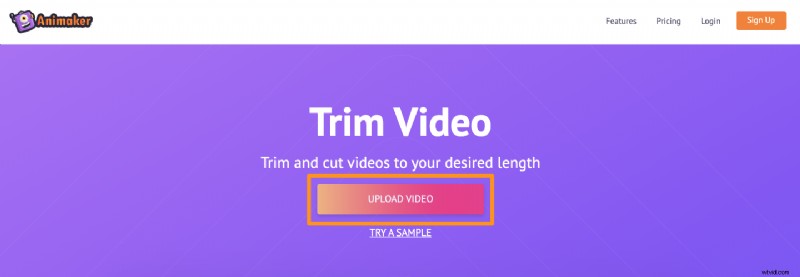
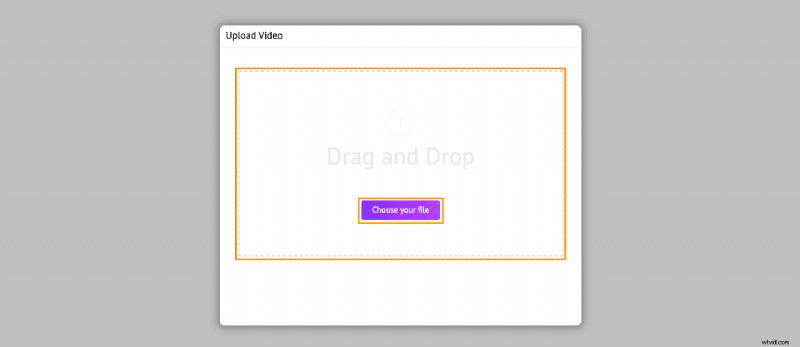
- Upload the video you wish to cut or trim.
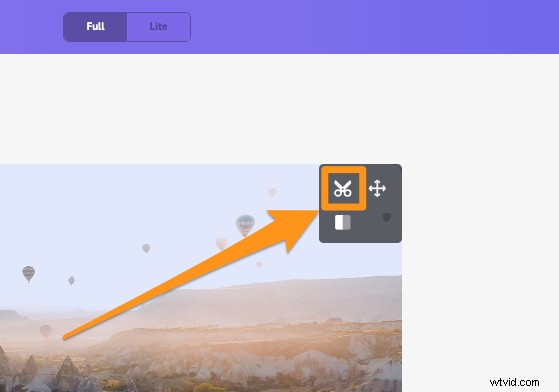
- Now click on the Trim icon to start cutting your video.
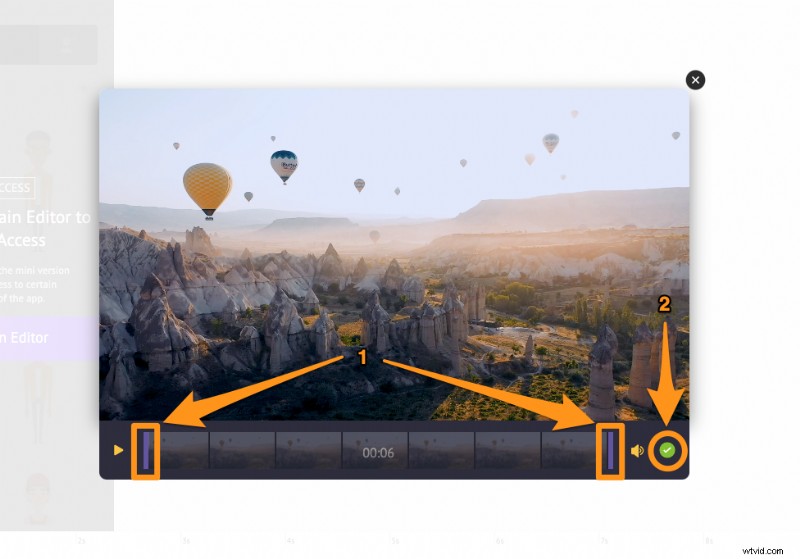
- Choose the beginning and end of your video using the handles on the left and right. Once you’ve cut a part of the video you want to use, save the changes by clicking on the green icon with a tick mark.
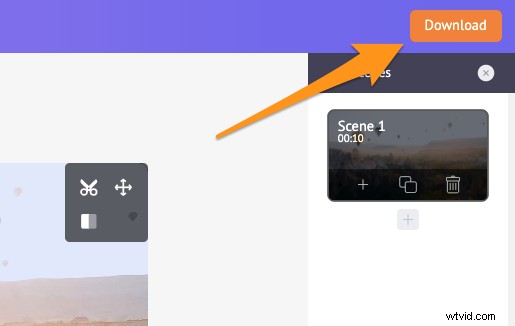
- Now click the download button in the top right corner of the app screen to start processing the video. Once done, you can download the trimmed video to your local computer.
That was quick! Take our video trimmer for a spin today! In the later sections, we cover how you can cut and split videos for Instagram on your Android or iOS device.
How to Trim a Video on Instagram using the Official App on Android or iOS
If you’re using Instagram on Android or iOS, you can use the app’s built-in video trimming feature to trim video for Instagram Story, Feed, etc.
Here’s how to use Instagram’s built-in video trimming functionality:
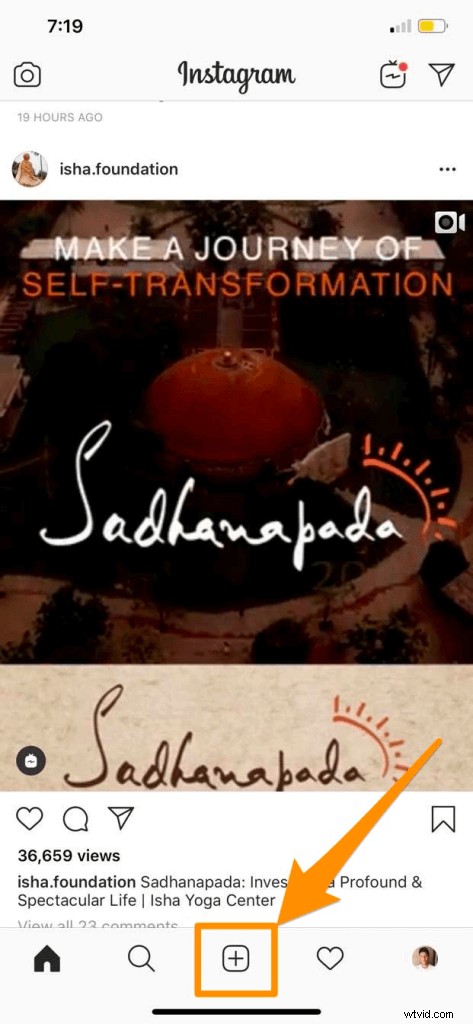
- Click on the plus (+) icon on the bottom of the app screen.
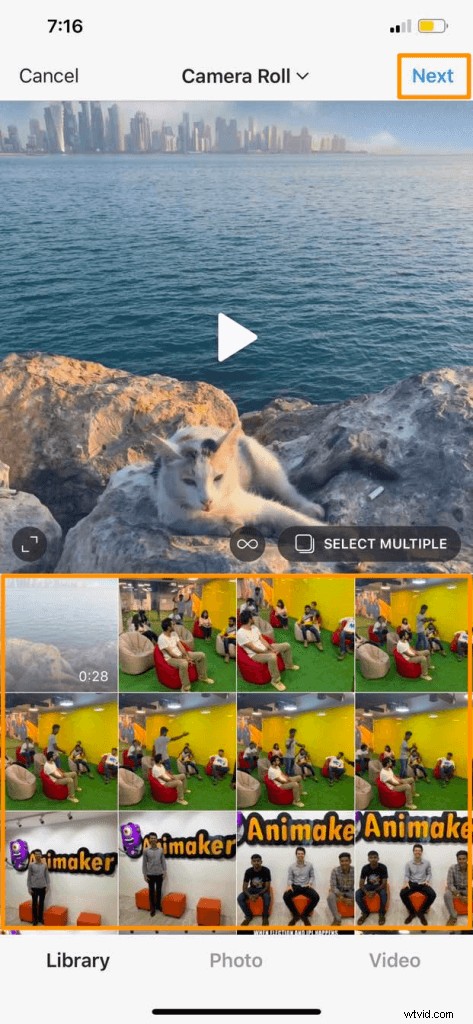
- Now pick the video you want to post, then click Next.
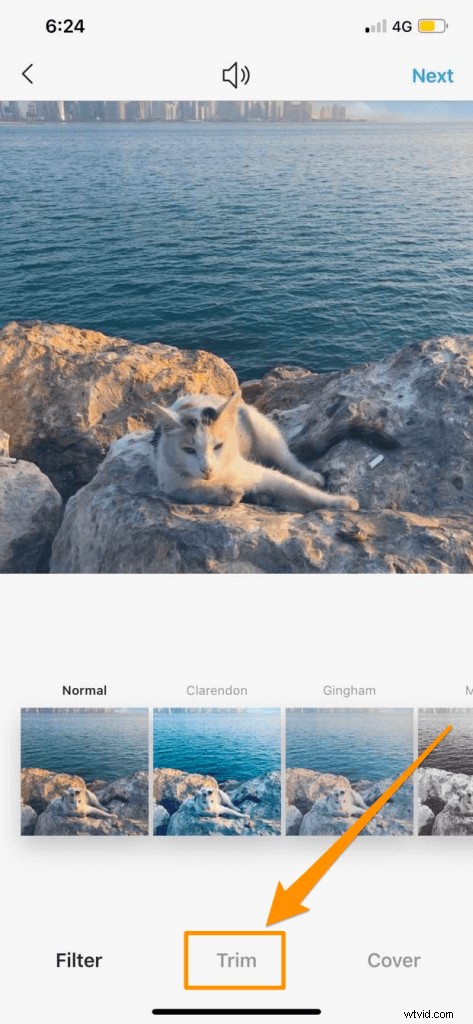
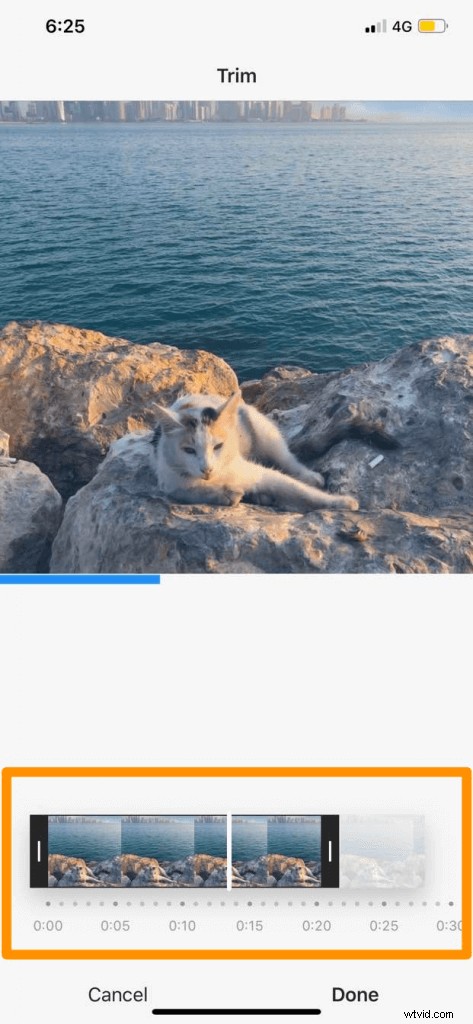
- Click on the Trim tab at the bottom to start trimming your video.
- Now hold and drag the slider’s handles on the left and right to select the part you want to use.
Quickly Split Lengthy Videos for Instagram using a Third-party App
If you want to post lengthy videos — videos that are typically several minutes in length — then you’d want to use a free third-party app such as Video Splitter for Instagram (for Android) and VIDEO-SPLITTER (for iOS).

The best part about using a third-party app is it lets you cut the video into shorter clips based on a custom duration of your choice.
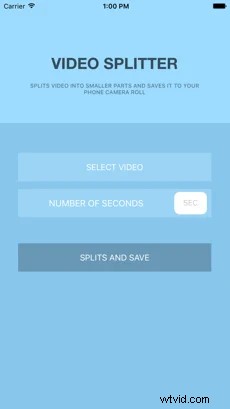
Let’s say you want to post a video that’s 3 minutes long to your feed, if you were to choose a duration of 1 minute, your video will be split into 3 video clips that are a minute in length.
Any tool that you probably already use to trim videos for Instagram that you think does a better job? Any free app or online tool that could be added to this list? Please let us know in the comment section.
And if you’re looking for an easy way to edit your videos online, please feel free to check out our online video editor. It lets you quickly edit your videos for various social media channels with ease. Animaker’s video editor has been specifically made for non-designers, marketers, and anyone who doesn’t have any experience editing videos.