
For every audio recording, there’s a limitation of how loud you can go until the microphone starts creating a distorted sound. You can always add some volume in audio editing software but quite often you’ll find yourself in a situation where simply increasing audio volume doesn’t work. Rather it could introduce a new problem – audio distortion.
To increase audio file’s volume you’ll have to use a tool called normalization and if that doesn’t suffice you can further increase audio volume by compressing it which makes your audio more even allowing some room to further increase its overall volume (RMS). As a quicker alternative with some limitations, you could use online tools to increase audio volume in a few clicks.
Increase audio volume with Normalize effect
Any audio editing software will have an effect called Normalize. Audacity is my favorite free audio editing software but any will suffice.
You can increase audio volume by selecting the whole audio recording and applying a normalize effect. In the effect settings menu select a peak volume of up to 0dB. Don’t go over 0dB as that will create audio clipping and will cause distortion unless that’s what you want.
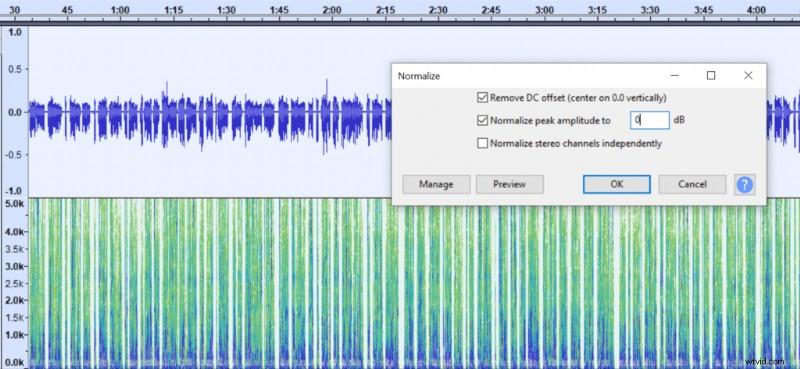
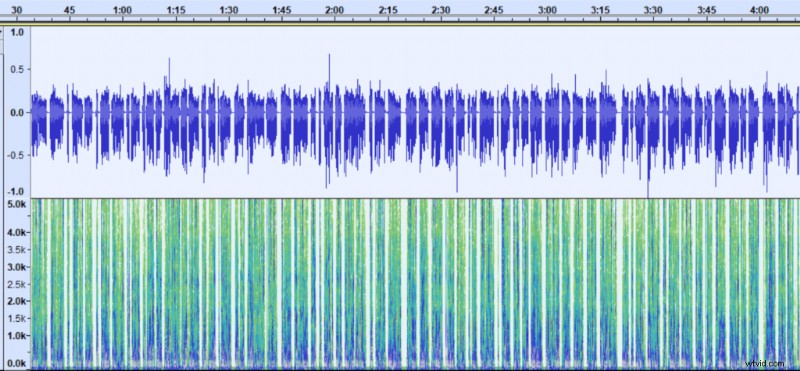
In the example above, after applying the effect my average audio volume (RMS) increased by 5dB (from -33.9dB to -28.9dB). Normalize effect is great if your audio recording is even, such as in this case.
However, if you have sudden spikes in volume normalize effect might do very little to increase overall audio volume because it increases the whole audio recording by the same amount of volume. Therefore, if your audio volume peaks at -1dB you can only increase your overall audio volume by 1dB without introducing distortion and that may not be enough if you have a quiet audio recording.
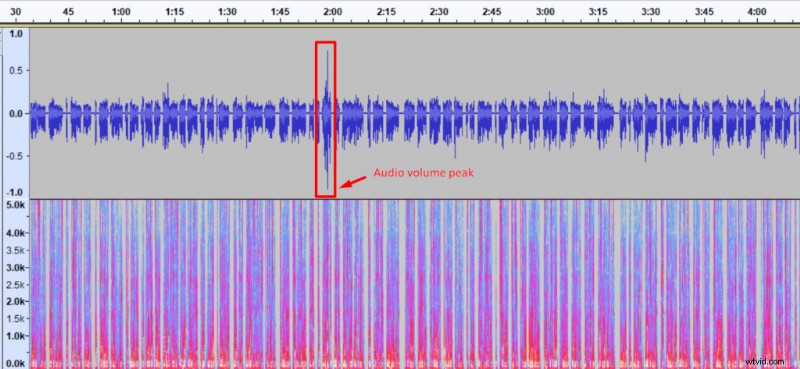
In cases where you need more audio volume, you can use compression to go beyond what you could do with a normalize effect only.
Increase audio volume with compression
Compression is a tool that compresses the whole audio track by making louder parts quieter and quieter parts louder. As a result, you’ll achieve an audio track that is more even and doesn’t have abrupt spikes in volume. This gives a lot of room to then apply normalize effect and further increase overall audio volume (RMS). Or if you’re using Audacity you can check ‘Make-up gain for 0dB after compressing’ box to do that automatically for you.
Before using compression you’ll want to apply normalize effect so that your peak volume is at 0dB. If you’ve followed the first step then you’ve already done that.
Here’s how to apply compression effect:
- Select your audio track
- Open compression effect
- Set threshold to -6dB (set it lower if you want to make your audio even louder)
- Set ratio at 3:1 (or set it at 4:1 if you want your audio even louder)
- Click ok
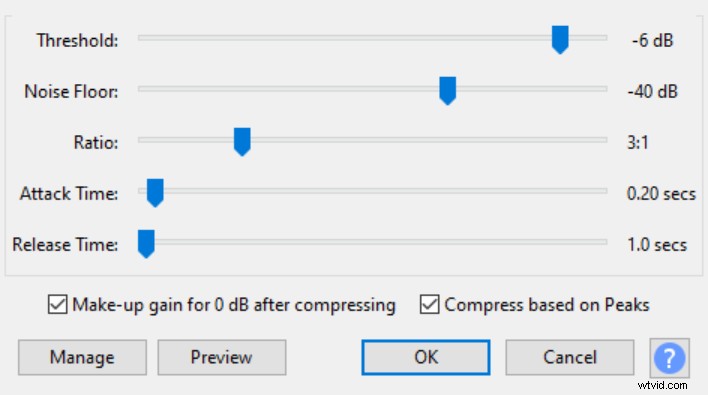
Once you’ve applied compression effect, select the whole audio recording again. I like to leave some headroom if I am planning to apply EQ later on and set my peak volume at -2dB but if you’re not going to do that you can normalize to 0dB for the maximum volume.
After applying compression and normalizing audio to 0dB the RMS is -25.3dB which is 8.6dB louder than original audio and 3.6dB louder than audio after using Normalize effect only.
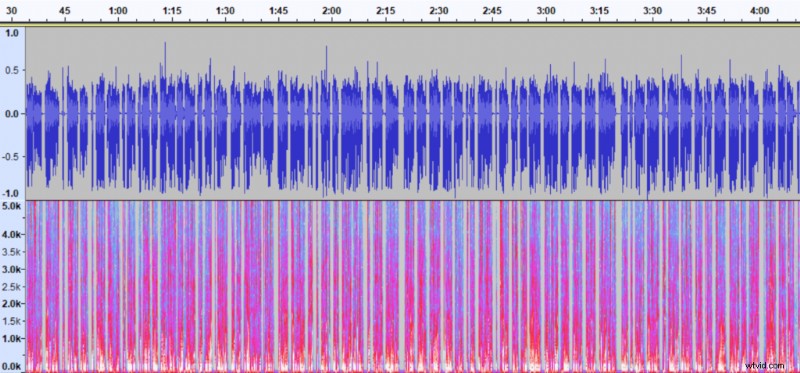
Now you can export your audio and enjoy the loud volume.
Use online tools to increase audio volume
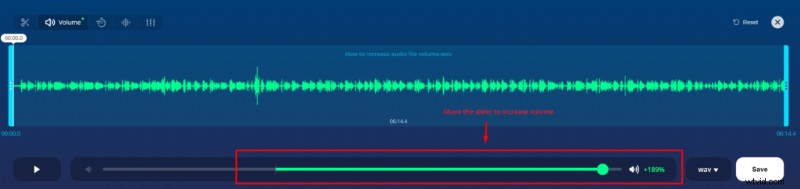
As an alternative, If you don’t want to fiddle with audio editing software and just want a quick fix you can use online tools such as mp3cut to quickly increase overall audio volume.
The online tool is as simple as just opening a file and moving a slider to the right till the volume seems appropriate. There are some limitations to how loud you can get your audio and I believe you have more control and could achieve louder volume using editing software. Still, I think using online tools is the most time efficient method, especially if you have little experience with audio software.
You can read more in-depth about compression and its settings here.