
Sometimes, you may want to mix a MP4 file with other video or audio files. If so, you're lucky here. This article is mainly taking about how to mix multiple MP4 files, how to mix MP4 files with other video format files, as well as how to mix MP4 with audio. You can do all of these jobs just in one great MP4 mixer - Filmora.
This user-friendly MP4 audio mixer actually supports almost any popular video & audio format. So you can use it to mix your MP4 videos with MP4, AVI, MKV, WMV, FLV, MOV, MTS, M2TS, MPEG, MP3, AAC and more. What's more, it won't loss any video & audio quality during file mixing process. Also, there are lots of cool features that give you the ability to retouch your videos. Please read on and learn more about it.
How to Mix MP4 Files with 3 Steps
1 Import video & audio files to this MP4 mixer
After you launch this MP4 mixer, you can click "Import" button on the top-left corner of the main interface to browser your wanted video and audio files on the computer and then import them. You can see these added files are listed in this app's User's album. Or you can directly drag and drop them from the computer to this app's album.
2 Mix MP4 with other video or audio files
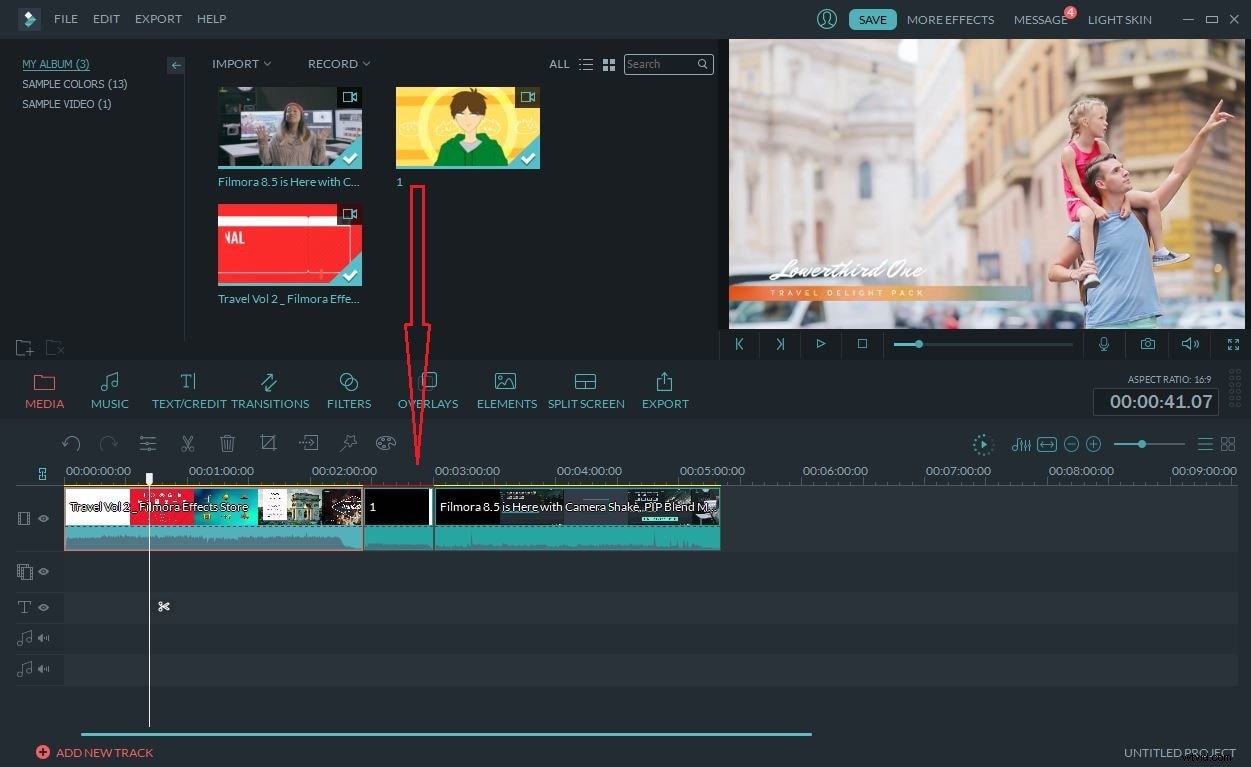
Drag all video & audio files you want to mix together from the album to this app's Timeline at bottom. And let them arrange on the Timeline according to the play order. Attention please. You can't put one file clip on another, for you'll split the later one. If you want to mix MP4 with other audio files, you need to right click the MP4 clip to select "Audio Detach" option and then delete its own audio track first.
3 Export a new video
After that, just click the Play button in the Preview window to view the effect in real time. Then, hit the "Create" button to select one of the export methods below.
"Device" tab — export the new video file to most popular devices like iPhone, iPad, iPod, HTC, PSP, Xbox etc.
"Format" tab — Save video in almost any popular video format like MP4 on your computer.
"YouTube" tab — directly upload your masterpiece to YouTube and Vimeo.