
How to add black bars to your video
Traditionally, this feature - technically referred to as “CinemaScope” - adds around a 10-13% black area above and below the footage at the time of production. It’s used extensively in the film industry, especially in Hollywood movies, to give footage that high-class cinematic gloss and make it way more attractive-looking to viewers.
Adding this effect would usually require downloading and purchasing some costly software or app, however, there’s a workaround that means you can do it for free and completely online without needing to download a thing!
So - if you want to know how to add black bars to the sides of a video - follow our 3-step process below.
Upload your movie
To get started, head over to Clideo’s Resizer tool. You can access this from any browser.
In the centre of the welcome page, you’ll find a ‘Choose files’ button. Tap this to upload the movie you want to turn into a cinematic masterpiece right from the storage of the device you are working from.
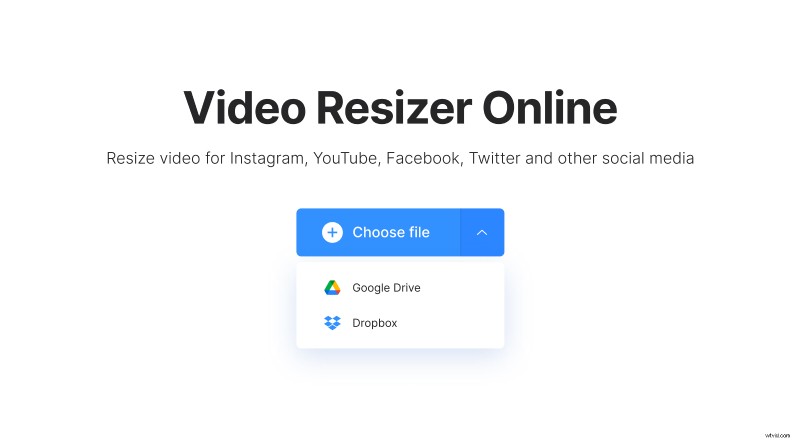
However, if you hit the down arrow on the right side of the button, you can opt to upload your moving image file from a Dropbox or Google Drive cloud account.
Whichever option you choose, your movie will automatically load and begin processing.
Put black bars on a video
Once the editor loads, navigate over to the ‘Resize for’ heading and select ‘Custom’ from the drop-down menu.
Here you will find a choice of five aspect ratios: 16:9, 4:3, 1:1, 4:5 and 9:16. Each will give you a different black bar width, so simply select whichever ratio that you prefer the most.
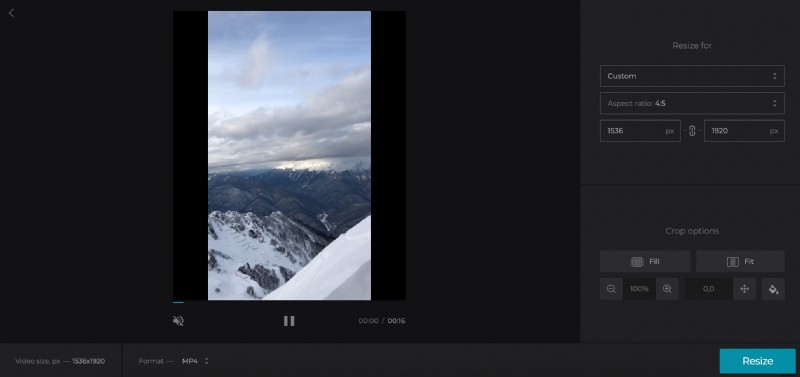
There are also sizes prepared for all social media posts and ad types, including Facebook, Snapchat, and Twitter. So feel free to use this tool for resizing your movie for a certain post type.
Next, you can adjust the size of the black bars via ‘Crop Options’. Leave the ‘Fit’ option selected, zoom and change the position of the frame using the buttons below.
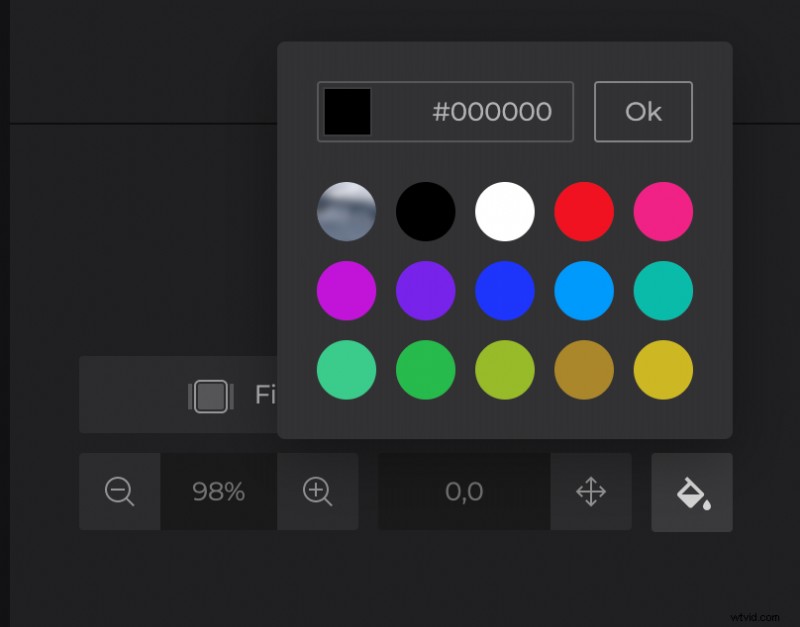
Also, note that you can even change the colour of the black bars if you so wish. Simply tap the paint bucket icon to make them look better by either using the Blur option or selecting a solid colour preset. You can even use a hex code if you're picky.
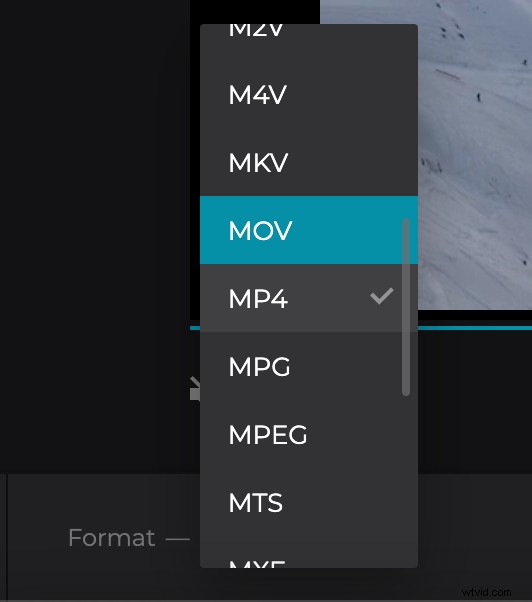
Now, change the format and tap the ‘Resize’.
Download the resized recording
Once your new movie is processed, it’s time to download it. As before, you can save it back to your device by tapping the ‘Download’ button or to a cloud via the down-arrow.
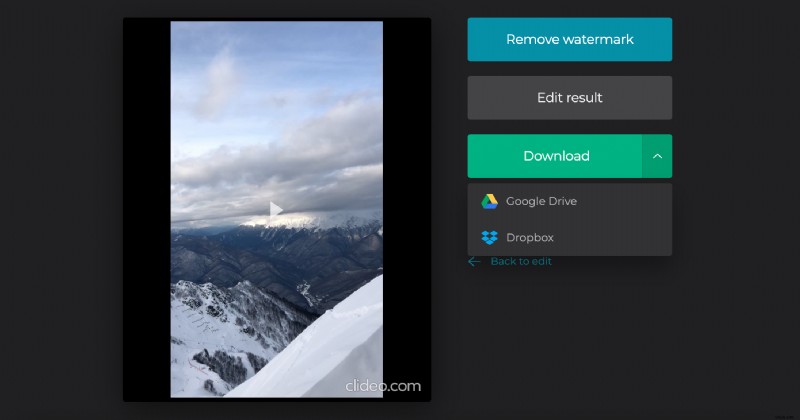
If you need to make some changes to your result, just hit the ‘Back to edit’ option to be taken to the previous editor page without having to start over.