How to trim or cut out part of a video for YouTube
Sometimes we don’t need the whole video to illustrate our idea or post it on social media – just several frames or a short extract. That’s when Clideo comes in handy.
The tool works online, so you can edit videos on PC, Mac, iPhone or Android smartphone. Its interface is so easy-to-use, that you don’t need any experience in editing to handle it.
Finally yet importantly – our tool is extremely safe – users’ personal data is protected with an SSL certificate. Keep reading and learn how to use our tool in three simple steps.
Add a video
Open the Clideo's tool, find the big blue button in the centre of the page, click on it and upload a video.
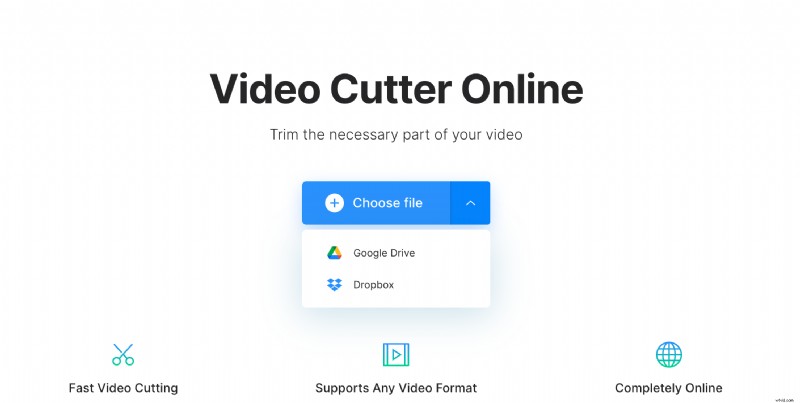
You can also import a file from Google Drive or Dropbox.
Cut the video if needed
Use the slidebars to select the part you want to download or delete from the recording. Alternatively, set a certain time manually in the boxes on the right side of the player. You can select the whole video, too.
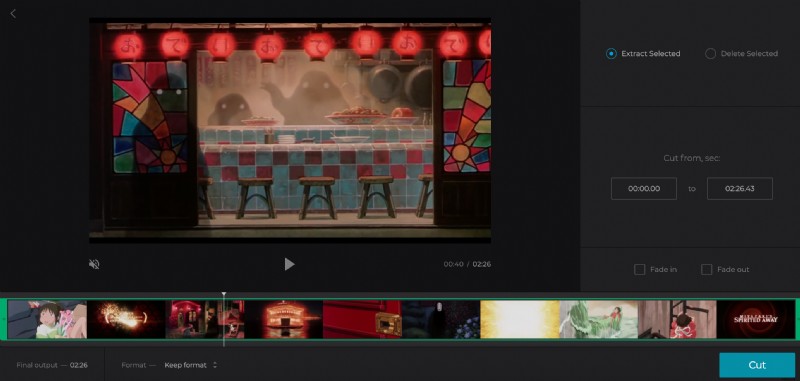
Choose one of two options:
- Hit “Extract selected” choice. Tick the Fade in and Fade out boxes to make the clip more artistic.
- Hit “Delete selected” option, to erase the chosen snippet and merge the rest of the video. Tick the Crossfade box to efface the frame transition.
Choose an output format. The tool supports all the popular ones – MP4, MOV, AVI, MPEG, etc, and less common ones such as RMVB, MXF and others.
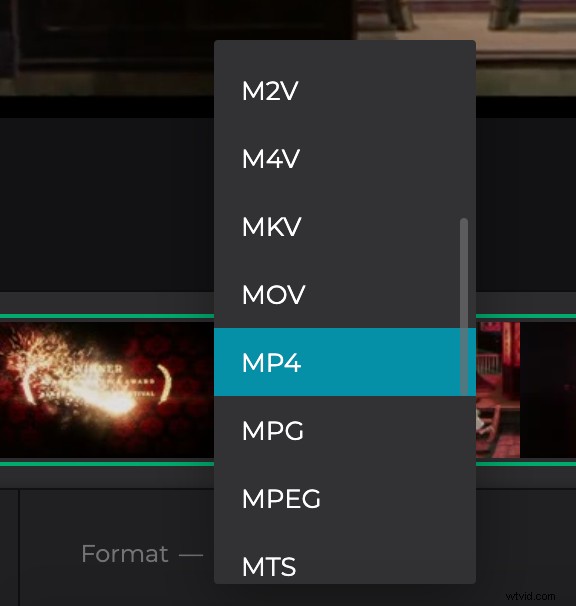
When you are ready, click “Cut”.
Save the video
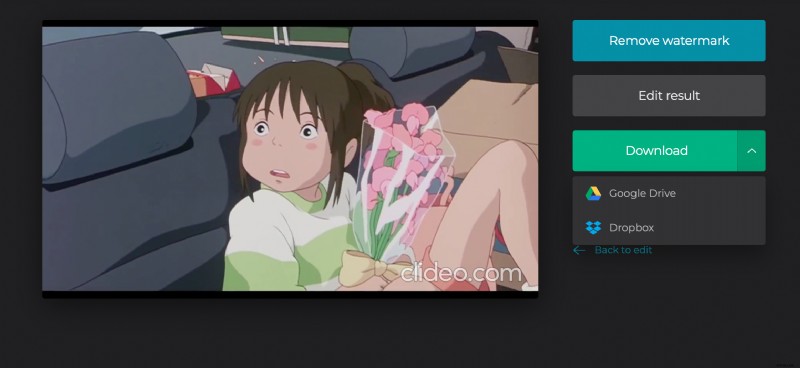
As soon as the recording is processed, have a final preview and get sure that you are happy with the result. If so, download it to your device or one of cloud storage accounts. If the clip is imperfect, you always can click “Back to edit” to change something.