Convert slow motion video to normal speed
In case of changing slow motion video back to the normal speed, the remedy is the same as the disease — you can do it with the help of Clideo’s Speed Changer.
Being an online service, this tool works perfectly on iPhones, Android smartphones, Mac or PC. It’s not a program or an application, so you don’t have to install it — just click the link and upload the video you want to edit.
As for the fees, there are no any. If you don’t mind having a small watermark on your video and the initial file doesn’t exceed 500 MB, our service will not cost you a penny. For other cases, you can always upgrade your account to Clideo Pro.
Follow these steps and remove slow mo from iPhone video or any other device in no time.
-
Upload your slowed down video
Open the Clideo’s tool for changing the video’s speed in any browser. Make sure your Internet connection is stable and fast enough to process large files.
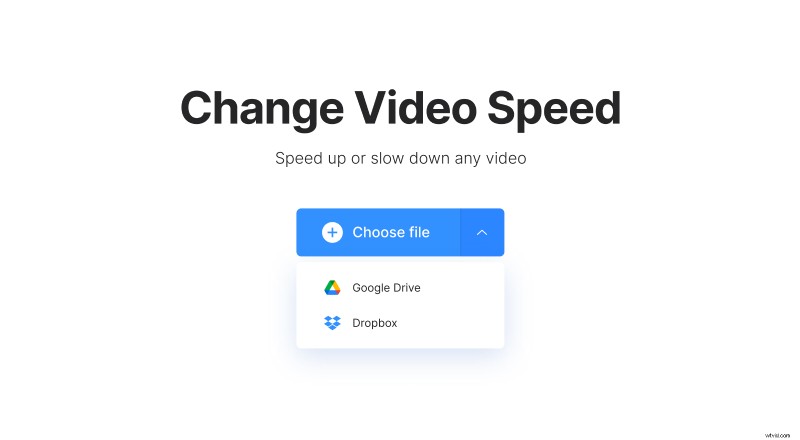
Click the blue "Choose file" button and select a recording from your personal device. There is another option for those who store their visuals in the cloud: hover the cursor over the arrow on the same pane and pick up a video from Google Drive or Dropbox.
-
Change video speed
There is no button for 1.0x speed, but you can drag the slider to change the values. Depending on how much your video has been previously slowed down, the "regular" speed value on the slider can be different. It can be 2x, 1.25x, or any other in fact. So we recommend that you trust your gut feeling to find the most naturally looking one.
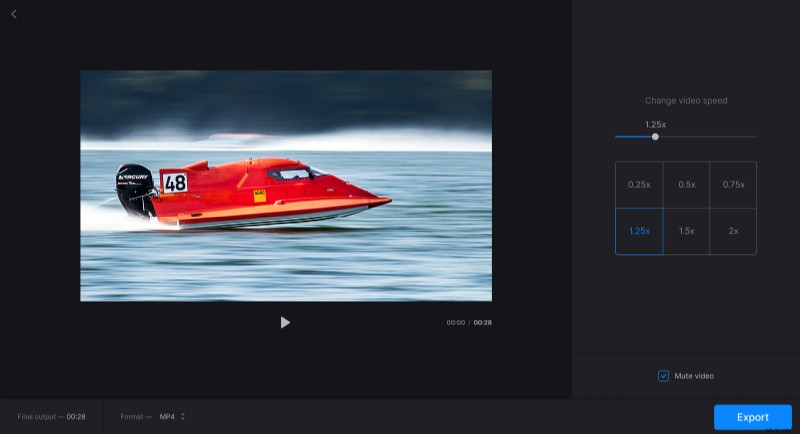
You can also mute the video here or change its output format. Just choose a new extension at the bottom left. When you are fully done, press the "Export" button and let the tool do the rest.
-
Save the video
If you haven’t given your project the final run yet, it’s the high time you did. If everything is hunky-dory, save it to your personal device or cloud storage. If you want to alter anything, click "Edit".