How to make an audio file from a video
Or do you just have a screen recording where the sound is more important and you want to keep it separate? It may sound like a difficult task, but it really isn’t!
Using our tool, you can easily turn a screen recording (or just any video) into an audio file. You only need to have an internet connection, everything else is a breeze thanks to its user-friendly interface.
Take a look at the steps below to learn how to quickly extract audio from video!
Upload a video
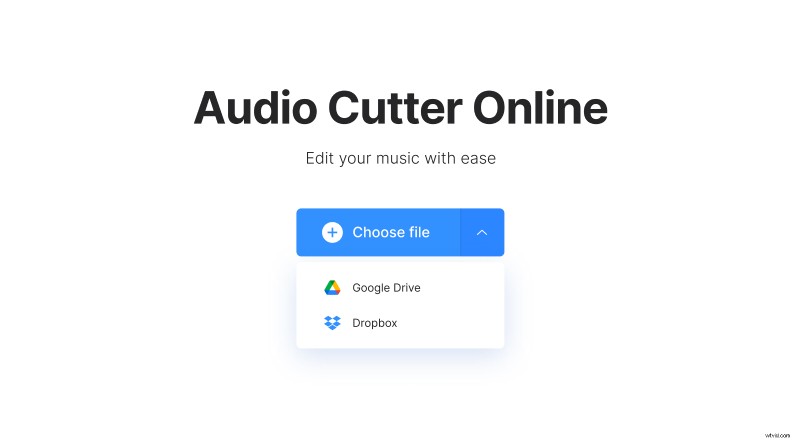
Open Clideo’s Audio Cutter. Click "Choose file" to pick a clip on your device. To add it from your Google Drive or Dropbox account, hover over an arrow on the right and choose the option you need.
Convert the video to audio
After the clip is processed, you will see the audio track timeline. The "Extract Selected" option, ticked by default, will cut the sound only from the time segment which is set there. If you want to remove the specified segment instead, click "Delete Selected".
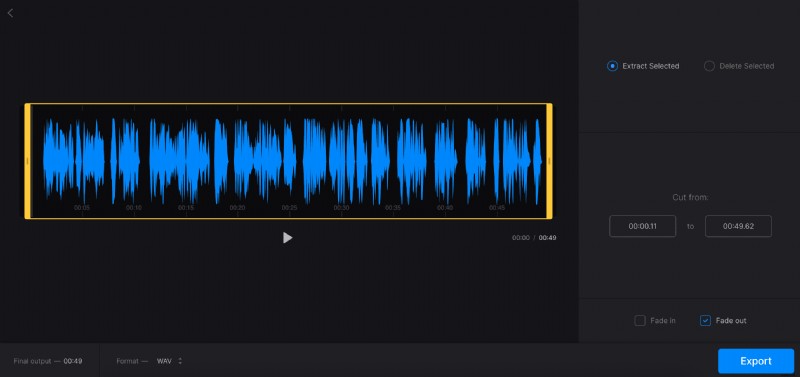
To change the length of the segment, either manually drag its sliders or specify the time in the boxes under the "Cut from" option. Tick "Fade in" and "Fade out" options to make the audio start gradually and fade away towards the end. If you choose "Delete Selected", you will see the "Crossfade" option in their place – it will make the transition between the remaining parts smoother.
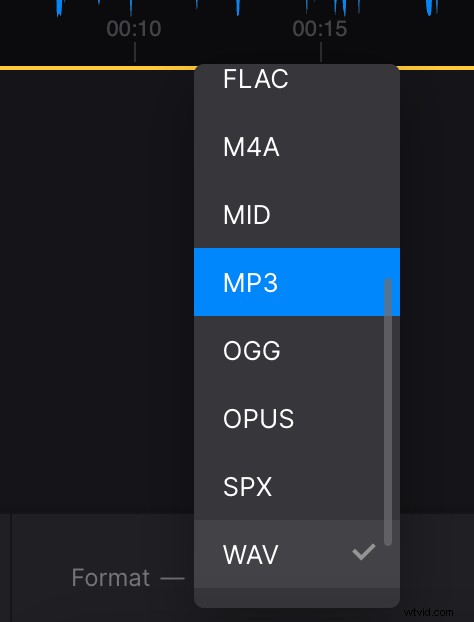
You can also change the audio format if you need – simply click the option under the timeline and pick the format you want.
After you finish editing, click "Export".
Download the result
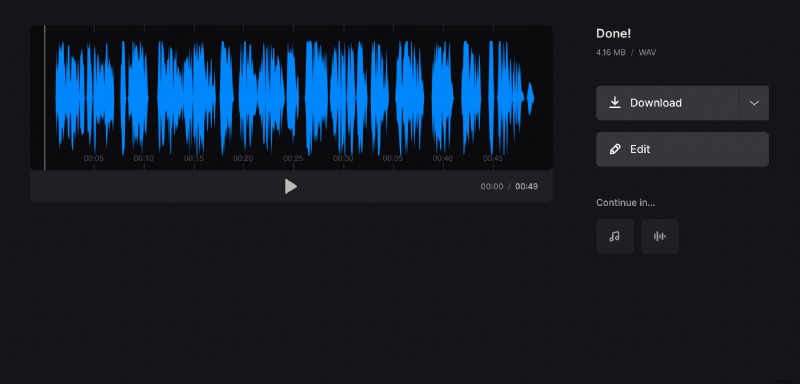
Listen to the preview to check if the track sounds good. If you need to make any changes, click "Edit". Otherwise, click "Download" to save it to your device or add to your cloud storage account.