
What is the WAV file and how to cut it
WAV files are just under 30 years in the making. Created by tech behemoths Microsoft and IBM in 1991 for use in the now ancient Windows 3.1, they quickly became known as the standard for lossless audio quality.
Flash forward 28 years and despite its age, there is still a place for the much-cherished WAV format. Because it's a raw audio format it boasts uncompressed lossless audio, which makes it ideal for media requiring top-notch sound quality. Think video, especially for TV and broadcast.
As a result, WAV files can take up quite a bit of space, taking up about 10 MB per minute. So if you've got some audio you need to crop out of your file, it's best to get rid, as it could save you some precious storage space. Read below to find out how to do so online, for free, without needing to download any complex audio editing software.
Upload it
So you want to know how to cut WAV files? Simply head over to Online Audio Cutter by Clideo and you’ll find the audio-trimming tool is there in your browser ready for you to use. You can access this page from any device, be it Windows, Mac, Android or iPhone.
Now, upload the file of choice by hitting the blue “Choose file” button in the centre of the screen. Alternatively, you can select the downwards-facing arrow at the right of the button, which will bring down an additional menu allowing you to select a file from online storage services Dropbox or Google Drive. Once your chosen file is selected, it will begin uploading to the Clideo servers.
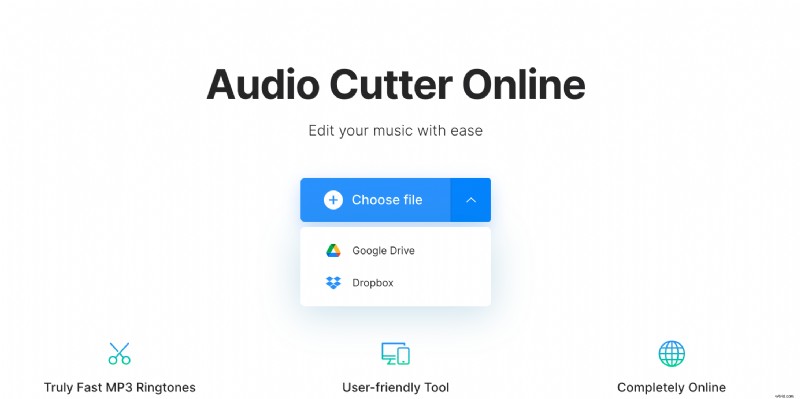
It’s also worth noting that it’s not only WAV files that can be converted in the tool. You can upload a multitude of other audio formats, such as MP3, WMA, 3GP, VOB, OGG, AVI, and so on.
Chop it up!
This next step requires you to get your virtual scissors out. The image in the centre of the screen visually represents your audio file. You can crop the length of this easily by simply moving the two blue markers, or by inserting the exact start and end times in seconds in the boxes on the right-hand side.
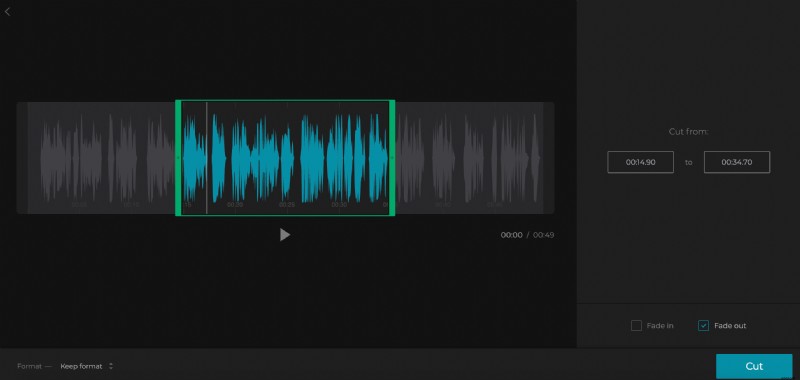
Just below this option are two tick boxes which allow you to add a fade in and fade out effect to your track. Once you’re all done, hit the blue Cut button and the tool will work its magic. Although don’t forget to preview the audio file to ensure you’ve snipped it in the right places before finishing the job.
Download your new track
Depending on the length of your audio file, it could take either a few seconds or a minute to process your new WAV file. Once it’s completed, you can play it back to make sure it’s what you want.
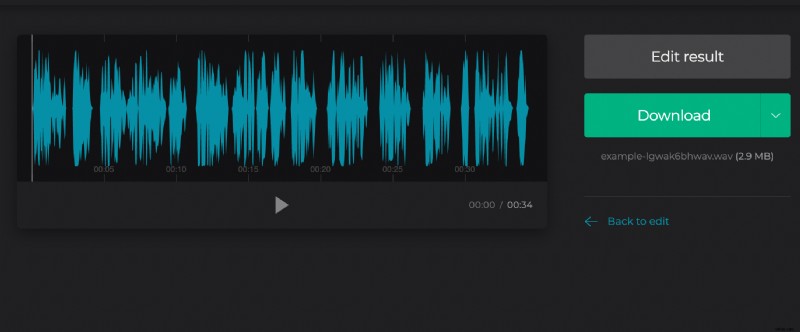
If you’re happy, hit the green download button to save it to your device. Again, tap the downwards-facing arrow if you'd prefer to save it directly to your Dropbox or Google Drive cloud storage accounts.