
Making a screen recording video on Mac is easy. Recording your webcam while recording your screen is not that hard either. If you’re using a decent screen recorder, you can get both the above done without any worry. However, when you want to record your voice narration, internal audio along with screen, and webcam on your Mac, you might find yourself in a fix. Unless you’re using an advanced screen recorder like Vmaker, screen recording on Mac with audio will be very challenging.
If you’re thinking about recording the audio separately, and then syncing it with the rest of the recording, then good luck with that. It’s not as easy as it sounds. Moreover, there’s no point in complicating things. When you have better screen recorders, you can just switch from your basic screen recorders, and get it done.
In this blog, we will be sharing a step-by-step tutorial of how you can record screen on Mac with audio - voice and internal audio both. However, if you’re not familiar with screen recording, then check out our how to record screen video on Mac page for complete details.
Why should you even screen record on your Mac with audio
If you already know it, feel free to skip. But, I think there will be a few inquisitive readers who want to know more about this. Listen, it’s not mandatory to record your audio while making a screen video on Mac. But, in a few cases, it has its advantages. Here are a few that comes at the top of my head -
Immersive experience
With audio recording, you can give that immersive experience to your audience. You can play multimedia files from your desktop all the while recording your screen. So, you don’t have to share the link with them, and tell them to go check it out later. You can get things done right then, and make the whole experience more engaging.
Explain easily
Simple, with audio recording you can add more explain stuff in the screen recording more easily. Instead of only putting numbers or words in slides, you can add your voice narration to explain to the viewers what exactly they’re looking at.
High personalization
Audio recording gives the audience a feeling that they’re having a private conversation with you. Due to the asynchronous nature of communication, they can’t see you, but as they hear your voice, it gets more personal for them. So, it becomes a lot more than just any other screen recording video.
High engagement
The most important point: you make better content with voice and internal audio recording. When your content is better, it means you will get more engagement too. They will watch your videos as the go-to content for learning something new. It will also encourage them to share your videos with others which will ultimately improve your popularity.
Why shouldn't you be using QuickTime player to screen record on your Mac?
QuickTIme player is a basic tool for making screen recording videos on Mac. It cannot record your internal audio. You can play videos on your Mac computer, but it will not record the audio of the file being played. In the best case scenario, you can play the multimedia file, and record your voice as narration. But, that’s too much work. It’s tedious too, and difficult for the audience to follow.
As an alternative, you can use Vmaker. It’s a free, advanced screen recorder that can record the internal audio of the file played on your Mac computer. In the following section, we will show you the exact steps on how to screen record on mac with audio along with screen, webcam, and audio recording on a Mac computer.
How to screen record on Mac with audio using Vmaker?
To get started with Vmaker, you can download the Vmaker app on your Mac computer. You can also add it as a Chrome extension from the Chrome Web Store. Following are the steps for each of them.
Downloading Vmaker app on your Mac computer
- Head over to the Vmaker website
- Click on the Sign up now button
- Enter your user name, email address and password. You can also sign up with your Google and Facebook account
- After you click on the Sign up button, you will see a dashboard pop-up. Download the Vmaker for Mac app
- Follow the on screen instructions to complete the installation

Installing the Vmaker Google Chrome extension
- Head out to the Google Chrome Web Store
- Search for Vmaker in the search bar
- Click on the Add to Chrome button
- Open your Google Chrome browser, and from the extension drop-down, pin the Vmaker extension
- Click on the Vmaker logo after it’s pinned
- Sign up with your email address and start recording videos
Now that you have downloaded the Vmaker app or installed the Chrome extension, you can start recording your screen on Mac with internal audio.
Here are the steps to follow in the Vmaker app. If you’re using the Chrome browser, you can relate to the above steps as the user interface is the same
Add Vmaker Chrome Extension for FreeStep 1: Open the Vmaker app
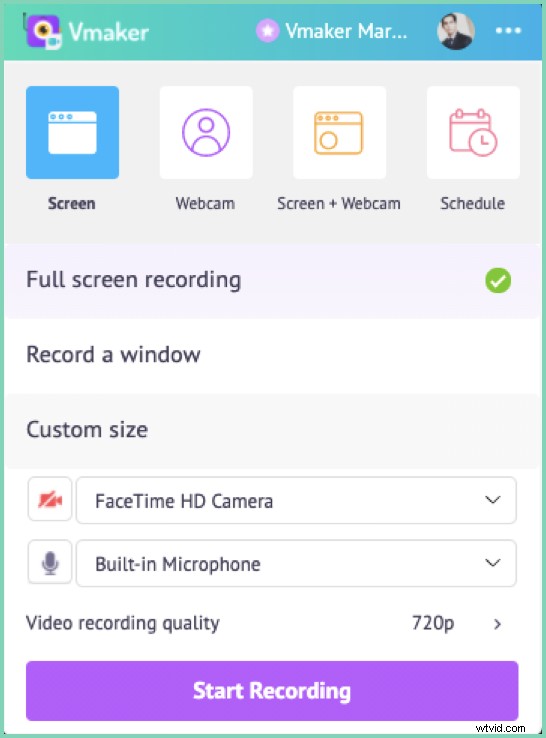
You should see a screen similar to the above screenshot.
Step 2: Check the microphone settings
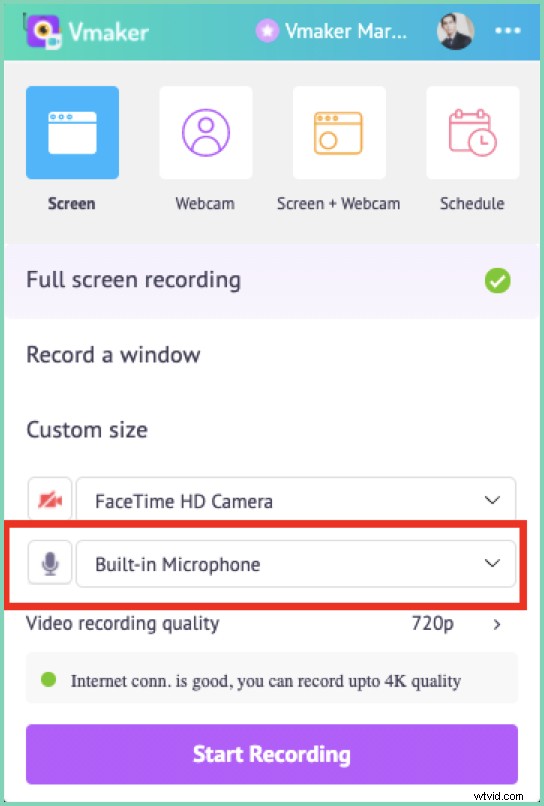
To record your voice, check the highlighted section in the screenshot above. Make sure that the microphone is enabled, and it’s not on mute . If you’re using a bluetooth headset, then Vmaker will automatically identify the microphone. Select it from the drop-down, and your audio will be recorded from that microphone. After you start screen recording on Mac, you can mute and unmute your microphone if that’s needed.
Step 3: Click on the three dots at the top right corner of the app
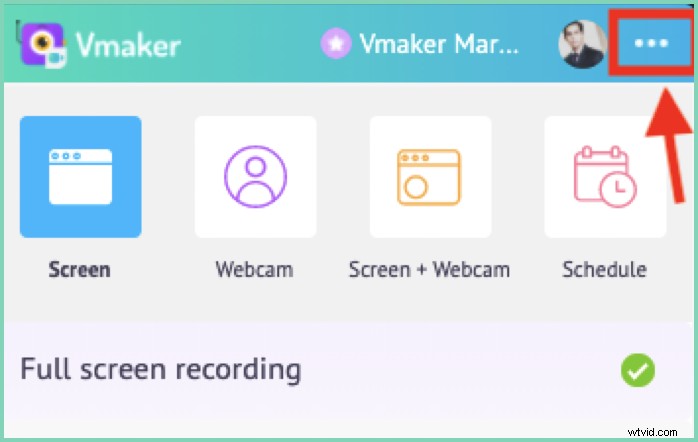
Step 4: Select Preferences from the drop-down
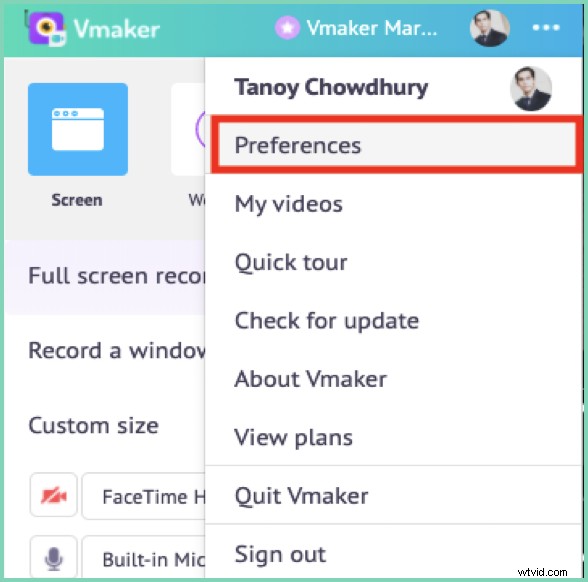
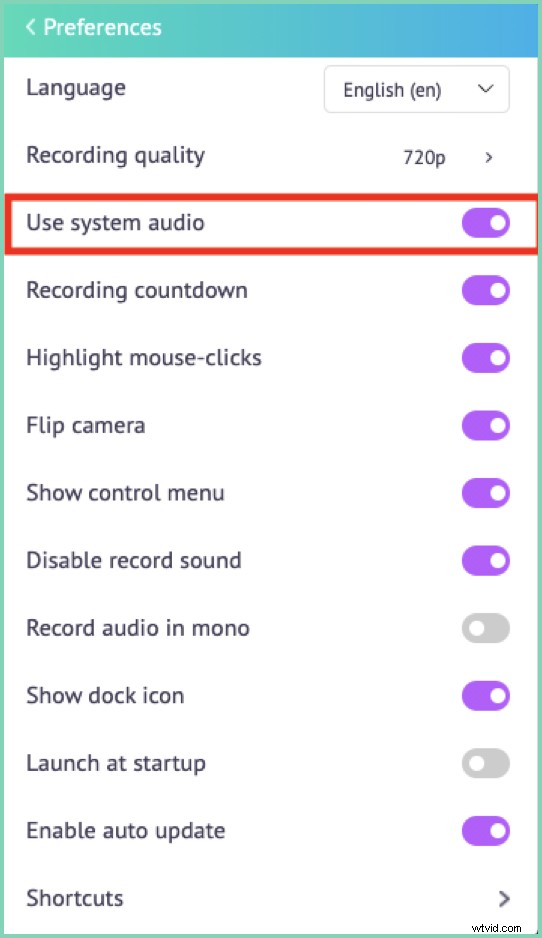
Step 5: Select System Audio option from the options
Step 6: Choose your mode and start recording!
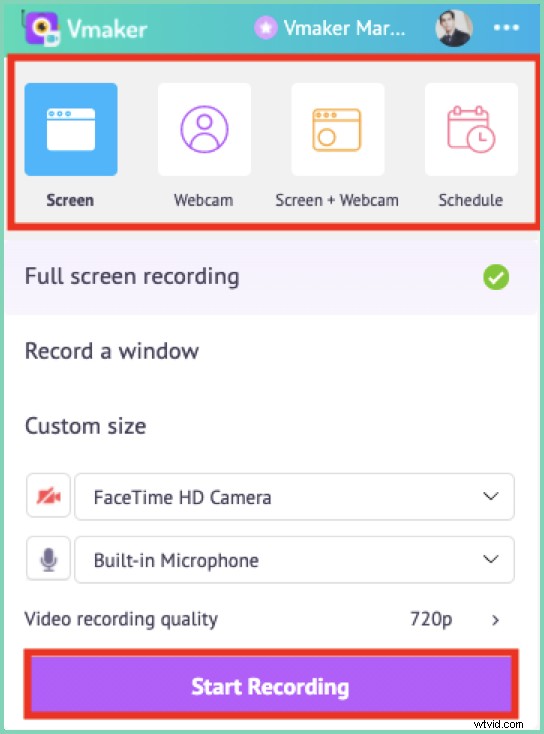
Choose your screen, screen with webcam or webcam only to start recording videos. You can also schedule screen recording, to automatically start recording your screen at a pre-destined time. Make sure you keep the Vmaker app open.
Step 7: Use screen annotations
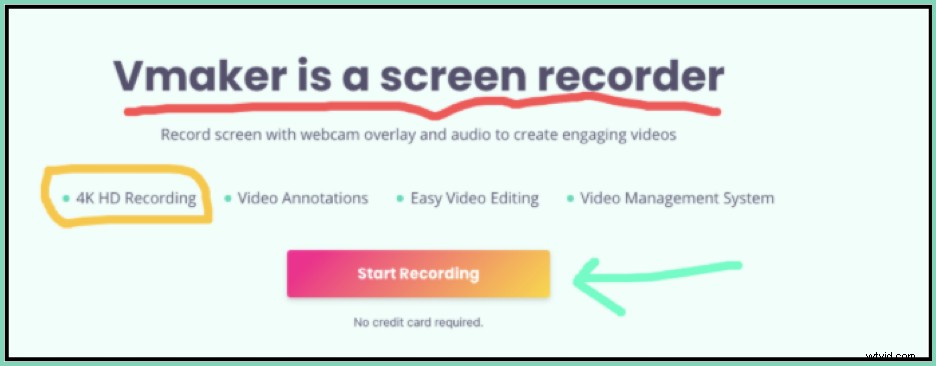
To highlight the content in your recording, use annotations. You can choose different colours tailored to your needs
Step 8: Add frames and filters
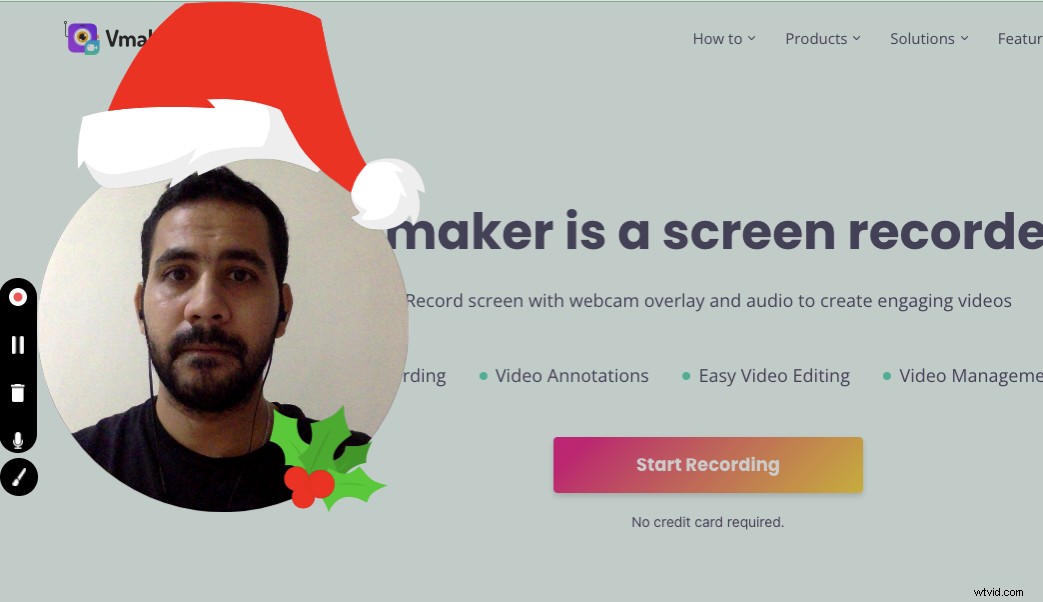
If you’re recording your webcam too, then make sure you try out the frames feature. You can add different filters on the webcam view to make the recording more interesting.
Step 9: Edit your videos
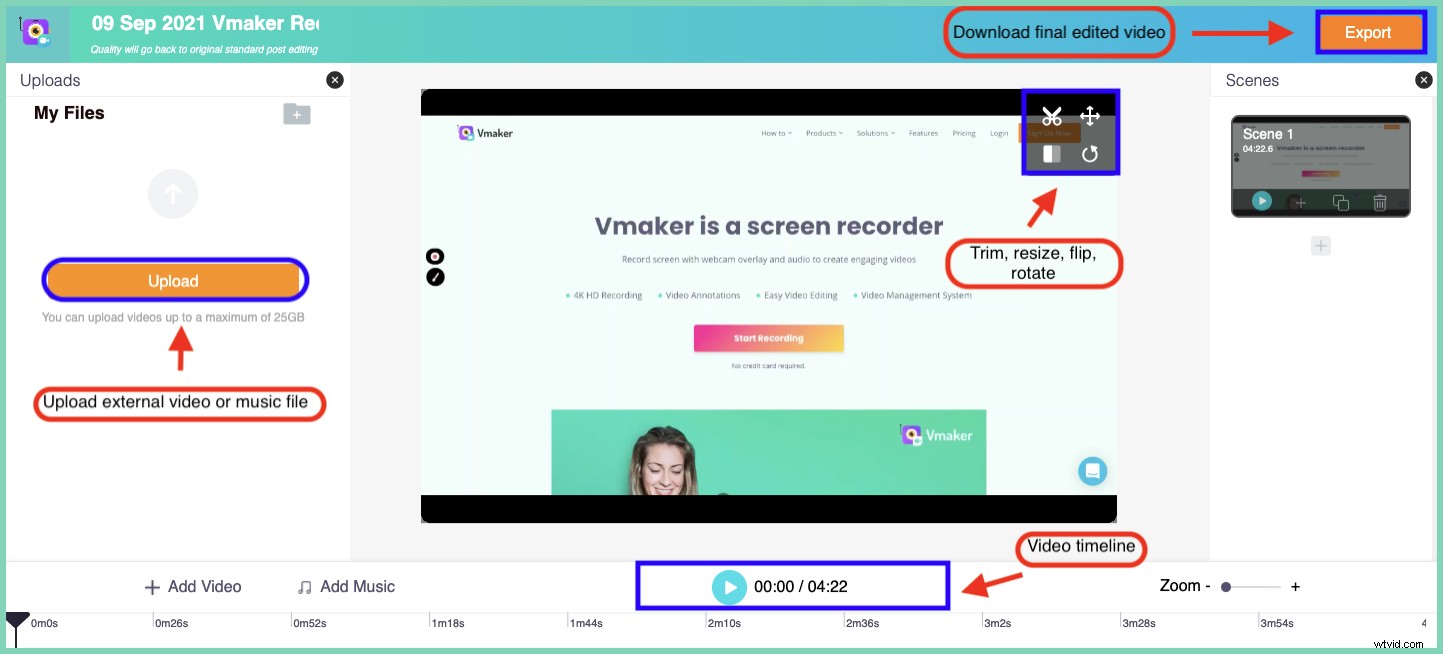
After you finish recording, edit your video by cropping the unwanted parts. You can rotate or flip video. Upload your own audio and video files too.
Step 10: Share it with others
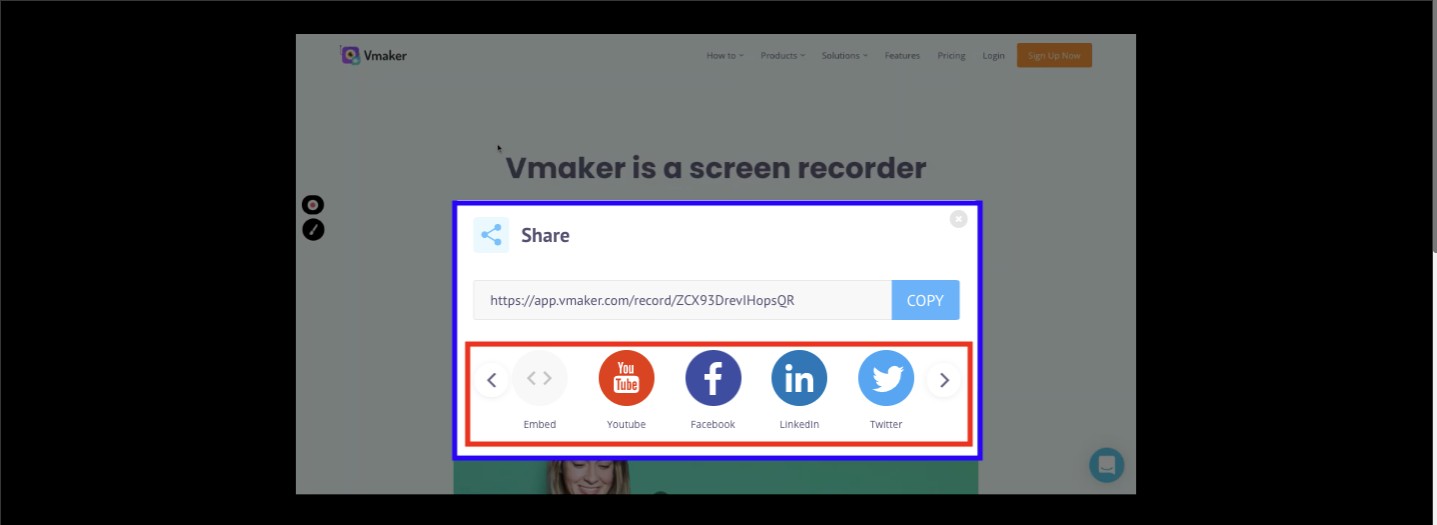
Once you’re done with chiseling your video, don’t waste any time in sharing it with your friends. Upload it on social media in a click right from the Vmaker dashboard
If you want to check out the other cool features that will help you to make, edit and share videos, then here’s the features page link.
Wrapping it up
So that was the complete walkthrough of how you can screen record on Mac with audio. Audio recording is very helpful for recording both voice narration and internal audio. If you’re using a screen recorder that doesn’t allow this, then switch to Vmaker for better experience. With Vmaker, you not only get things done quickly, but also in an efficient way.
You can also read our other blogs to get more insights on Vmaker and screen recording. Here are a few suggestions to help you get started
How to record online lectures for free
How to make instructional videos with screen recording
Best Screen Recorders for Mac
How to send a video email
How To Record Internal Audio on Mac