
Having a synchronous meeting is a great way of collaborating with your colleagues and discussing ideas online. After the world has been hit by the COVID-19 pandemic, Zoom meetings have almost become virtual office conference rooms.
There is no harm in having meetings. In fact, they were the ones that kept us sane during the pandemic. With almost no human interaction, it was also an escape from our temporary domestic workspace.
However, too many consequent meetings affect productivity negatively at work. We’re not saying that you should skip your Zoom meetings. Instead, we’re telling you to be more prudent. With personal life mired in professional life, it takes a high amount of conscientiousness to remember the scheduled meetings. Moreover, you cannot rule out family emergencies, kids walking into your room unannounced, neighbors yelling, and other distractions that keep you from losing your focus in the meeting. And, you know well, how badly it can cost you.
So, coming to the core of this article, how to record Zoom meetings for free so that you don’t miss on the important details?
Well, the answer is to use Vmaker. Vmaker is a free, advanced screen recording tool that can record your webcam, screen and audio at the same time. There are many screen recorders out there, but Vmaker is more carefully planned and designed for users like you who'll be recording zoom meetings.
More about it in the next section.
What makes Vmaker better than others to record Zoom?
This time we will save you from the long build-up, and get to the point directly.
Unlimited number of recording
You don’t have to pay to record Zoom meetings. Make an unlimited number of videos, download unlimited videos for free. No questions asked.
No host permission
Vmaker records your Zoom meeting discreetly. So, the host of the meeting and the other participants will not know that you’re recording the session.
Automatic recording
If you cannot record the Zoom meeting yourself, you can schedule it. Once that’s done, the recording will start automatically without your presence.
Organized recording
To avoid getting confused about your recorded Zoom meetings, you can have separate folders for specific recordings. You can also share the folder with others for them to view the video
How to record on Zoom with Vmaker?
Alright, we have come to the part where we share the steps that you should follow to start recording Zoom meetings with Vmaker.
Before we get to that, there are two ways you can record on Zoom using Vmaker.
- You can download the Vmaker app for Mac
- You can use the Vmaker Chrome extension to record Zoom meetings on the browser
First, let’s see how you can record Zoom meetings on Mac using the Vmaker app.
Note: If you have a Windows operating system, or want to record Zoom meetings without downloading the app, then scroll down to the next section where we explain the steps to recording Zoom meetings using Vmaker Chrome extension.
☛ Bonus Read How to record online meetings - Step by Step GuideHow to record Zoom on Mac
- Head over to the Vmaker website
- Click on the Sign-up now button
- Enter your username, email address and password. You can also sign up with your Google and Facebook account
- After you click on the Sign-up button, you will see a dashboard pop-up. Download the Vmaker for Mac app
- Follow the on-screen instructions to complete the installation
After you have downloaded the Vmaker app for your Mac computer, you can start to record your on Zoom. If you’re not able to locate the Vmaker app, simply search for it in your Finder. It will spot the application.
Step 1: Join the Zoom meeting
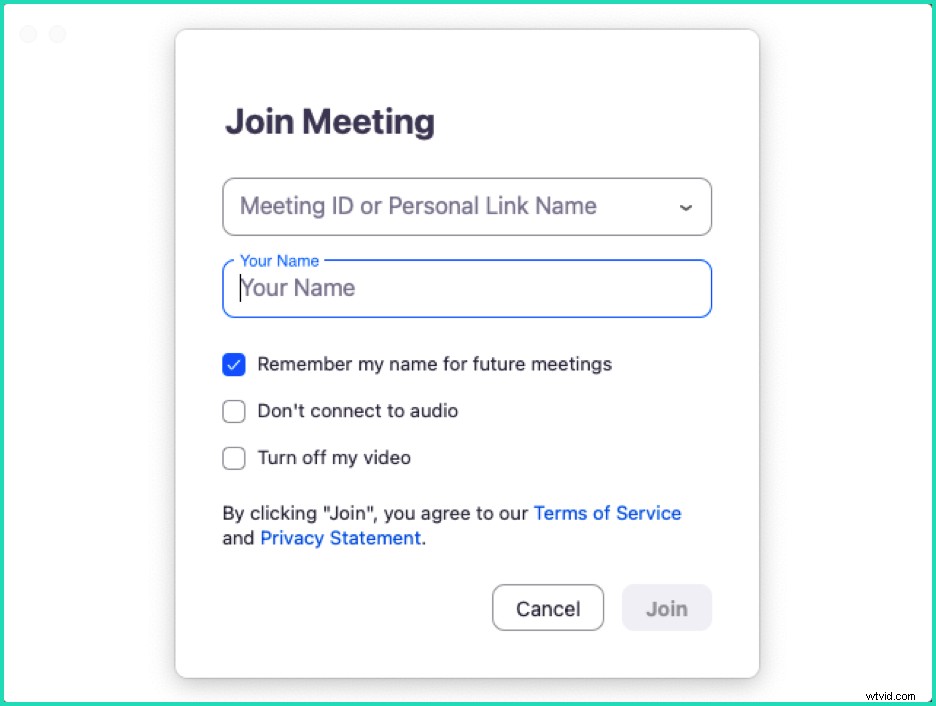
You know the drill. There’s nothing to add here. Just add the meeting link and name, and join the Zoom meeting.
Step 2: Open the Vmaker app and select Screen recording
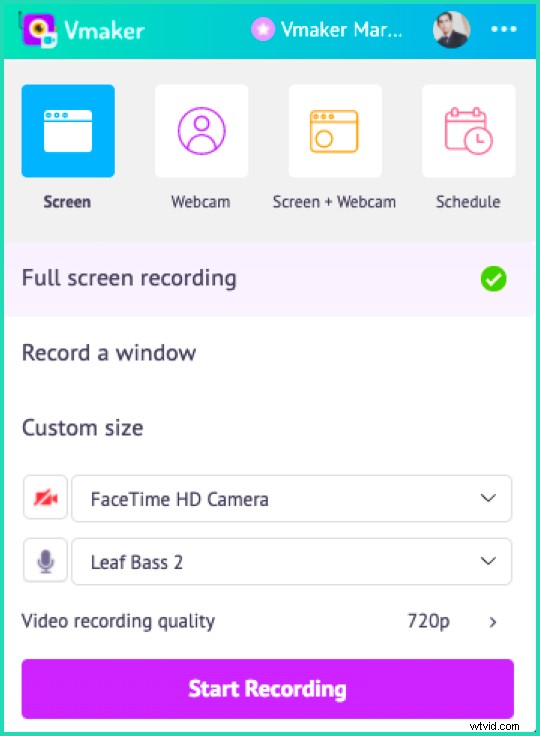
After you open the Vmaker app, select the Screen option for recording. In this mode, Vmaker will only record whatever is going on in the Zoom meeting. If you want to record your face too, then you can choose the Screen + Webcam option.
Step 3:(Optional) Enable internal audio
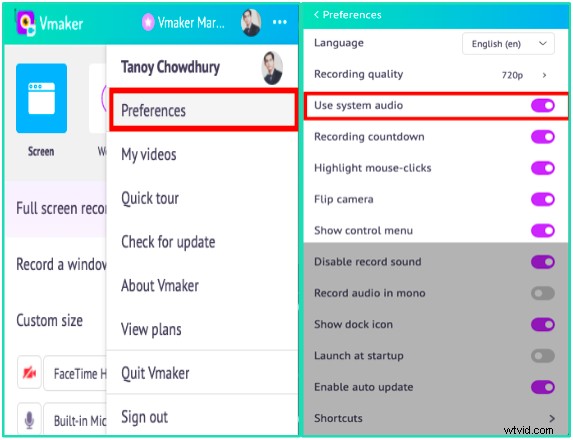
If you want to record the audio of the Zoom meeting, then you have to enable internal audio. To do that, select Preferences from the dropdown menu. From there, select the Use system audio option. Now, Vmaker will record the voices of all the participants in the recording.
Step 4: Click on the Start Recording button
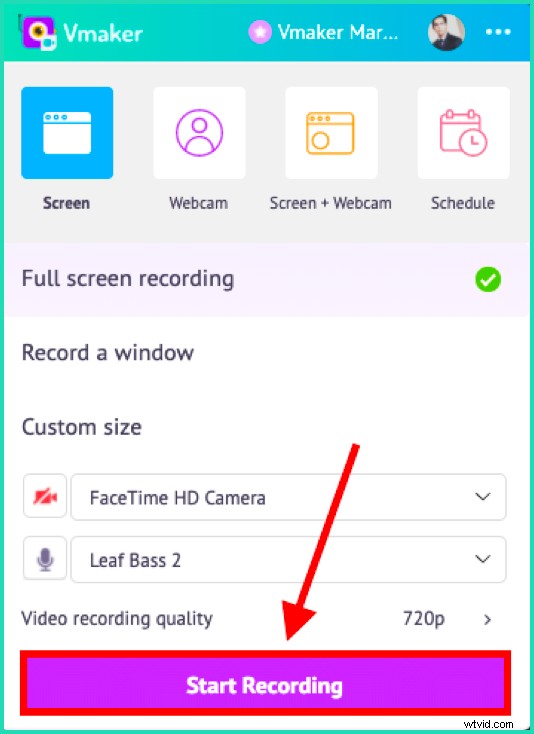
When you click on the button, Vmaker will start recording at the count of three. After this, you don’t have to follow any steps. Vmaker will continue recording unless you ask it to stop.
Step 5: Stop recording
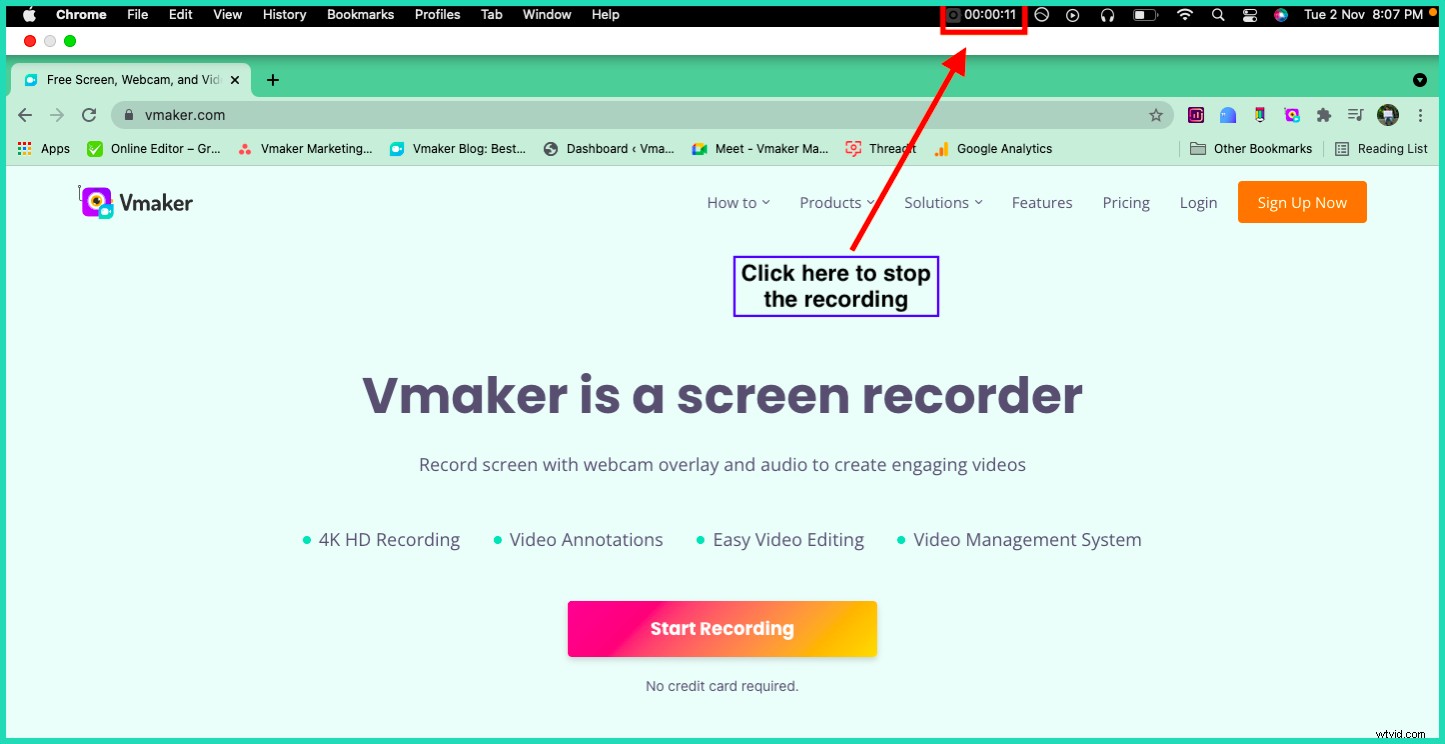
At the top of the browser toolbar, you will see the Vmaker icon along with the recording counter. Click on it, and the Zoom meeting recording will stop immediately. You will see a Vmaker tab open up which will show you the status of the video getting uploaded. After the video has been uploaded to your workspace, you will get a notification.
And, you’re set. Your recording of the Zoom meeting is ready.

How to record Zoom using a Chrome extension
As promised, here are the steps that you need to follow to record on Zoom using the Vmaker Chrome extension. This is a great choice for Windows users. Also, if you don’t want to download the Zoom app, then you can still record Zoom meetings using the Chrome extension.
Here are the steps for adding the Vmaker Chrome extension to your Chrome browser:
- Head out to the Google Chrome Web Store
- Search for Vmaker in the search bar
- Click on the Add to Chrome button
- Open your Google Chrome browser, and from the extension drop-down, pin the Vmaker extension
- Click on the Vmaker logo after it’s pinned
- Sign up with your email address and start recording videos
After you have added the Vmaker Chrome browser extension, follow these steps:
Step 1: Join the Zoom meeting
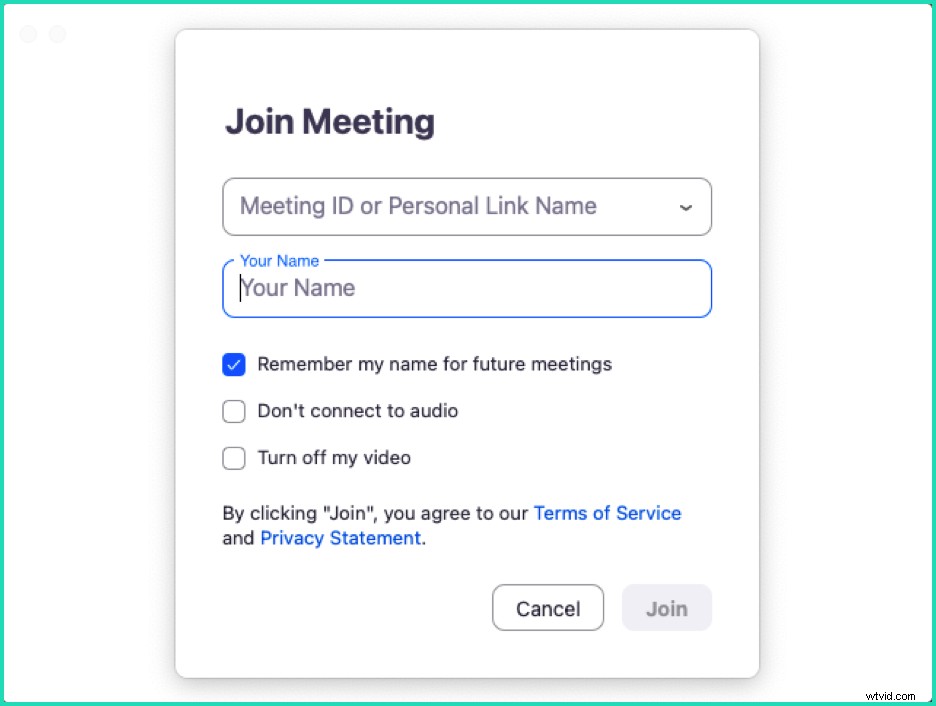
Step 2: Open the Vmaker Chrome Extension
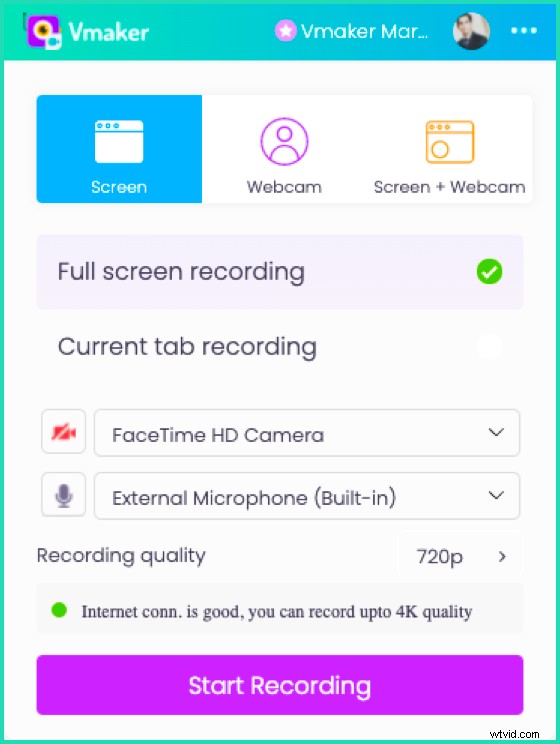
You might be prompted to log-in for the first time. So, just fill in your email address and password. Once you sign-in you will see the above screen
Step 3: Choose screen recording mode
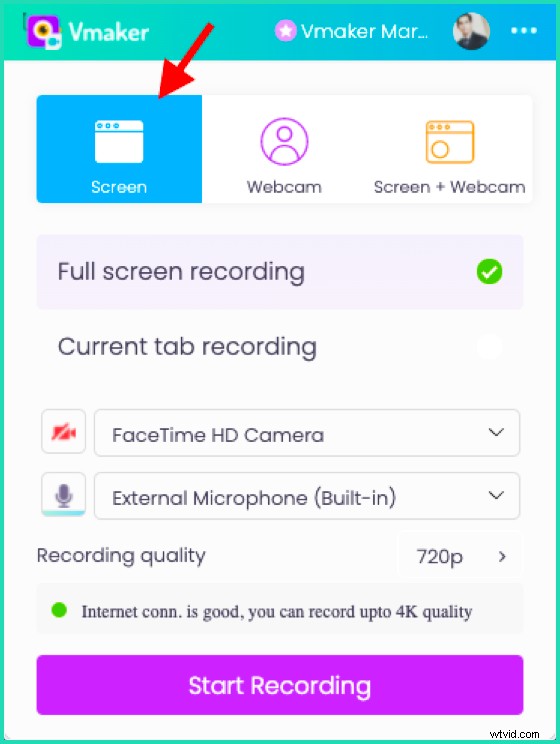
Step 4: Select the type of recording
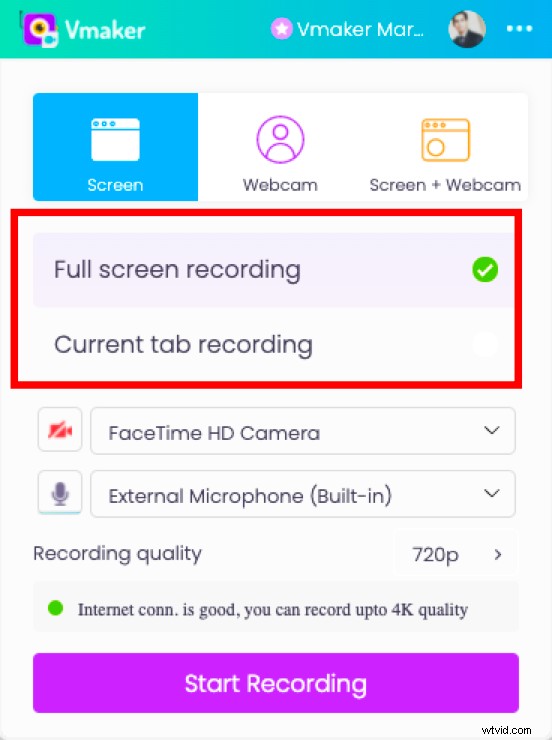
Select the type of recording you want for your Zoom meeting. If you choose Full-screen recording, Vmaker will record everything open in the browser window. So, if you switch between tabs, Vmaker will record the content of other tabs too. If you only want to record the Zoom meeting, then go for the Current tab recording.
Step 5 (optional): Enable include tab audio
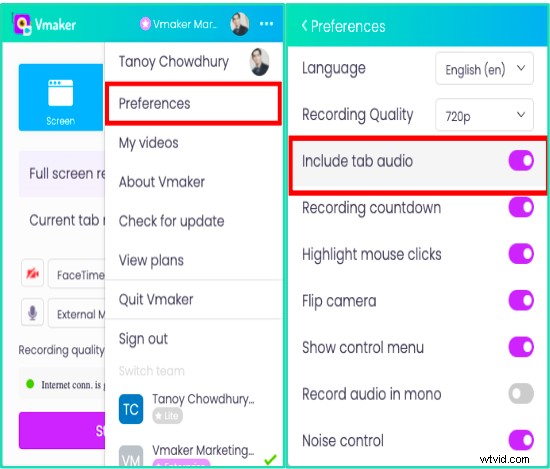
If you want to record the audio of the meeting, then enable Include tab audio from the Preferences section of the Chrome extension.
Step 6: Click on Start Recording
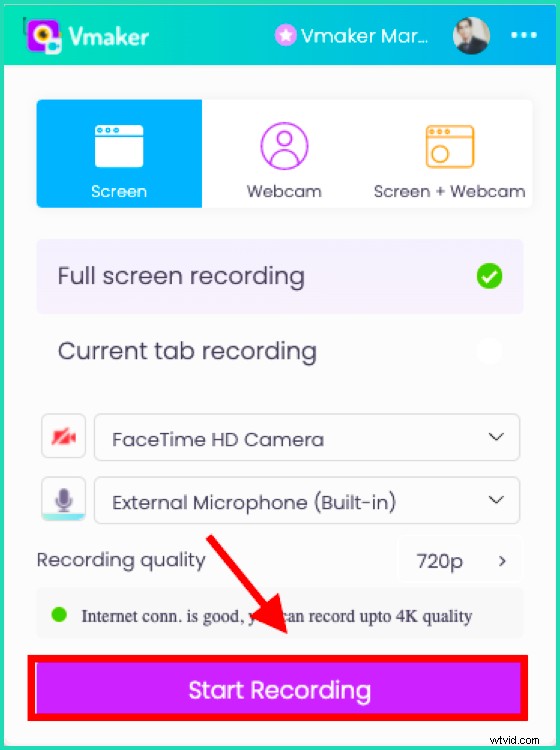
How to schedule your Zoom meeting recording using Vmaker
As mentioned earlier, you can also schedule your Zoom meeting recordings. This way, your recording will begin automatically without your presence.
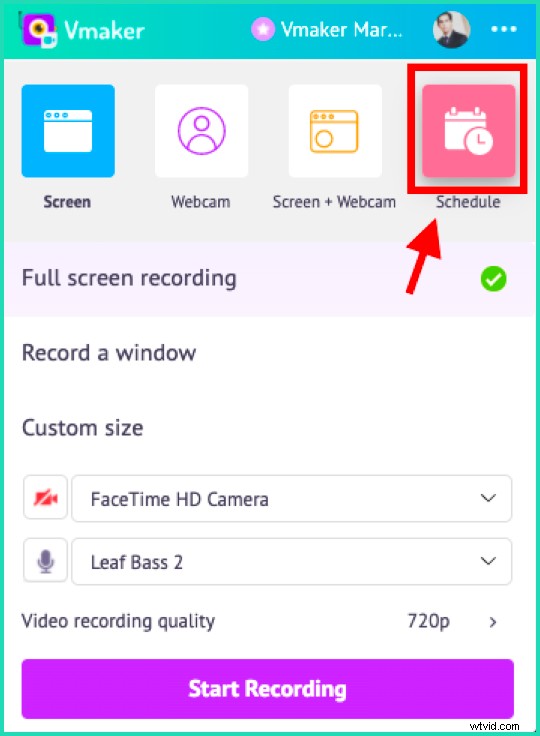
Here’s what you have to do —
Select the Schedule option after you open the Vmaker app.
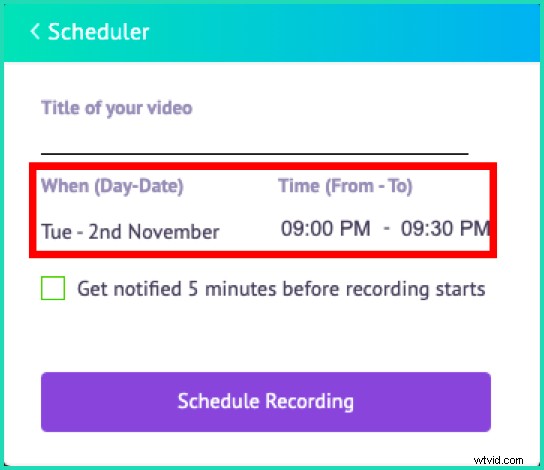
You will see a window pop-up where you can set the title of your video, along with the date and time of the Zoom meeting.
Make sure that you click on the checkbox to get notified. This you will know that the Zoom meeting is about to start. Also, remember to keep the app open in your laptop to begin recording automatically
Final words
So that was it. An easy guide to recording your Zoom meeting with Vmaker. You don’t need to spend extra dollars on this because you can record for free. If you want to know more about the power of Vmaker head over to the features page.
If you liked what you just read, you can sign up for Vmaker here. There’s no trial plan, you can use it for free, for the lifetime.
Recommended Reading:
How To Record a Zoom Meeting as a Participant: A Complete Guide (2022)
10 Best Screen Recorders To Record Zoom Meetings
How to save, watch and share Zoom meetings for free