
FFmpeg is a cross-platform solution to record, convert and edit audio and video. It is a command line tool to convert one video file format to another. However, you could also find a FFmpeg GUI for user-friendly video editing. In this article, we will show you how to use FFmpeg for daily tasks on both Windows, Mac and Linux.
- Part 1: How to Install FFmpeg Command Line Tool in Windows
- Part 2: How to Use FFmpeg to Edit and Convert Videos on Mac
- Part 3: How to Install FFmpeg Command Line Tool on Linux
- Part 4: FFmpeg Examples for Daily Video Editing Tasks
Many users may find FFmpeg program hard to interpret, and want some easy and quick editing application. If this is your case, Wondershare Filmoracomes a handy FFmpeg alternative to help you create home movies in minutes. It has a very intuitive interface and includes all common editing features you may need. When you crop, trim, rotate, add transitions, effects, intro/credits, etc. on Timeline, you can conveniently check any changes in the real-time previewing window. Below is the primary window screenshot.
Part 1: How to Use FFmpeg to Edit and Convert Videos on Windows
Step 1: Download FFmpeg
Go to the official FFmpeg website to download the file. According to your configuration of your computer to choose the static option. Then you will get a zip folder on your targeted file location. You can choose whichever you like (I choosed G disk). Unpack it into this folder. By now, this folder has five files, including a file named "bin" where FFmpeg is saved. However, you have not done yet as it is not openable.
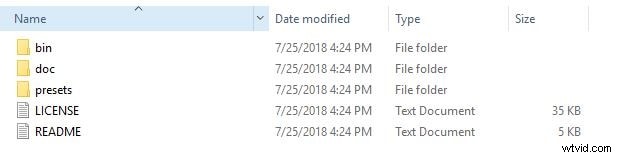
Step 2: Change Environment Variables
Find Control Panel on your computer. Then select System Choose Advanced tab in the System Properities interface. Click Environment Variables at the bottom. Then click Edit to paste the file path where FFmpeg is saved. Now, FFmpeg is available to use. Just hit Windows key + R to input cmd to open Command Prompt. When cmd is opened, input FFmpeg. If FFmpeg version and other information show up, you installed FFmpeg on your Windows system successfully. For Windows 8/7/Vista/XP, you could find more information on Java
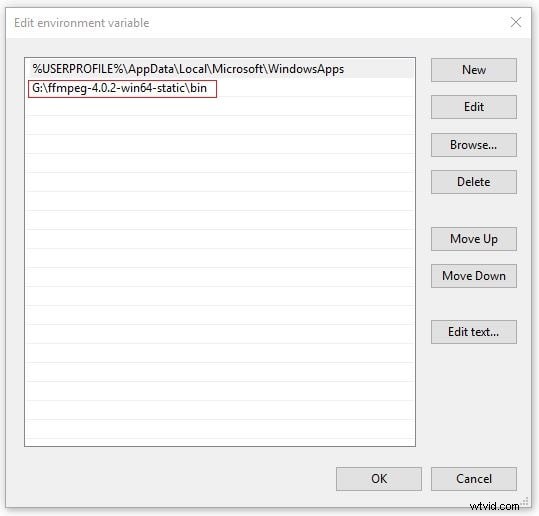
Note: You get helps by typing "FFmpeg -h | more" to get help, or read next session for daily video editing tasks.
Step 3: Start to convert video
Enter the FFmpeg commands: ffmpeg -i Scenery.mp4 -c:v libx264 Place.wmv, which is a typical conversion commands. Don't know what it means? Contiune reading.
- ffmpeg - It is a command that tell cmd to open FFmpeg. After you input it, your system will open it according to your commands.
- -i Scenery.mp4 - This means you are telling FFmpeg to find this Scenery.mp4 file because it is the video that will be converted.
- -c:v libx264 - It is the conversion input.
- Place.wmv - It means you want to have a video named Place in .wmv format.
Step 4: Check the converted video
After a while, the video will be converted. Now it is done.
Part 2: How to Use FFmpeg to Edit and Convert Videos on Mac
Step 1: Install FFmpeg on Mac
Compared on Windows, it is much easier to install FFmpeg on Mac. Go to Brew website. Select the code below Install Homebrew to copy it. Click open Terminal on Spotlight. Paste the code, and then hit Return. After a while, input "brew install ffmpeg". Hit Return.
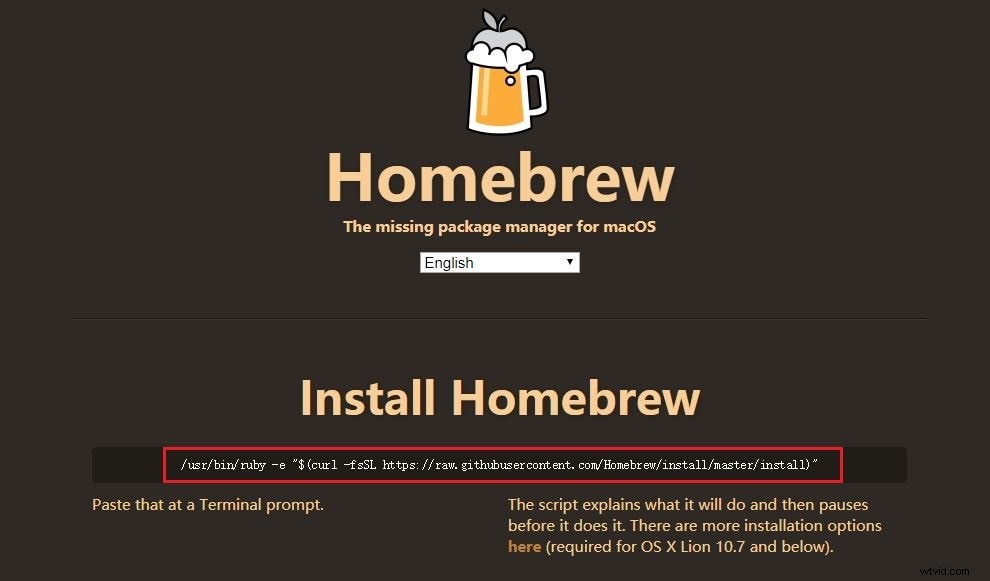
Step 2: Convert video now
Input "in cd desktop" on Terminal, which means to find files on desktop. Entry the code ffmpeg -i Scenery.mp4 -c:v libx264 Place.wmv. Then hit Return. Now, FFmpeg starts runing.
Step 3: What formats you can convert
For video, FFmpeg supports MP4, MOV, WEBM, FLV, AIFF, and AVI. For audio, FFmpeg supports MP3, WAV, WMA, M4A, AAC, and OGG. Though, FFmpeg can't support all foramts, these popular formats are enough.
Part 3: How to Install FFmpeg Command Line Tool on Linux
What you should know before installing FFmpeg on Linux - FFmpeg requires many modules for general usages. If FFmpeg doesn't work well, fix it by installing correct module, including LAME MP3 Codec, mplayer, libogg, libvorbis, etc. Now, follow these steps to install FFmpeg to your Linux system.
Step 1: Download modules
cd /usr/local/src/
wget www3.mplayerhq.hu/MPlayer/releases/codecs/essential-20061022.tar.bz2
wget easynews.dl.sourceforge.net/sourceforge/lame/lame-3.97.tar.gz
wget downloads.xiph.org/releases/ogg/libogg-1.1.3.tar.gz
wget downloads.xiph.org/releases/vorbis/libvorbis-1.1.2.tar.gz
Step 2: Extract modules
tar zxvf lame-3.97.tar.gz
tar zxvf libogg-1.1.3.tar.gz
tar zxvf libvorbis-1.1.2.tar.gz
tar jxvf essential-20061022.tar.bz2
mkdir /usr/local/lib/codecs/
yum install gcc gmake make libcpp libgcc libstdc++ gcc4 gcc4-c++ gcc4-gfortran subversion ruby ncurses-devel -y
Step 3: Update FFmpeg and mplayer
svn checkout svn://svn.mplayerhq.hu/ffmpeg/trunk ffmpeg
svn checkout svn://svn.mplayerhq.hu/mplayer/trunk mplayer
cd /usr/local/src/mplayer
svn update
cd /usr/local/src/
mv /usr/local/src/essential-20061022/* /usr/local/lib/codecs/
chmod -R 755 /usr/local/lib/codecs/
Step 4: Install Modules
Install LAME:
cd /usr/local/src/lame-3.97
./configure
make && make install
Install LIBOGG
cd /usr/local/src/
cd /usr/local/src/libogg-1.1.3
./configure --enable-shared && make && make install
PKG_CONFIG_PATH=/usr/local/lib/pkgconfig
export PKG_CONFIG_PATH
Install LIBVORBIS
cd /usr/local/src/libvorbis-1.1.2
./configure && make && make install
Install mplayer
cd /usr/local/src/
cd /usr/local/src/mplayer
./configure && make && make install
Install FFmpeg:
cd /usr/local/src/FFmpeg/
./configure --enable-libmp3lame --enable-libvorbis --disable-mmx --enable-shared
make
make install
export LD_LIBRARY_PATH=/usr/local/lib/
ln -s /usr/local/lib/libavformat.so.50 /usr/lib/libavformat.so.50
ln -s /usr/local/lib/libavcodec.so.51 /usr/lib/libavcodec.so.51
ln -s /usr/local/lib/libavutil.so.49 /usr/lib/libavutil.so.49
ln -s /usr/local/lib/libmp3lame.so.0 /usr/lib/libmp3lame.so.0
ln -s /usr/local/lib/libavformat.so.51 /usr/lib/libavformat.so.51
Part 4: FFmpeg Examples for Daily Video Editing Tasks
Convert .avi video to .mpg and any other formats by typing desired formats, say wmv, mp4, mkv, flv, etc.
FFmpeg -i source_video.avi final_video.mpg
Convert a video for the iPod/iPhone using FFmpeg
FFmpeg -i source_video.avi input -acodec aac -ab 128kb -vcodec mpeg4 -b 1200kb -mbd 2 -flags +4mv+trell -aic 2 -cmp 2 -subcmp 2 -s 320x180 -title X final_video.mp4
Convert a video for the PSP using FFmpeg
FFmpeg -i source_video.avi -b 300 -s 320x240 -vcodec xvid -ab 32 -ar 24000 -acodec aac final_video.mp4
Extracting sound from a video, and save it as MP3 using FFmpeg
FFmpeg -i source_video.avi -vn -ar 44100 -ac 2 -ab 192 -f mp3 sound.mp3
Convert video to image sequences using FFmpeg
FFmpeg -i video.mpg image%d.jpg
Convert video to animated gif(uncompressed) using FFmpeg
FFmpeg -i source_video.avi gif_animated.gif
Split/Trim video using FFmpeg
FFmpeg -i source_video.mpg -ss 00:00:10 -t 00:00:30 final_video.mpg
Merge video files and convert to desired formats
copy /b source_video1.mp4 + source_video2.mp4 out.mp4 | FFmpeg -i out.mp4 -sameq final_video.mpg