
With iMovie’s new app for iPad, you can now have a complete video editing advantage portable with you. You can edit movies on the go, whether you are traveling or working. The iPad gives you more surface space to edit the videos compared to the iPhone, while still giving you much more portability compared to your Mac. Let's check how to use iMovie on iPad.
- Part 1: Easy-to-use Video Editor for Mac and Windows PC
- Part 2: How to Use iMovie for iPad
- Part 3: Top 6 Best iMovie Alternatives for iPad
Part 1: Easy-to-use Video Editor for Mac and Windows PC
If you are in need of video editing software, which has a much more encompassing feature than the limitations of an iPad video editing app, choose Wondershare Filmora for editing your videos more professionally on your Mac or Windows PC. You can edit videos, audios, media files and create different effects experiments, which can then be saved in a high-resolution file format.
Learn More Details: Why Should I Use Filmora
Related: Get Best iMovie Alternatives for Mac
Part 2: How to Use iMovie for iPad
To use iMovie for iPad, you can follow these steps:
Step 1. Launch iMovie and tap the + button to create a new project.
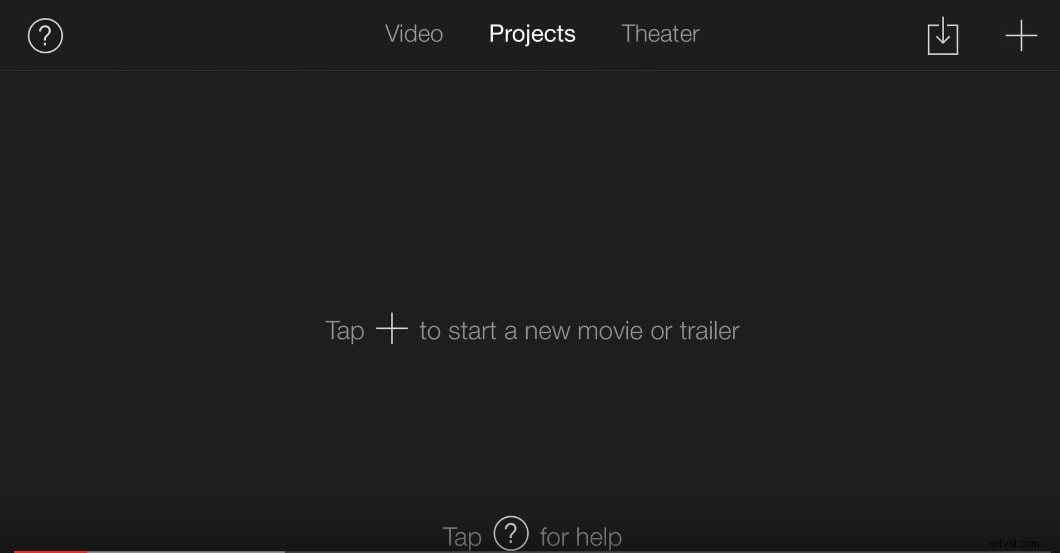
Or, you can tap on the My Projects option and then the Plus icon to insert the new project to start the editing process.
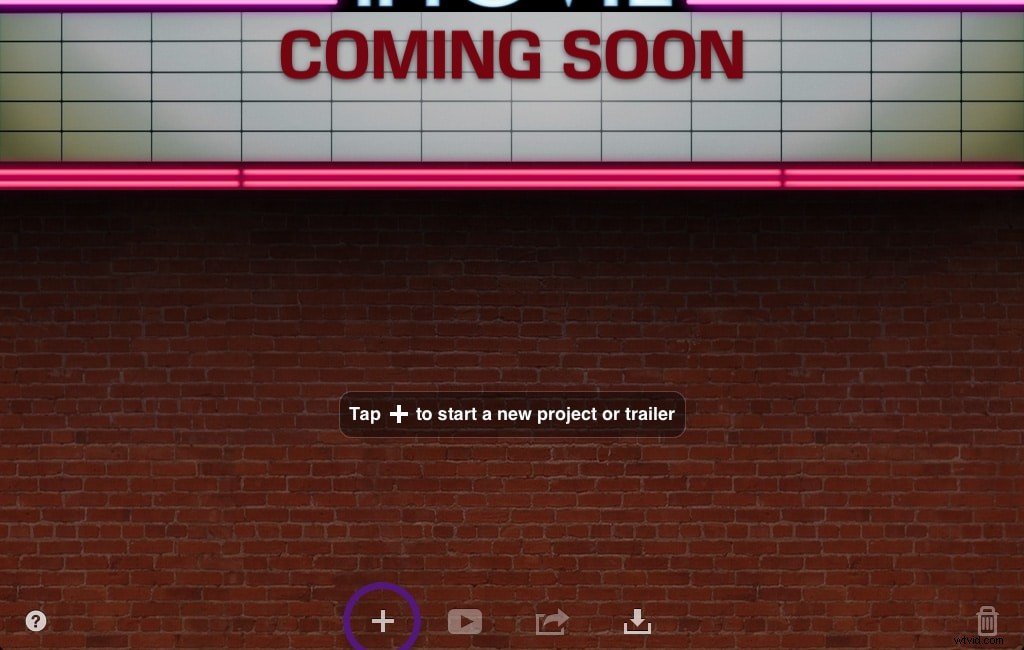
Step 2. Within the new project, you can click on the media library or look at the list of scrollable video options in the upper right corner to select the video that you want to edit.
You can also preview the video before selecting the appropriate option.
Step 3. Add the video by clicking on the Import icon to add the video to the timeline.
You can also use the photos or audio button to import simple audio files or image files to edit n the iMovie app for iPad. Or use the camera button to directly record the video onto the iMovie interface.
Step 4. Experiment with the options under the settings menu to include different effects and transitions onto the media file.
Step 5. You can move the timeline slider to the point from where you want to watch the edited media version and tap Play. You might need to do this several times to check the final effects after editing.
Related:
- How to Use iMovie on Mac
- Learn More about iMovie Editing Tips
Part 3: Top 6 iMovie Alternatives for iPad
If iMovie is not an easy interface for you to understand, you can have backup editing software on your iPad to help you manage the editing process for your videos and media files without having to wait any longer. Here are 5 alternatives to iMovie for video editing software compatible with the iPad.
1. FilmoraGo
FilmoraGo is a free mobile video editor app for both iOS and Android users. You can trim, crop, change the aspect ratio of your clip, speed up or slow down to make a fast-forward or time-lapse video with it. Even, you can reverse your clips and then play backward.
What’s more, you can add your own voice-over or music to your clip to make it attractive. It allows you to apply themes, text & titles, overlays, filters, elements, and transitions to your video clips easily. If you want more video effects, you can visit the in-app store to find more filters and elements effects.
2. ReelDirector
ReelDirector is an affordable application available for use on iPad. This is a very powerful video editor app. The options include text transitions, video splits, transition for slow motion, speed up, and reverse effects.
You can also ensure that multiple effects can be applied to multiple sections of the same video at the same time. You can also get your video output saved in different resolutions, including HD.
3. Vizzywig
Vizzywig is more of an all-in-one video app for iPad. You can capture the video, edit and share it to popular video sites directly from within the app. The video can be edited to add text for appropriate captioning. Different effects can be added to different sections of the video, and you can also add a different audio track with the video to create a different type of mood for the final video output.
4. Cinefy
Cinefy adds the professional capacity of a full suite video editing software to the adaptability of a portable device like an iPad. The editing app allows you to edit your videos with 100s of different transitions, text, and audio effects to bring out a truly customized result at the end of the process.
ou can also post the final video to the major social networking sites directly from the app interface, making your job easier.
5. Loopster
Loopster is a full suite range of service video editing app that provides a wide range of basic services for iPad users looking to edit their videos like a professional. You can edit the videos by changing their resolutions, adding transitions, reversing them, and applying a split-screen effect to create different types of video outcomes. You can also capture both video and audio tracks and share the final edited video on social video sites directly from the app.
6. Videon
Videon is a basic video capturing and editing app for iPad users. You can capture the video in whatever quality and then edit to improve the brightness, contrast, and quality of the video. You can also add video effects and text to the video before finally saving the outcome file in a new format.
Here is a comparison table for your reference:
| App | Cost | iPad | iPad 2 | New iPad | Retina Display iPad | iPad Air | iPad Mini | Retina Display iPad Mini |
|---|---|---|---|---|---|---|---|---|
| Compatible | ||||||||
Tips: √- Available; !- Available but Unoptimized; X - Not Available
You May Also Like:
- Best Video Editors for iPad
- Top 5 iMovie Alternatives for iPhone
- Best iMovie Alternatives for Android