
There are many reasons why you want to speed up and slow down video clips, for example, you may want to make a video and do chipmunk voices and low voices by speeding up or slowing down the videos to achieve a better video result.
Speeding up and slowing down videos are very common in movie making. If you want to speed up videos in iMovie or slow down videos in iMovie and don't know how to achieve it, then you have come to the right place. This article will tell you what to do. Just check it out!
- Part 1: How to Speed up or Slow down Videos in iMovie
- Part 2: An Easier Way to Speed up or Slow down Videos on Mac
Part 1: How to Speed up or Slow down Videos in iMovie
To speed up or slow down videos in iMovie, you can follow the tutorial below.
Section 1. Speed up or Slow down Videos in iMovie 9/11
If you are using iMovie 9/11, take these steps:
Step 1. Import videos to iMovie and drag video clips to Project
Go to File > Import to import movies from your hard drive, or go to Import from Camera... to add video files from your connected cameras.
After importing videos to iMovie, drag video clips from the Event browser to the Project. (To start a new project, you can go to File > New Project.)
You may also interest: How to add voice-over in iMovie
Step 2. Speed up or slow down iMovie video clips
Double-click the video clip in the Project Browser to bring out the Inspector window. If the video is not converted, choose "Convert Entire Clip" and the window shows up.
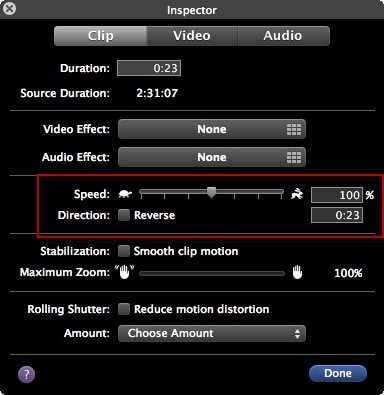
You can drag the Speed slider to the left to make the clip play slower, or to the right to make it play faster. Or you can also set the exact speed percentage of the clip. "Reverse" is to make the video play backward.
Learn more:
- How to Reverse Videos in iMovie
- Stabilize Shaky Videos
Section 2. Speed up or Slow down Videos in iMovie 10
If you are using the latest iMovie version, you may find the above information is not suitable for you. In this case, please check the following steps about how to speed up or slow down video clips in iMovie.
1. Change the Speed of the Whole Clip
Step 1. Drag the video clips to the timeline, and then select the clip whose speed you will change.
Step 2. Click the speedometer icon to show the speed control. Select Fast or Slow from the speed drop-down box, and then click the desired speed set.
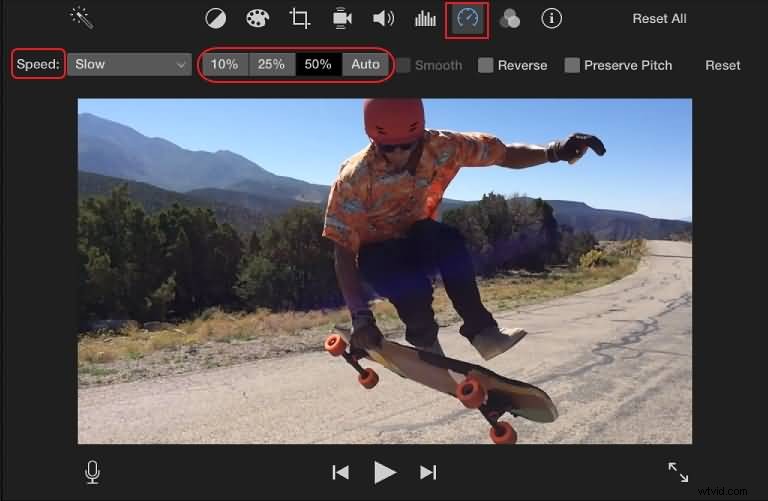
An icon (a rabbit or a turtle) and a speed slider will appear on the clip and at the top of the clip respectively. You can use the speed slider to customize the speed adjustment: drag it to the right to slow down, drag it to the left to speed up.
Note: Changing the video clip speed will impact the audio pitch. To save the original audio, check the Preserve Pitch checkbox.
2. Change the Speed of Part of a Clip
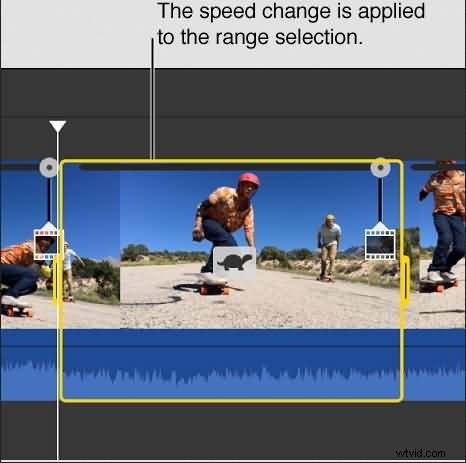
Step 1. Select the video range in the timeline: hold down the R key and drag across the clip.
Step 2. Click the speedometer icon to open the speed controls window.
Step 3. Then select Fast or Slow to speed up or slow down the selected clip.
Related: How to Crop and Rotate Videos in iMovie
Part 2: An Easier Way to Speed up or Slow down Videos on Mac
If you are looking for some similar video editors to iMovie on Mac, we recommend you try Wondershare Filmora, which is both for Windows and Mac. Here is the video about how to speed up and slow down videos with Filmora.
As you can see from the video above, it is an efficient way to change video speed with Filmora. It enables you to edit videos within minutes easily. Below is the step-by-step tutorial of adjusting video speed to make a speed-up or slow-motion video with Filmora.
Step 1. Add videos to the program
Open the program and click "File" > "Import Media" to add videos to the program. Alternatively, you can directly drag-n-drop to add your video files. Next, drag videos from the user's album to the video track on the timeline.
Step 2. Change the speed of the video
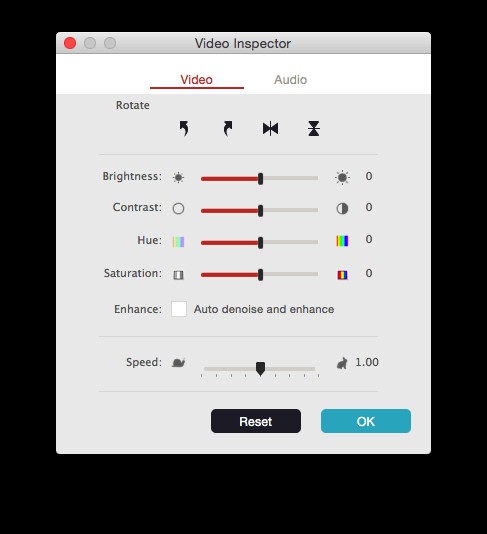
Double-click the added video to open the video editing panel. Locate the "Speed" option, and the speed numbers will indicate how fast or slow the motion effects will be. Adjust to the speed you want. Then preview it in the preview window.
You may also like: How to remove background noise from videos
Step 3. Export your video
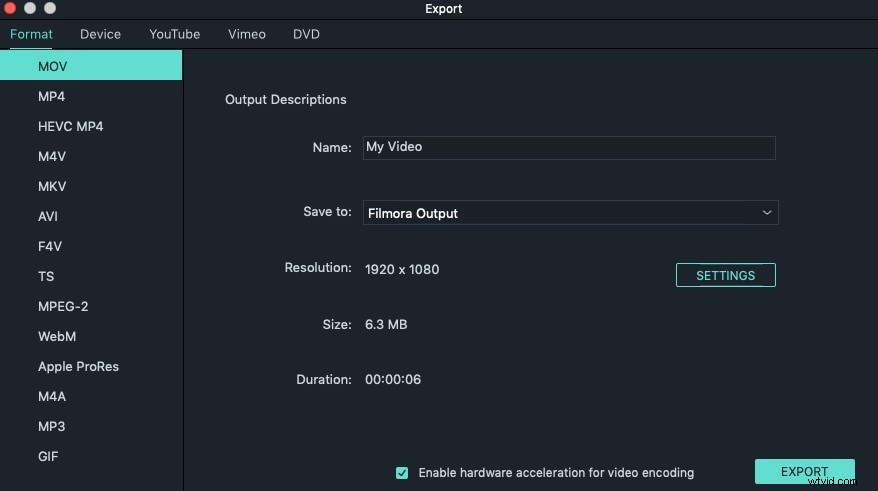
If satisfied, hit "Export" and choose to save your file to local disk, mobile devices, upload to YouTube or burn to DVD.
Related: How to Fade Music and Audio in iMovie
Besides changing video speed, Filmora for Mac has many other features, including playing videos in reverse and removing noisy background noise with one click. Check the video below to get more information about Filmora.
That's all about how to speed up or slow down videos with iMovie and its alternative - Wondershre Filmora. Did you learn them? Feel free to contact us if you need further assistance.