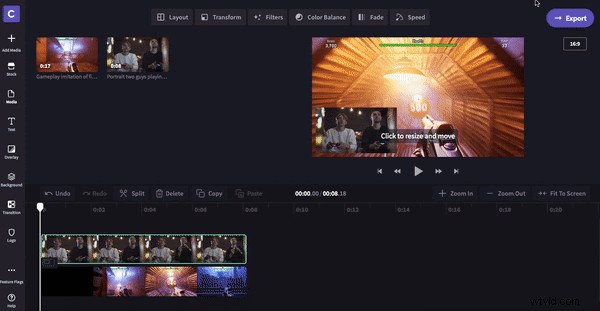
You asked, so we’ve delivered! Introducing the newest (and most requested) video editing tool in Clipchamp - freehand! Our users will now have more freedom to their edit projects exactly how they want. Resize and move footage freely around your project while maintaining aspect ratio. Finally, no more awkward stretching or cropping your videos! You’ll never have to compromise your footage again. Learn how to use our freehand video editing tool in Clipchamp Create with this easy to follow, step by step tutorial.
How to use Freehand in Clipchamp Create
Freehand is a simple tool that can be used in many ways. Users can move personal or stock footage around their project, or include multiple videos in one frame. In this tutorial, we’ll be showing you how to use the freehand tool using footage from our Stock Library.
Step 1. Create an account
Step 2. Create a new project
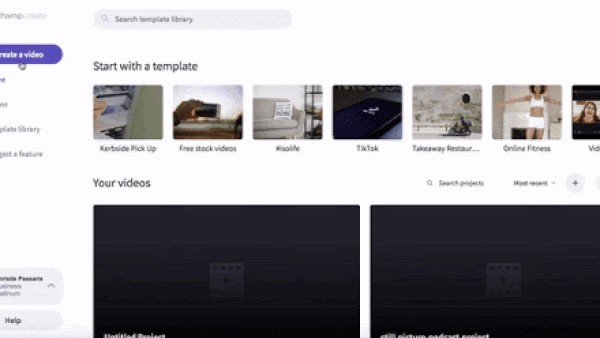
Select the Create a Video button on the left side bar. There are five different formats to choose from. Select the video ratio that best suits your project. If you are uploading to YouTube or Vimeo, we recommend using widescreen 16:9.
Step 3. Upload your video footage or select stock
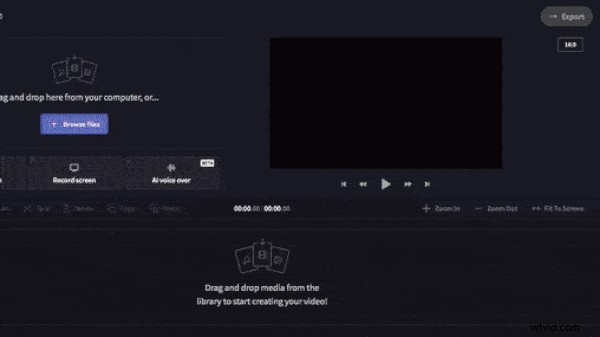
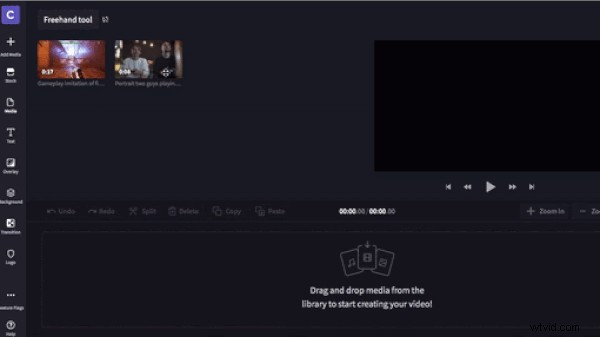
Click on the Stock button on the left toolbar. Search through our endless selection of stock videos and choose the footage you would like to use. You can search keywords by typing in the top search bar. Click the + button on the top left of the video to add to your media library. If you are not wanting to use stock, you can upload your personal video footage by clicking Browse Files or drag and drop footage into the box.
Step 4. Add clips to your editing timeline
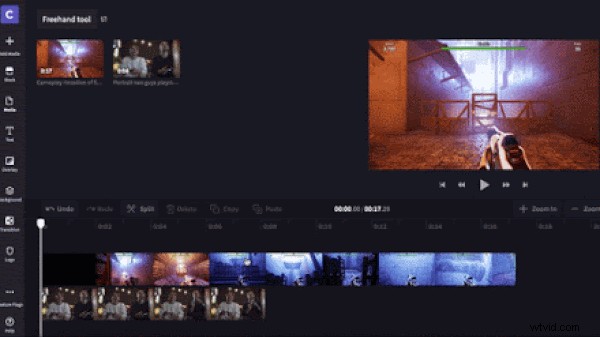
Click your clip, drag and drop onto the editing timeline. Click your second clip, drag and drop onto your timeline but place above the first clip.
Once your footage is on the timeline, crop clips to make them the same length. Use the green side bar to slide the clip length left or right.
Step 5. Resize video using Freehand tool
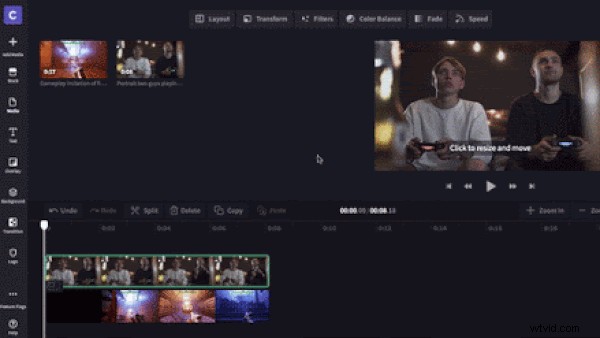
Click the clip you want to resize, then click the video preview screen (where it says click to resize and move). A green box with white circles on each corner will appear around the footage. Drag the circles in and out to change size, then click the footage and move around the screen.
Step 6. Review and export
Now it’s time to review your video. Once you are finished and happy with your new video, click the Export button at the top right corner of the editor. Select your resolution and click Continue to export. We recommend exporting in 1080p for the best quality, with maximum compression selected.