

It is fascinating to see surreal worlds in movies such as Doctor Strange, Inception and Upside Down. Cool visual effects like bending reality and mirror worlds are staples of blockbuster movies. Have you ever dreamed of making your own mind-bending world? Well, you don’t need to be a master of post-production to create one. What you can do with your drone footage can really blow your mind. We have prepared some examples of mirror world done by DJI Creator Rufus Blackwell.



First you need to choose the right environment and fly in open areas. After taking off, look around and avoid any obstacles that might lead to collision. It is not recommended to tilt the camera during shooting. Unless you want the world to fold-in on itself, maintain a steady altitude.Push the control sticks gently to prevent sudden and unexpected movement.
Wish it could be easier? Then take advantage of intelligent flight modes: Waypoints, Point of Interest, TapFly etc. They can all help you maintain steady footage.
Once your video is ready, let us guide your way to the mirror world. You don’t need to be a computer graphics guru to create one. Just follow these 5 steps to create one in Adobe Premiere.
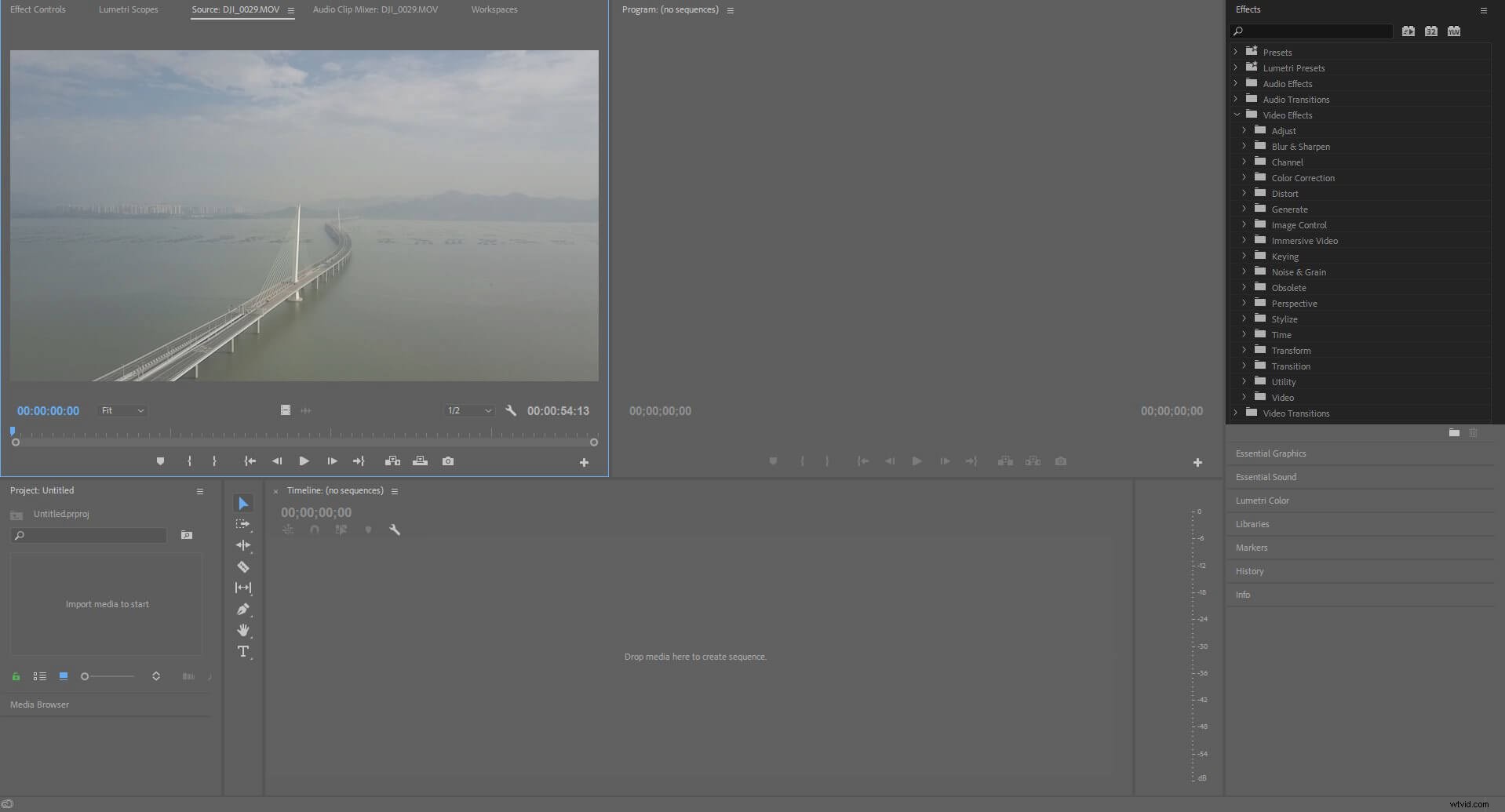
Step 1: Import the video.
Step 2: Go to Effects > Video Effects > Distort.
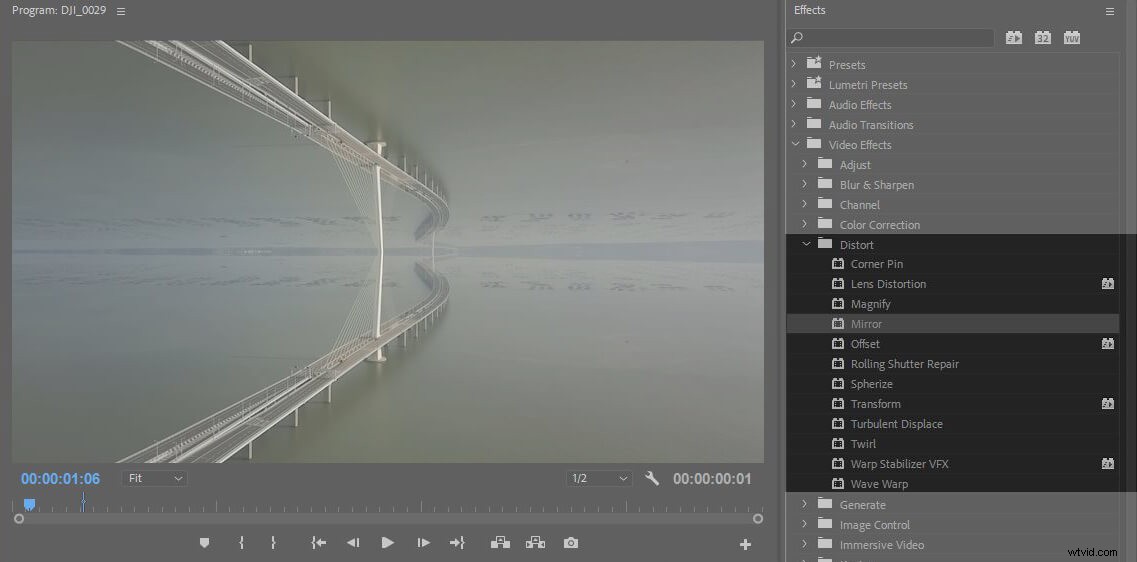
Step 3: Find Mirror under the Distort menu. Drag Mirror onto the video editing pane.
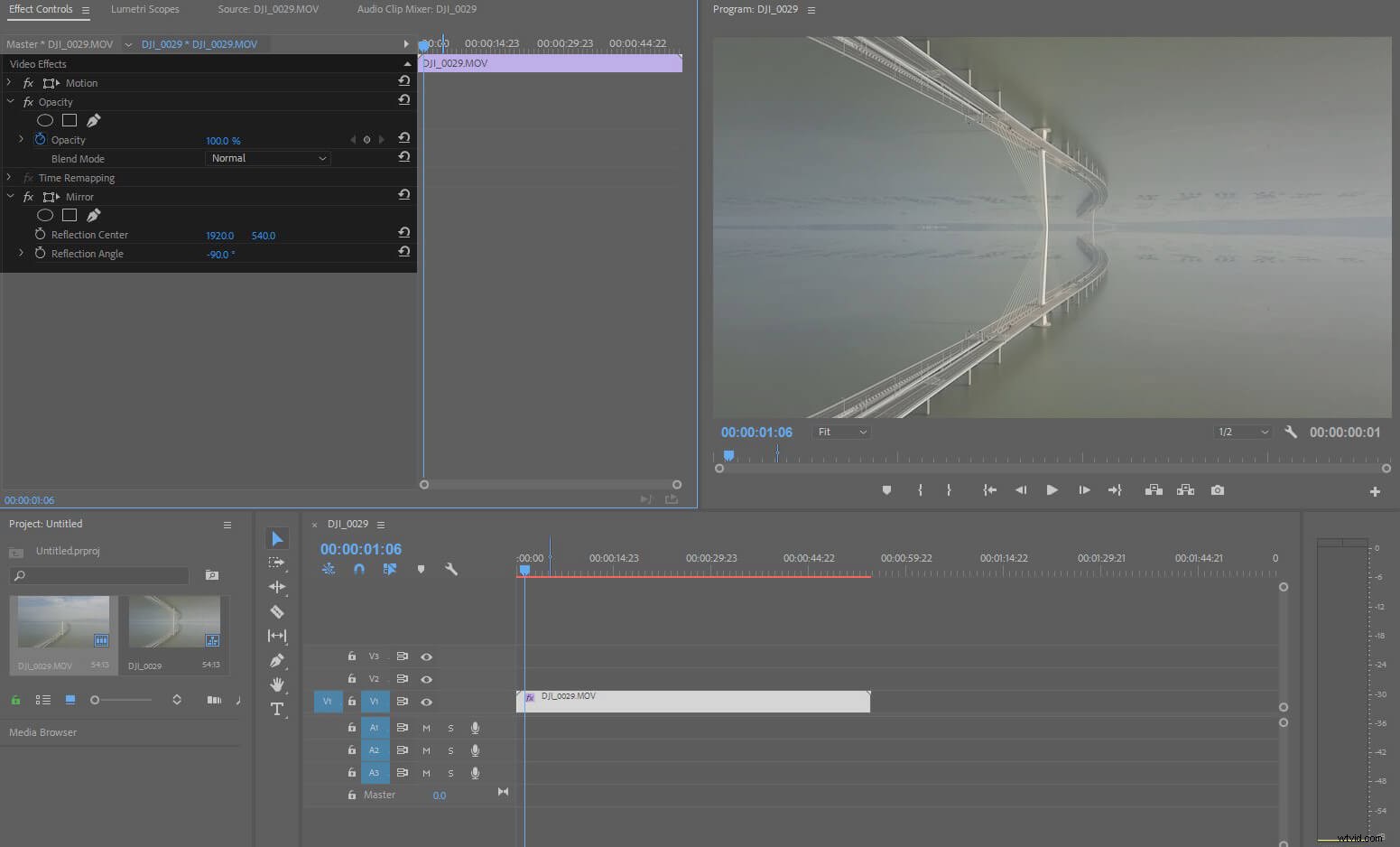
Step 4: Click Effect Controls and you will find Reflection Center and Reflection Angle etc. Change the Reflection Angle to -90°. Then by changing the value of Reflection Center you can adjust the space between the two worlds.
Step 5: Go to File > Export > Media.

Now with the power of making mirror world at your fingertips, why not create some and share with us on our Official Owners Facebook group and SkyPixel.
For more photography tips check out these articles:
6 Quick Easy Picture Editing Steps to Make Your Photos Look Fantastic
Time-Lapse Photography – Turn Photos into Hyper-Fast Video
How to Use Spark’s Pano Mode
11 Tips to Step Up Your Drone Photography
Shooting Great Looking Video Made Easy
For more DJI tips and tutorials, find us on:
DJI Facebook Support
DJI Twitter Support