
How to make a fade video online
These effects can be of different speeds and intensities. They can be used in any video, regardless of its duration and resolution.
Fading out is usually used at the end of movies, clips, or TV shows. Fading in can be used to start your video, especially if you want to create a more “dramatic” beginning.
In classic Hollywood movies, creating such an effect required a painstaking manual process using a specialized optical printer. But these days, all you need is Clideo.
Our tool allows you to fade in and/or fade out a video, cut it if needed and change its format. Clideo also makes it possible to edit content in any other way. It works online on all platforms, and for free as long as your file size does not exceed 500 MB.
Now let's see how to use the tool quickly and without breaking a sweat.
Upload your clip
Go to Clideo’s editor and upload your video from the device by clicking “Choose file”.
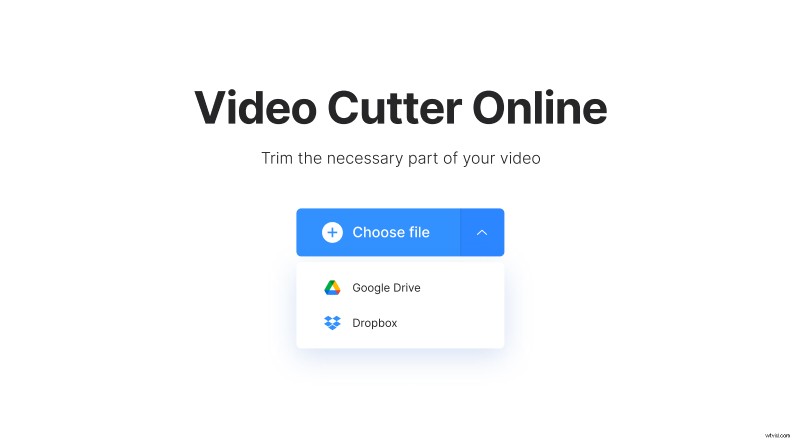
If you store your file in the cloud, click on the little down-arrow and add it from Dropbox or Google Drive.
Cut and fade
Select the portion of the video you want to use. You can do this by using the markers or just by typing in the time. Now check the Fade in and Fade out boxes. Usually, these effects are used together, but you can use just one if you want.
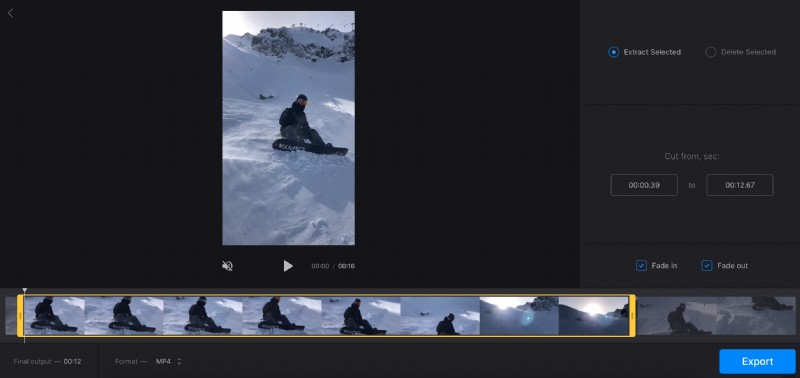
Pay attention to the format of your file, you can see and change it under the player. We recommend selecting MP4 because it’s supported by all the popular platforms.
Now click the "Export" button and wait while the platform processes your clip.
Save the video
Done. Use the player to see the result. If you want to change something just click "Edit" and you will go back to the previous screen.
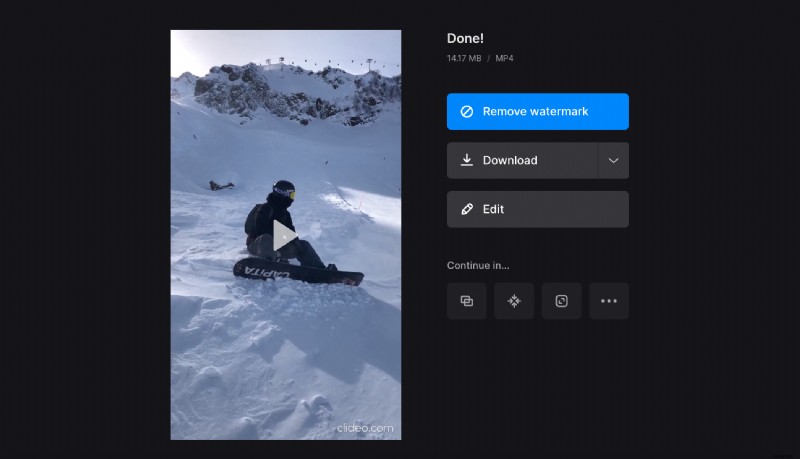
Now, all you have to do is download the new video to your device or to your cloud storage. Clideo Pro subscribers can remove the watermark and continue editing in any other tool without downloading it first.