

Apple has changed how to forcibly restart an iPhone 8 and iPhone 8 Plus, with the device now relying on a sequence of three button presses to complete the hard reboot procedure.
If you’ve been trying to forcibly reboot an iPhone 8 or iPhone 8 Plus to no avail, it is because all of the prior methods to hard restart an iPhone no longer work with iPhone 8 models. The new approach to a force restart or hard reboot – sometimes called a hard reset – is relatively easy, once you learn how it works on the new devices anyway.
How to Force Reboot iPhone 8 and iPhone 8 Plus
Force restarting iPhone 8 and iPhone 8 Plus is now a three step process of using three different buttons in proper sequential order. The restart process is now as follows:
- Press down and quickly release the Volume Up button
- Press down and quickly release the Volume Down button
- Now pass and hold the side Power button, continue holding until you see the Apple logo on screen
Note how forced restarting of iPhone 8 and iPhone 8 Plus now requires the usage of three different hardware buttons on the iPhone, and the buttons must be pressed in the proper order to initiate the reboot process.
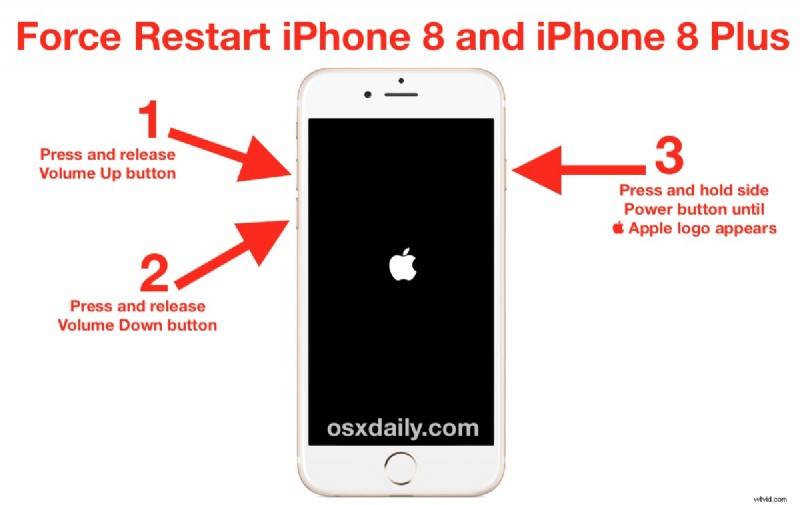
Remember the steps for force rebooting iPhone 8 Plus and iPhone 8: Press Volume Up, press Volume Down, then press and hold the Power / Lock button.
If the hard reboot fails to start, perform the button presses again in the proper order.
Why Apple changed the force reboot steps on the iPhone 8 Plus and iPhone 8 is not entirely clear, but it may be related to the new iPhone X model, or perhaps a future adjustment to iOS devices.
Is the new force reboot sequence easier, or easy to remember? That remains to be seen, but it is a bit more complicated than the earlier methods of force rebooting iPhone devices, which may help to prevent accidental hard reboots.
For reference, directions to force reboot iPhone 6s, 6s Plus, iPhone 6, 5s, 5, and earlier can be found here, and force rebooting iPhone 7 Plus and iPhone 7 can be found here. Both of those hard reboot methods are quite a bit more simple and only require the usage of two buttons to complete the process.
Finally, it’s important to remember that a force reboot is usually not necessary for most tasks, and is generally best reserved for troubleshooting a stuck app, a frozen or unresponsive device, or something similar.
A standard reboot of iPhone 8 and iPhone 8 Plus can still be performed through the regular method of holding down the Power button, powering down the device, and then holding the Power button again to power the iPhone 8 back on. That process of initiating a regular restart for all iPhone, iPad, and iPod touch devices remains the same, thus far anyway, and is basically just powering down the device and then turning it back on again.