
If you have more than one iOS device using the same Apple ID, let’s say an iPhone and an iPhone, you may have noticed that if you download an app on the iPhone, the same app will simultaneously download and appear on the iPad, and vice versa. This is due to an iOS feature called Automatic Downloads.
Automatic Downloads in iOS can be undeniably useful in some situations, but it can also be frustrating and unexpected, and can lead to a reduction in storage capacity on devices as they end up downloading the same apps whether you want the apps on both devices or not.
Like many iOS features, Automatic Downloads can be turned off. Once disabled, you will be able to download an app directly to an iPhone or iPad, and not have it automatically appear on the other iOS devices you own sharing the same Apple ID.
How to Disable Automatic App Downloads on iPhone and iPad
The setting for stopping automatic app downloads is the same on all iOS devices:
- From the home screen of the iOS device, open the “Settings” app
- Locate the “iTunes & App Store” section of Settings and tap on that
- Locate the “Automatic Downloads” section and toggle the switch next to “Apps” to the OFF position
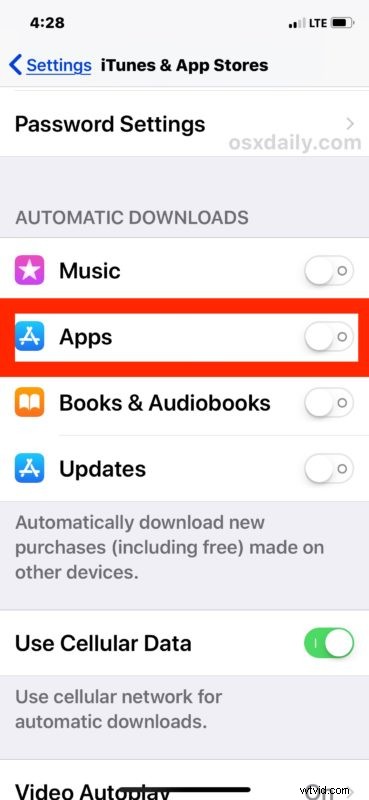
For best results, and if you want to completely stop all automatic app downloads on all devices, repeat the process of disabling the setting on all iOS devices you own.
Another helpful tip after disabling this feature is to review the apps on all of your iOS devices, and then uninstall the iOS apps from the iPhone and iPad that you don’t want on each particular device. This can help to free up storage space that you may not have even known was being taken up by apps that are not in use on each device.
This can be an important setting to toggle if you frequently are running out of storage capacity on your iOS devices (and who isn’t?). For example, I have a 256 GB iPhone X that I frequently download new apps onto, and a 32 GB iPad that I use a handful of specific apps on. Because of Automatic App Downloads, the many app downloads on the iPhone X quickly consumed all of the storage capacity on the iPad which has a small fraction of the storage space in comparison.
Another option would be to just manually stop the app downloading in iOS on devices you don’t want to get apps automatically to, but that requires a much more hands-on approach.
Note you can also turn off automatic app updates in iOS within the same setting panel if desired. Or you can leave one setting on and turn the other off, it’s your choice depending on how you use your devices.
Like all iOS settings, you can also change your mind and reverse this setting if you decide you like it later. Just return to Settings > App Store & iTunes > and toggle the switch for Automatic Downloads of Apps back to the ON position again.