
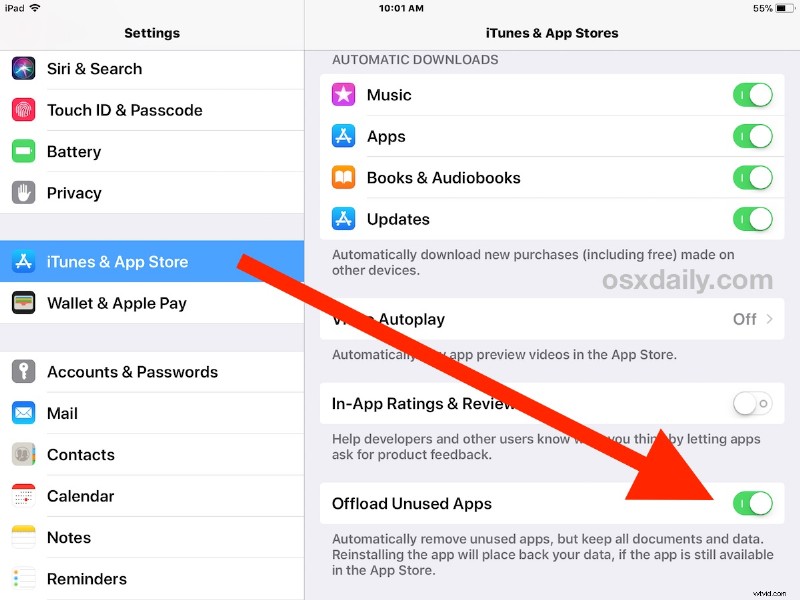
If you frequently run out of storage space on an iPhone or iPad, you will appreciate a new feature in iOS that automatically saves storage for you. Called Offload Unused Apps, the toggle allows the iPhone or iPad to perform housekeeping and delete apps that have gone unused for a while, just as the name implies. Offloading used apps can noticeably help to reduce storage constraints on a device, since most of us have a handful of apps that may not be getting any usage but are taking up storage space on an iOS device anyway.
The ability to use Offload Unused Apps is limited to modern versions of iOS on iPhone and iPad, meaning you will need to have iOS 11 or later to have this feature available to you.
How to Offload Unused Apps on iPhone and iPad
A simple iOS settings adjustment will enable this feature on an iPhone or iPad:
- Open the “Settings” app and visit the ‘iTunes & App Store’ section
- Scroll down to locate “Offload Unused Apps” and toggle to the ON position
- Exit out of Settings as usual

Once the feature is enabled, apps that are going unused will be removed when the devices storage is running low. For example, maybe you have Garageband, Keynote, and Pages on your device but you have never used any of them, then those apps would be removed automatically to make sufficient storage available.
You’ll notice that while the feature will remove the app, it will maintain data and documents related to the applications that are offloaded. This allows for the app to be re-downloaded again in the future and for all existing settings and app data to be preserved, allowing to resume where you left off if you do want to use the app again down the road. In case you were wondering, that means you would need to manually intervene with the app in question if you wanted to clear the Documents & Data for that app from iOS too, which can often be the source of significant storage usage as well.
This basically helps to automate a common recommendation for freeing up storage in iOS, which is to delete apps that are old and unused or just no longer needed. Now you don’t need to spend much time thinking about what apps to delete, since with this feature enabled the apps will be deleted automatically.
If you can’t recall when you want to get an idea of what apps will be deleted when this is enabled, you can open the storage settings on the iPad or iPhone and look for apps that are labeled as “Never Used”.
Users will find the “Offload Unused Apps” feature will also be a frequent recommendation in the iPhone Storage or iPad Storage section of your device under the “Recommendations” list. When it is listed as a recommendation, it will also tell you exactly how much storage will be saved by enabling the feature, and it’s often multiple GB at a minimum.
Keep in mind that any offloaded unused apps can be re-downloaded again at any time, assuming they’re available on the iOS App Store anyway.
Give this feature a try if you’re running low on storage, or if you frequently see those annoying “Storage Almost Full” messages on your iPhone or iPad.