

Wondering how to stop Spotify from playing music videos automatically? You’re probably not alone. Fortunately it’s easy to turn the visual loop and music video feature off with Spotify on iPhone, iPad, and Android.
The latest versions of Spotify on iPhone, iPad, and Android default to automatically playing short clips of music videos with many songs. Those music video clips play in a constant loop while the song is playing too. But if you don’t want Spotify to automatically play music videos of many songs, you can turn this feature off. Here’s how to do it.
How to Stop Spotify Playing Music Video Loops on Songs
- Open the Spotify app on iPhone, iPad, or Android if you have not done so already
- Go to “Your Library”
- Choose the Gear icon to access Settings in the corner
- Choose “Playback” from Settings
- Scroll down and locate the “Canvas” setting, turn that to the OFF position to disable playing the music video loops on songs
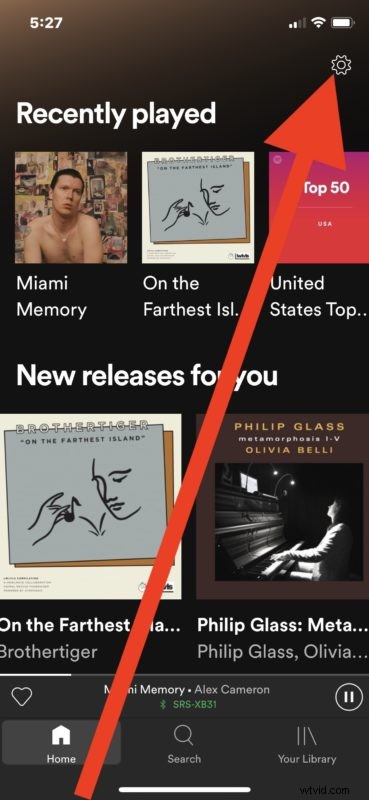
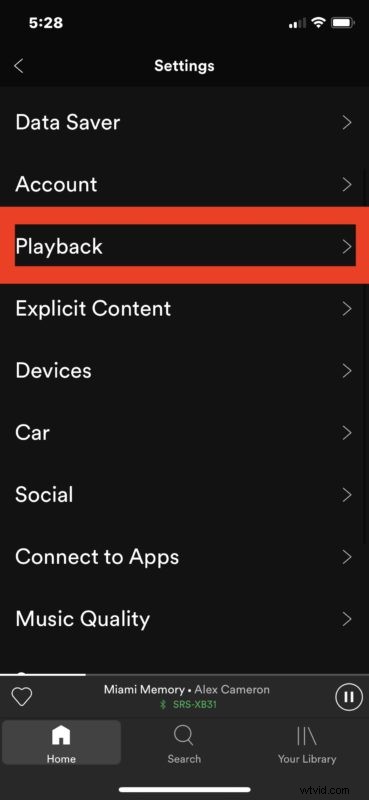
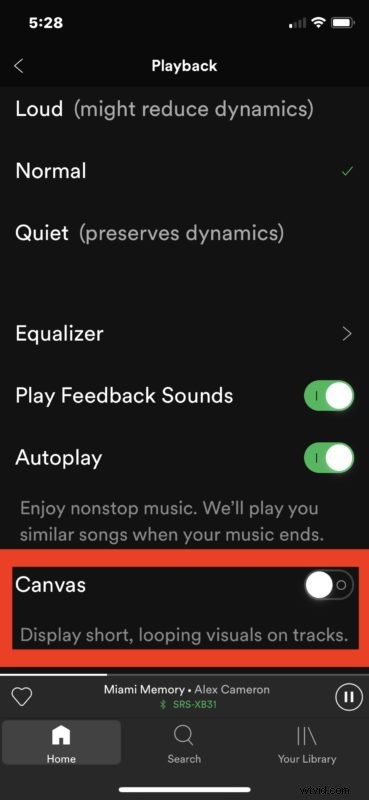
With this setting turned off, the Spotify app will show just the album art of any playing song or music, rather than a clip of a music video or other looping visual.
Now you can enjoy listening to your music on Spotify without any videos playing to the music. This may desirable for many reasons, whether you find the videos to be annoying or distracting, or if you mostly use Spotify to stream from iPhone to Sonos or some other speaker and never seen the screen anyway, or just out of personal preference.

This will turn off Spotify video playing on all songs whether it’s a full album, a single downloaded song from Spotify, or anything streamed.
You can also turn off the “Behind the Lyrics” feature of Spotify if interested while you’re in the Spotify Settings.
Of course you can re-enable the auto playing music videos and music visuals in Spotify if you want to at any time. Just go back to Spotify Settings > Playback > and turn the Canvas feature back on again.
Spotify is a great music streaming service, check out more Spotify tips here.