
When you enjoy an amazing song on your friend’s phone, you may try to transfer it to your song. If you were an Android user, your friend an iPhone user, how to transfer music from iPhone to Android? If you’re disturbed by this question, you’ve come to the right place.
To help you solve this problem, this post will tell you how to transfer music from iPhone to Android. And if you want to create a slideshow with pictures and music, try MiniTool MovieMaker.
How to Transfer Music from iPhone to Android
How to transfer music from iPhone to Android? The following content will introduce 4 methods to you. Check out this post and you will find it easy to transfer music from iPhone to Android.
Method 1 - Transfer Music from iPhone to Android Wireless via Bluetooth
Bluetooth is used to exchange data between fixed and mobile devices. With it, you can transfer music from iPhone to Android.
Step 1. Turn on Bluetooth both on the iPhone and Android phones.
Step 2. On the iPhone, go to Settings and choose Bluetooth to display the available devices.
Step 3. Find the name of your Android and connect it to the iPhone.
Step 4. On the Android, click the Accept when a pop-up window appears.
Step 5. Choose songs and transfer music from iPhone to Android wireless.
Method 2 – How to Transfer Music from iPhone to iPhone via iTunes
Step 1. Launch iTunes on the computer.
Step 2. Connect the iPhone and Android phone to the computer.
Step 3. Tap on the File and choose Devices > Transfer Purchases.
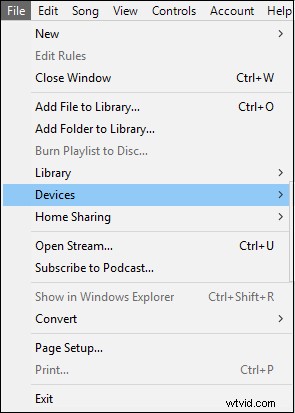
Step 4. Go back to the iTunes media folder, copy and paste the desired songs to the Android.
Method 3 – Transfer Music from iPhone to iPhone Wireless via Shareit
Step 1. Download and install Shareit on Android and iPhone devices, and connect to the same Wi-Fi.
Step 2. Launch it on both devices, click Send on the iPhone, and then choose the Receive on the Android.
Step 3. On the iPhone, choose all songs you want to transfer.
Step 4. On the Android, accept the coming data.
Bonus Tip – How to Transfer Music from iPhone to iPhone
In this part, you will learn how to transfer music from iPhone to iPhone via Home Sharing.
Step 1. On the Mac, hit the Apple icon and select the System Preferences.
Step 2. Click the Sharing and choose Media Sharing > Home Sharing.
Step 3. Log in with your Apple ID and click the Turn on Home Sharing.
Step 4. On the iPhone, click the Music and select the Library > Home Sharing, and the Home Sharing list appears.
Step 5. You can access the music in the Home Sharing Library if you’re connected to the same Wi-Fi.
Bottom Line
Now, you’ve learned 3 ways on how to transfer music from iPhone to Android. Do you master them? If you have the chance, you can try to transfer music from iPhone to Android or iPhone. And if you want to share other ways, you can leave them in the below comments area.