
When you want to transfer some excellent songs to your iPhone, what should you do? Luckily, this post will show you how to transfer music from computer to iPhone with clear steps. And if you expect to add the downloaded music to videos or GIFs, you can try MiniTool MovieMaker.
Sometimes, after you download a nice song on PC, you might try to transfer it to your iPhone to enjoy it more conveniently. To help you make it, the following part will give you instructions on how to transfer music from computer to iPhone.
How to Transfer Music from Computer to iPhone
Solution 1 - Transfer Music from Computer to iPhone Using iTunes
When it comes to this topic, iTunes may be the first tool appearing in your mind. The following is the how-to guide.
Step 1. Download and install iTunes.
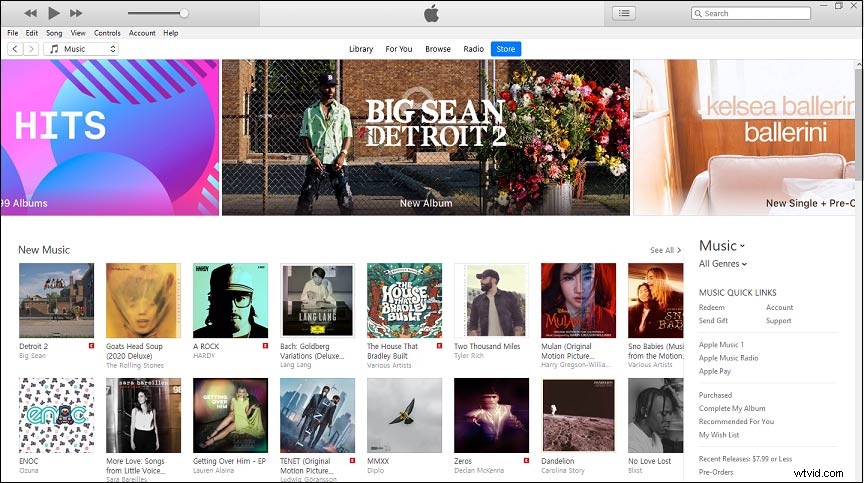
Step 2. Connect your iPhone to the computer using the USB.
Step 3. Launch iTunes, choose the iPhone icon at the top left of the screen.
Step 4. Choose the Music > Sync Music.
Step 5. Select the whole music library to transfer all songs.
Note: If you only want to choose certain sings, you can click Selected Playlists > Artists > Albums > Genres to select the target song.Step 6. Click the Apply to automatically transfer music.
Solution 2 - Transfer Music from Computer to iPhone Without iTunes
You may have learned how to add music to iPhone without iTunes? But how to transfer music from computer to iPhone without iTunes? Dropbox is recommended here.
Step 1. Download and install Dropbox on the computer, register and log in.
Step 2. Find the music files you want to transfer and copy them to the Dropbox.
Step 3. Install and launch Dropbox on your iPhone.
Step 4. Sign in with the same account you have on the computer.
Step 5. Select the desired song to play.
Solution 3 - Transfer Music from Computer to iPhone Using AirDrop
With AirDrop, you can transfer music, pictures, and other files between Apple devices. Here’s the guide on how to transfer music from computer to iPhone using AirDrop.
Step 1. On the computer, launch AirDrop.
Step 2. Choose the Finder and then select the AirDrop.
Step 3. Click the Allow me to be discovered by everyone and click the iPhone button.
Step 4. Choose the desired music
Step 5. On your iPhone, press the airplane icon and choose the Contacts Only or everyone to open AirDrop.
Step 6. Click the Accept when you receive the message to accept the music from computer.
Bonus - How to Transfer Music from iPhone to Computer
After learning how to transfer music from computer to iPhone, let’s focus on the steps to transfer music from iPhone to computer. Here’s the how-to guide.
Step 1. Download and install iTunes.
Step 2. Launch it, and go to Account, click the Sign in and type your Apple ID.
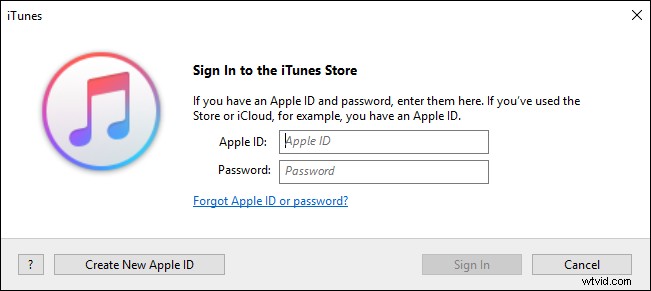
Step 3. Tap on the Account > Purchased > Music.
Step 4. Find the purchased music.
Step 5. Choose the target and click the Download button to save it on your computer.
Bottom Line
This post provides you 3 practical methods on how to transfer music from computer to iPhone and a bonus tip to transfer music from iPhone to computer. Hope these ways can help you. And if you want to share other ways, you can leave them in the comments area or contact us via admin@wtvid.com.