
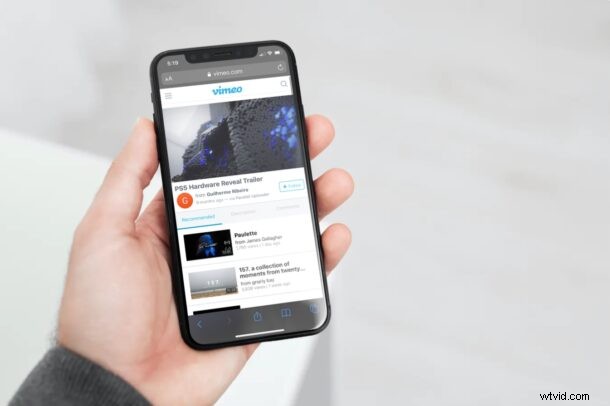
Do you want to speed up or slow down video playback on a website where the feature isn’t supported? As long as you use Safari to browse the web on your iPhone or iPad, there’s a nifty Shortcuts workaround that you can use to adjust the video playback speed according to your liking.
Popular video streaming platforms like YouTube allow users to conveniently change the video playback speed from the player itself. Unfortunately, a lot of websites don’t support this feature and you may have noticed that you’re unable to change the speed of all the videos that you’re watching in Safari. Well, this particular iOS shortcut has managed to address this issue. You can install and use it to speed up or slow down pretty much any video within Safari.
The Shortcuts app has been really helpful in bringing features that aren’t natively available in iOS/iPadOS and this time is no different. Here, we’ll be taking a look at how you can use the Shortcuts app to speed up or slow down any video in Safari.
How to Speed Up or Slow Down Any Video in Safari with Shortcuts
For those who aren’t aware, the iOS Shortcuts app is pre-installed on devices running the latest versions of iOS and iPadOS. However, if you’re iPhone or iPad running an earlier version, you’ll need to download it from the App Store. Once you’re done, simply follow these steps:
- Open the Shortcuts app on your iPhone or iPad.

- You’ll be taken to the My Shortcuts section upon launch. Go to the “Gallery” from the bottom menu to browse for shortcuts.
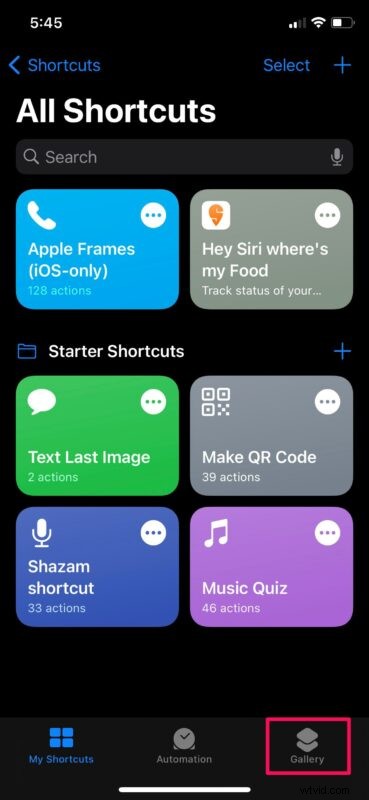
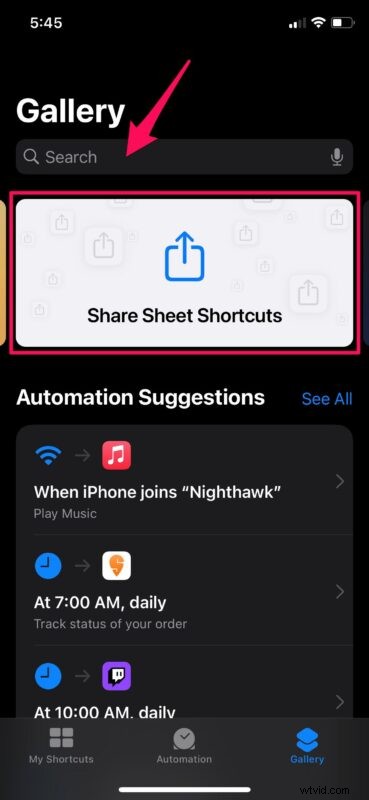
- Here, swipe right on the cards that show up at the top and select “Share Sheet Shortcuts”. Alternatively, you can use the search bar and find the shortcut by typing in “Change Video Speed”.
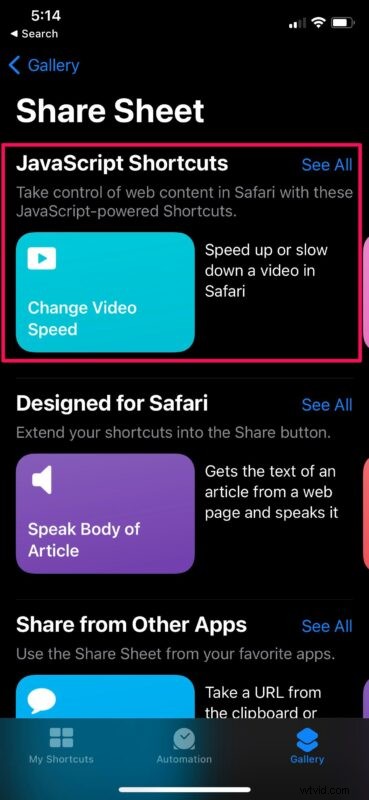
- You’ll be able to find the “Change Video Speed” shortcut under the list of JavaScript Shortcuts. Tap on it to proceed.
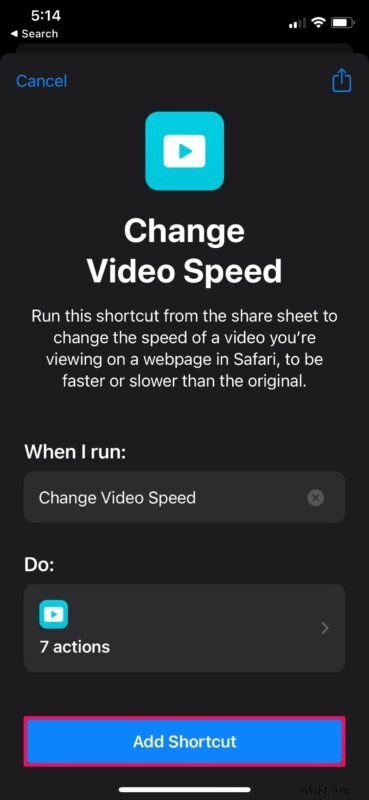
- Now, just tap on “Add Shortcut” to install the shortcut and add it to the My Shortcuts section.
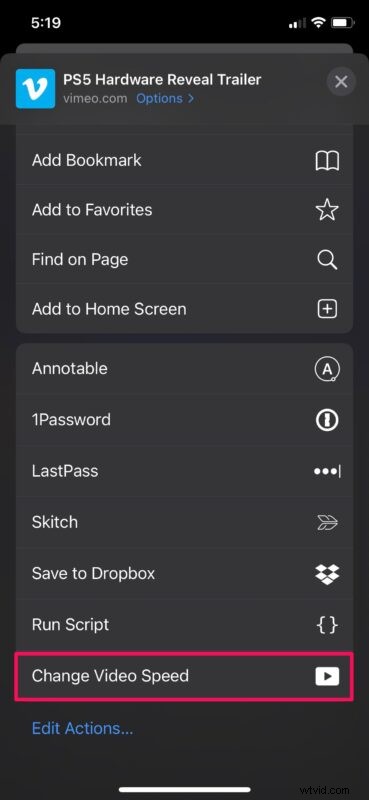
- Now, launch Safari on your device, head over to the webpage with the video that you want to watch, and start playing it. Don’t open the full-screen player yet. Tap on the share icon from the Safari menu at the bottom to bring up the iOS share sheet.

- Scroll all the way down to the bottom and select “Change Video Speed” to begin using the shortcut.
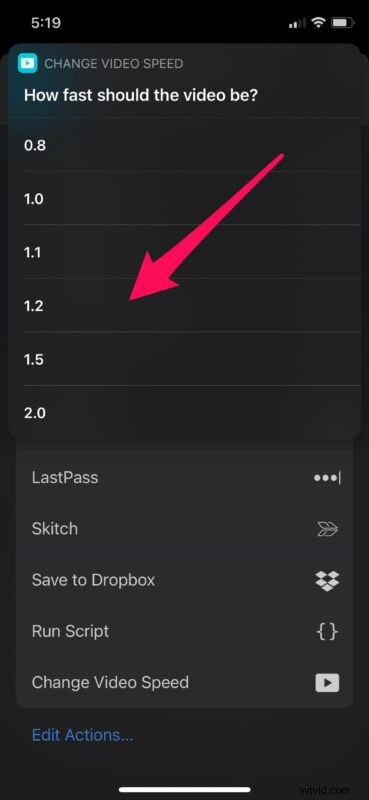
- You’ll get the pop-up menu where you’ll be able to choose your video playback speed. Select your preferred speed to continue to the next step.
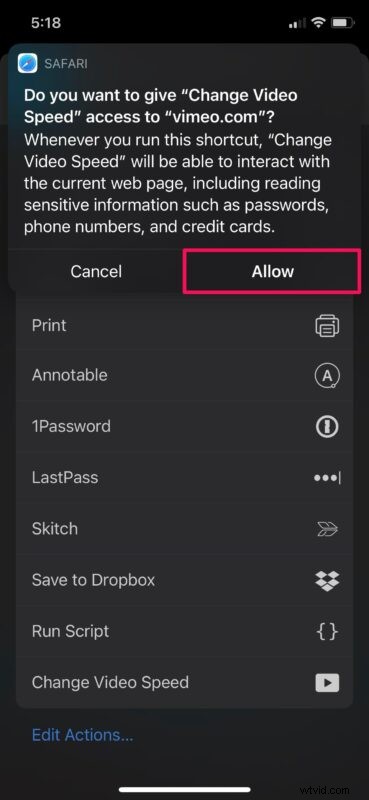
- Now, Safari will prompt you to give permission to the shortcut for accessing the particular website you’re in. Tap on “Allow” and you’re good to go.
That’s it. The video will resume playing at the speed you selected using the shortcut.
Note that you can speed up the video to a maximum of 2x, but you can only slow it down to 0.8x using this particular shortcut. In comparison, the YouTube player lets you slow videos down to 0.25x.
What makes this Shortcut unique is the fact that you can run it from the iOS share sheet. You don’t need to open the Shortcuts app at all, unlike several other shortcut actions. Hence, it feels like a feature that’s natively built into iOS rather than a third-party solution.
The Gallery section of the Shortcuts app is a home to several other handy shortcuts too. For example, you can install the Convert Burst to GIF shortcut to make a GIF from your burst photos. Apart from the Gallery, you also have access to hundreds of other user-created shortcuts as long as you’ve allowed the installation of untrusted shortcuts on your device. Shortcuts is a pretty handy app, so don’t miss some of the great tricks you can do with it.
Did you speed up or slow down video playback in Safari on your iPhone or iPad? What’s your take on this nifty shortcut? How often do you find this shortcut useful and on what websites do you need it? Do share your personal experiences and feel free to leave your valuable feedback in the comments section down below.