
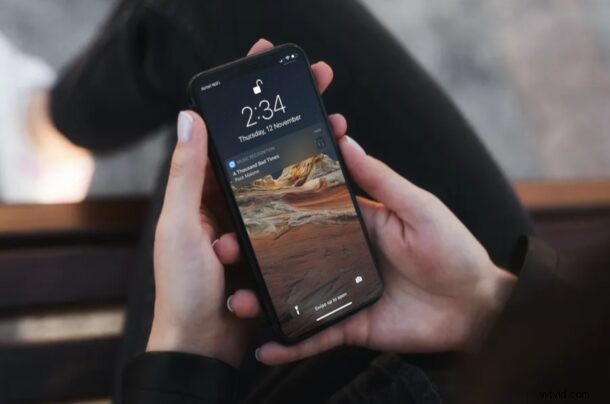
Do you want a quick and easy way to identify the song that’s being played on the radio, TV, or anywhere in public? Apple has made it a whole lot easier with the modern iOS and iPadOS software updates, and you don’t even need to rely on asking Siri or a third-party app anymore.
Most of us already know about the Shazam app and what it’s used for. Well, Apple acquired Shazam back in 2018 and it only meant good news for iOS users. For a long time, iPhone and iPad users have had the option to ask Siri to find out the song that’s being played with Shazam integration. From iOS 14.2 and newer, Apple has added a new Shazam-powered Music Recognition feature that can be accessed right from the Control Center.
Interested in taking advantage of this new nifty addition to iOS? Read on!
How to Find What Song is Playing with iPhone Music Recognition Control Center Feature
First and foremost, you’ll need to make sure that your iPhone or iPad is running iOS 14.2/iPadOS 14.2 or later to use this feature. Music Recognition isn’t available in the Control Center by default. To add it, simply follow the steps below.
- Head over to “Settings” from the home screen of your iPhone or iPad.

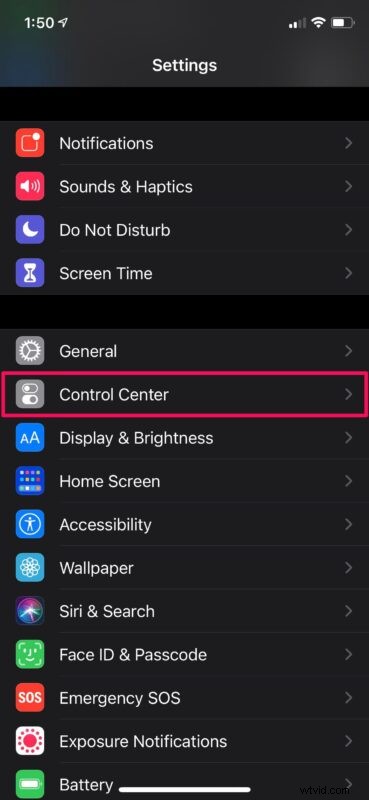
- In the settings menu, scroll down and tap on “Control Center” to manage the features you can access.
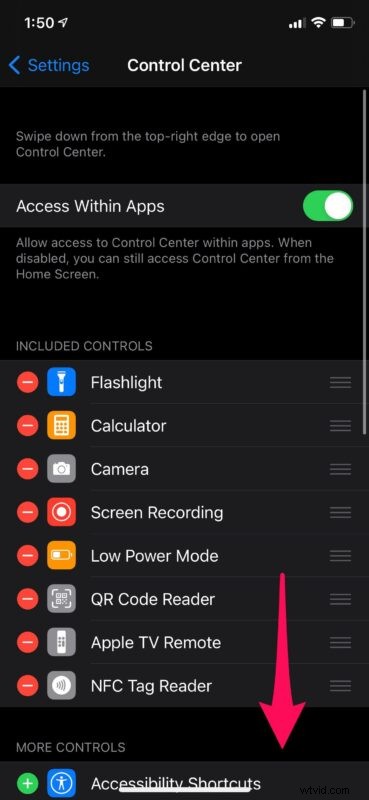
- Here, you’ll find the list of controls that are currently available in the Control Center. To add more, scroll down below to access “More Controls”.
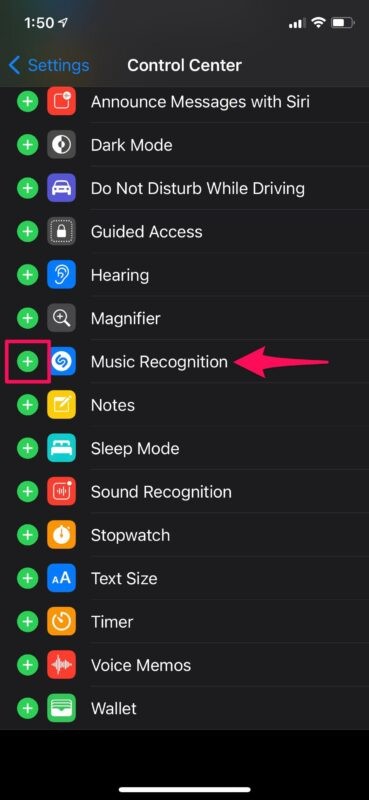
- Now, you’ll find the optional “Music Recognition” toggle. Tap on the “+” icon to add it to the Control Center.
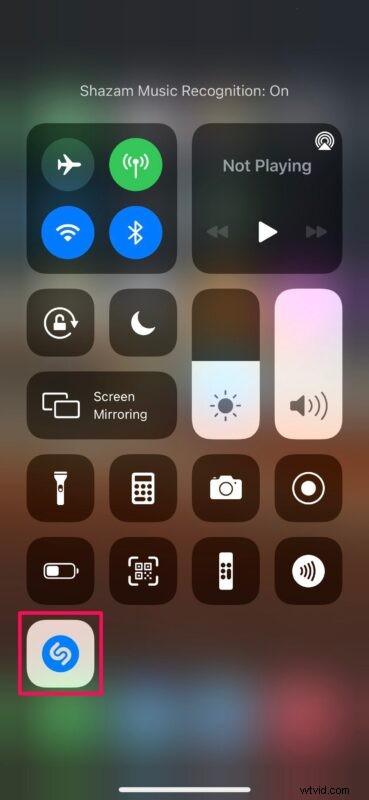
- Next, access the Control Center by swiping down from the top-right corner of your screen. Here, you’ll find the Music Recognition toggle with the familiar Shazam logo at the bottom. Tap on it when you want to identify a song.
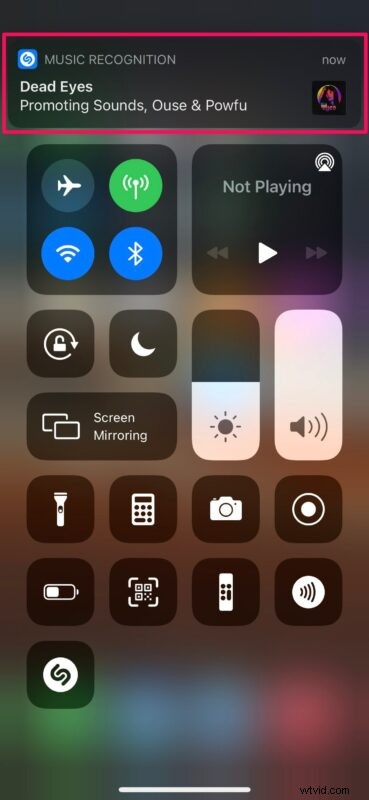
- Now, just wait for a few seconds and the song name will be displayed at the top of your screen if your search was successful.
That’s pretty much all there is to it. Now you know how easy it is to identify a song with your iPhone.
The best part about this handy feature is that you don’t need to have Shazam installed. If you were relying on the Shazam app until now to find songs, you can uninstall it and rely on this new toggle instead. Clicking on the search result will open a web link where you’ll be prompted to listen to the full song on Apple Music.
It’s worth pointing out that iOS 14’s microphone indicator will show up at the top-right of your screen as soon as you press the toggle since it’s listening to the song. However, it will stop accessing your microphone once the result is found.
If you’re too lazy to perform a couple of actions or your iPhones is not in your hand, you can always ask Siri to find what music is being played in the background. If you own a Mac, you’ll be pleased to know that identifying songs with Siri works perfectly fine on macOS too.
We hope you were able to make good use of Apple’s Music Recognition feature that’s powered by Shazam. What’s your take on this handy feature? Did this addition make you uninstall the Shazam app for good? Share your experiences and thoughts in the comments.