

If you’ve been motivated by others to get on the popular Signal messenger app, chances are decent that you also got invited and added to a group chat. Group chats are a quick way to get started on a new messaging platform and hence, you may be looking to add some of your friends to the group as well.
Signal has been the talk of the town lately, mostly due to appreciation by popular media for its vast array of privacy-oriented features. Therefore, it’s no surprise that some of your friends decided to try it out and requested you to install the app as well. Signal group chats work in a fairly similar way to WhatsApp groups, so if you’re switching from the Facebook-owned platform, this may be familiar. iMessage users on the other hand may face some trouble getting a hang of it.
That being said, you’ll get a basic idea of how group chats work once you’re done reading this article, since we’ll be discussing exactly how you can add and remove people in a Signal group chat right from your iPhone and iPad.
How to Add & Remove Contacts from Signal Group Chats on iPhone or iPad
The following steps focus solely on adding and removing people in an existing Signal group chat. You’ll obviously need Signal setup on iPhone first, and if you don’t have a group or weren’t invited to a group, you can learn more about setting up a new Signal group and creating a group link using the app. Now, without further ado, let’s see what you need to do:
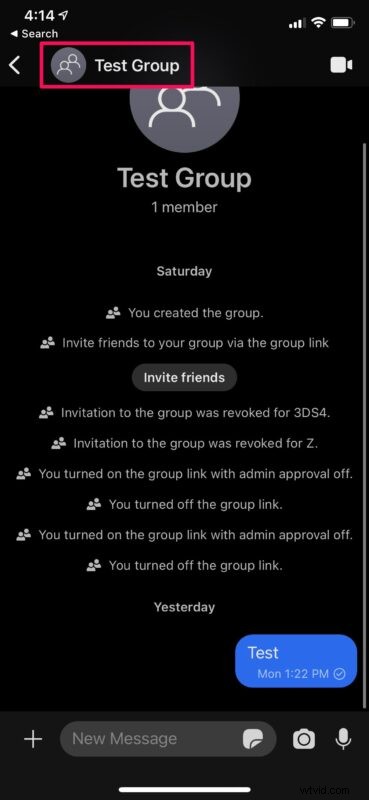
- Open the group chat in the Signal app and tap on the group name at the top.
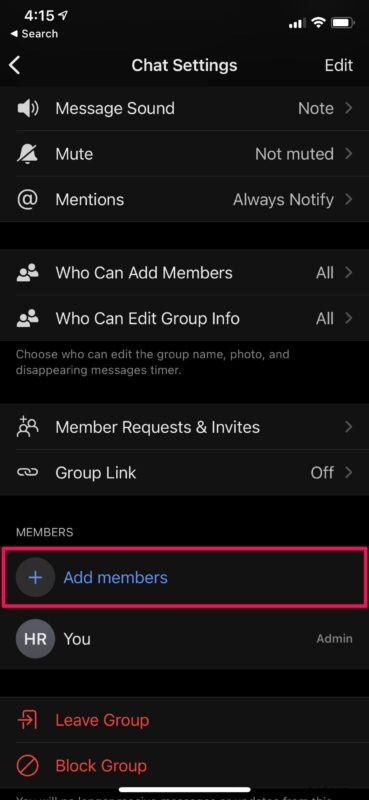
- This will take you to the group settings. Here, scroll down to find the members list. You’ll find the “Add members” option at the top of the list of people in the group. Tap on it.
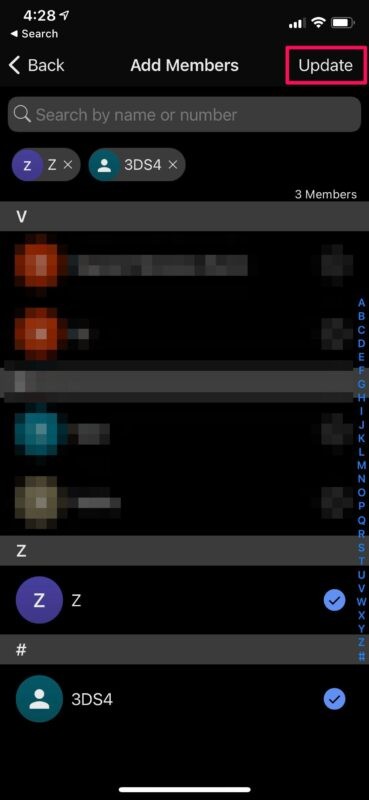
- This will bring up your Signal contacts list. Simply select the people that you want to add and tap on “Update” located at the top-right corner of the menu.
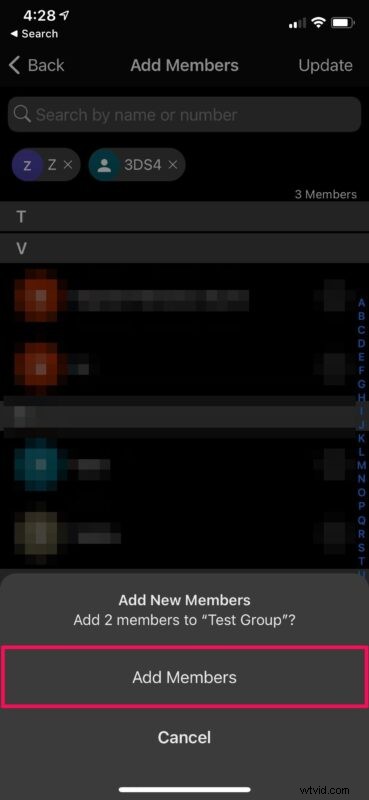
- When you’re prompted to confirm your action, tap on “Add Members”.
- Note that unlike some other messaging platforms like WhatsApp, the people won’t be added to the group immediately. Instead, you’ll send them an invite which allows them to join on their own terms. To see your pending invites, tap on “Member Requests & Invites” from the group settings.
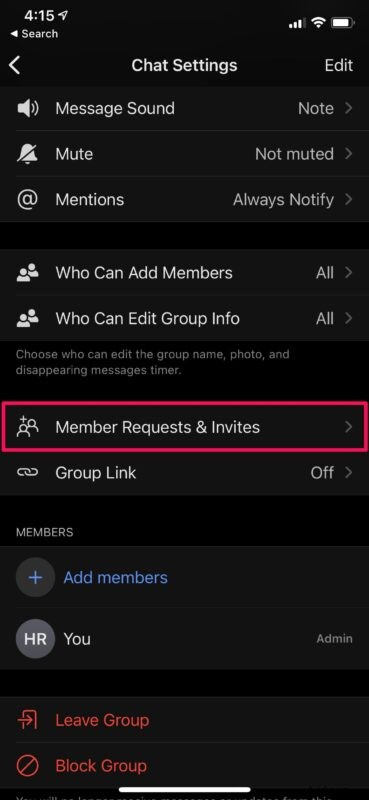
- Here, switch to the “Pending Invites” section to see the people you and the other group members have invited. If you change your mind and want to cancel any of the invites, you can simply tap on the person’s name to access the revoke option.

Removing a person who has already joined your group is pretty easy. Simply tap on the person’s name or phone number from the members list to access the remove option.
Keep in mind that you can only remove people from a group if you’re the group admin. However, Signal’s default group permissions allow any member of the group to invite new people, but this particular setting can be easily changed by the group admin if necessary from group settings.
Likewise, Group Link is also a feature that’s completely optional, but if it’s enabled, you can simply share that link with others and they can join by simply clicking on it. That being said, if the group admin has turned on “Approve New Members” for the group, clicking on the link will send a member join request instead of joining directly.
At the moment, a Signal group chat can have a maximum of 150 members at a time. This limit should be more than adequate for almost all users and their groups, even though it falls short in comparison to its primary competitor, WhatsApp which allows up to 256 participants. In comparison, Apple’s iMessage limits its group conversations to 25 people.
Hopefully, you were able to get used to adding and removing people from your Signal group pretty quickly. How many people are in your group? What’s your take on Signal’s group management and privacy features? Share your thoughts in the comments, as always!