

Do you receive a lot of messages from multiple people on your iPhone or iPad? Do you frequently message back and forth with a few people in particular? If so, you may find the pinning feature of Messages to be useful, which allows you to pin a message thread or contact to the top of the Messages app in iOS and iPadOS.
People who get a lot of messages often have trouble keeping up with the conversations, as frequent iMessage users can attest. As you get new texts and messages from different people, the message threads keep going down and away from the screen, which results in you often forgetting to reply to some of them. To alleviate this, Apple has introduced the ability to pin and unpin chats in the stock Messages app, so that the conversations that matter to you always stay at the top. And of course, you can unpin a conversation thread in Messages too. This article will discuss both how to pin and unpin conversations in Messages, on either iPhone or iPad.
You must be running a modern version of iOS or iPadOS to have this feature available, as versions of iOS prior to 14 did not have this capability.
How to Pin & Unpin Conversations in Messages for iPhone & iPad
There’s more than one way to pin and unpin conversations in the stock Messages app, but it’s pretty straightforward.
- Launch the stock “Messages” app from the home screen of your iPhone or iPad.

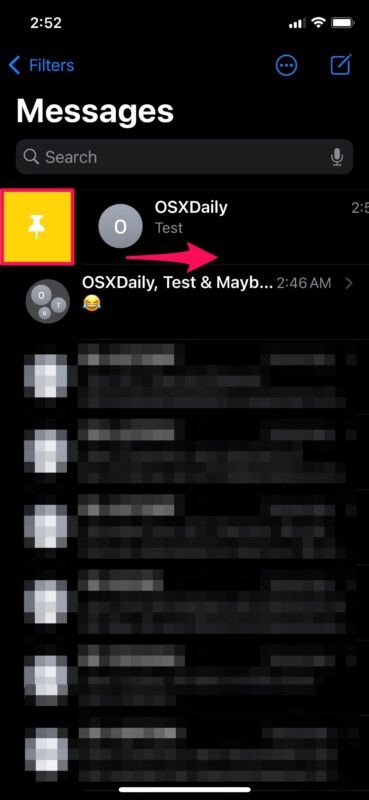
- To pin a Messages conversation, swipe right on the message thread and tap on the pin icon highlighted in yellow, as shown below.
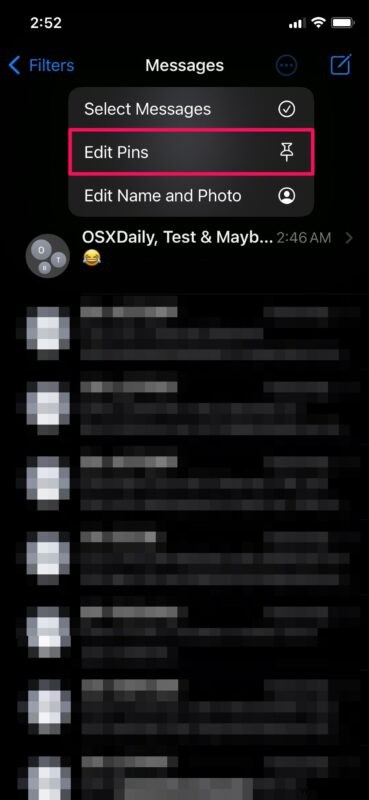
- To unpin a Messages conversation, tap on the triple-dot icon located at the top, right next to the option to compose a new message.

- Next, choose “Edit Pins” from the pop-up menu to proceed.
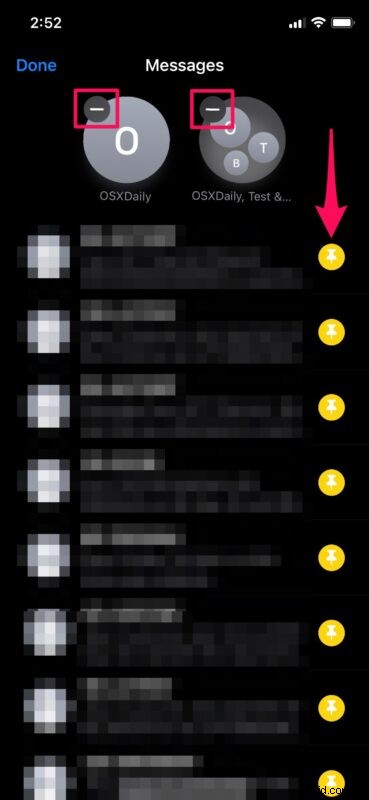
- As you can see here, the pinned conversations are located right at the top above all the other messages. Tap on the “-” icon next to a pinned conversation to unpin it. In this same menu, you can also pin multiple conversations at a time.
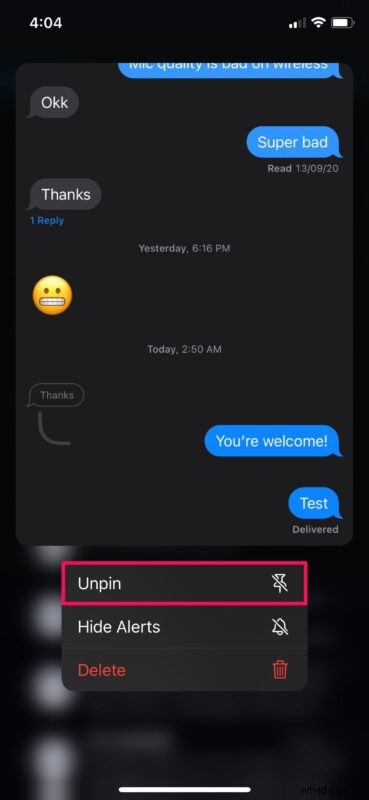
- Alternatively, you can unpin a pinned conversation by just long-pressing on it and then choosing “Unpin” as indicated here.
And that’s how to pin and unpin conversations in the Messages app for the iPhone and iPad.
The pinned conversations appear as a chat head above all the other messages. However, if you have multiple pinned conversations, you can arrange them according to your preference. Simply long-press on the chat head and drag them around to reposition. This helps you prioritize chats in a much better way.
Keep in mind there’s a limit to how many conversations you can pin. however. At the moment, you can only pin up to nine conversations, whether they’re regular text messages or iMessage group conversations. Once you hit the limit, you’ll need to unpin a conversation before you’re allowed to pin a new one.
Another handy Messages trick available on modern versions of iOS/iPadOS is the ability to reply in-line to messages, allowing you to specify which message you are responding to. It’s a handy feature in general, but particularly useful for group chats. You can also mention and notify other users even if they have the group conversation muted too.
Are you using the pinning feature of Messages to prioritize conversations, threads, or contacts? What do you think of this feature? Let us know your thoughts and experiences in the comments.