
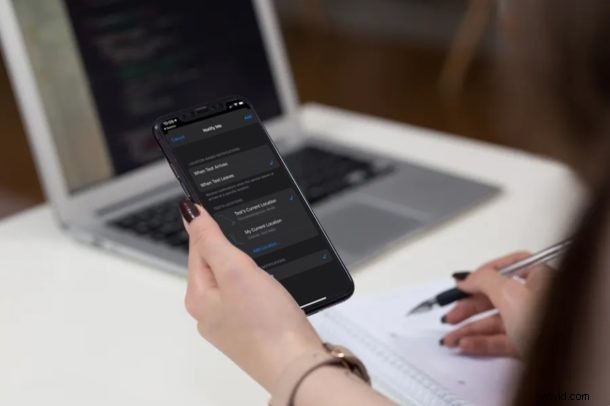
Do you want to know when your friends or family members arrive at a destination, or when they leave a particular location, without having to call them? Thanks to a nifty Find My feature, you can receive location based notifications right on your iPhone or iPad when someone else leaves or arrives at a destination.
As you may already know, Find My allows users to track lost Apple devices, and also to share your location easily from the Find My app with other people, as well as keep an eye on others locations too. It’s a great feature for friends and families, as you can quickly check where contacts are moving or where they’re going, assuming they shared their location with you anyway.
If you’re interested in learning how you can be notified when someone leaves or arrives at a destination with the Find My app on iPhone and iPad, then read on.
How to Use Location Based Notifications with Find My App
As mentioned earlier, you’ll need to have a contact who shares their location with you, in order to take advantage of this functionality. Therefore, simply follow the steps below to learn how you can share the location using Find My app and then set up location based notifications for a particular contact.
- Open the “Find My” app on your iPhone or iPad.
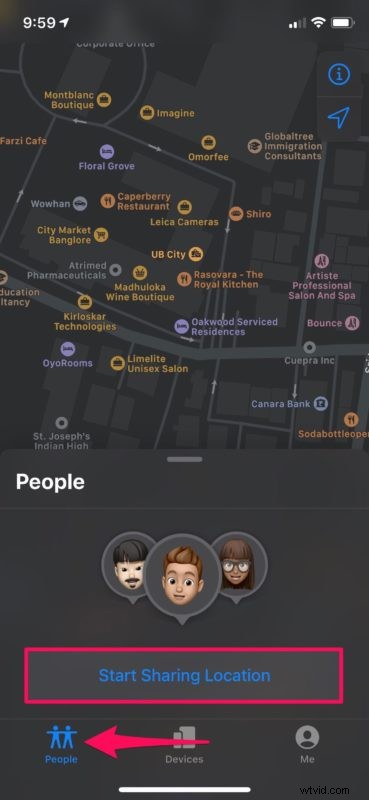
- Head over to the “People” section located at the bottom-left and choose “Start Sharing Location”.
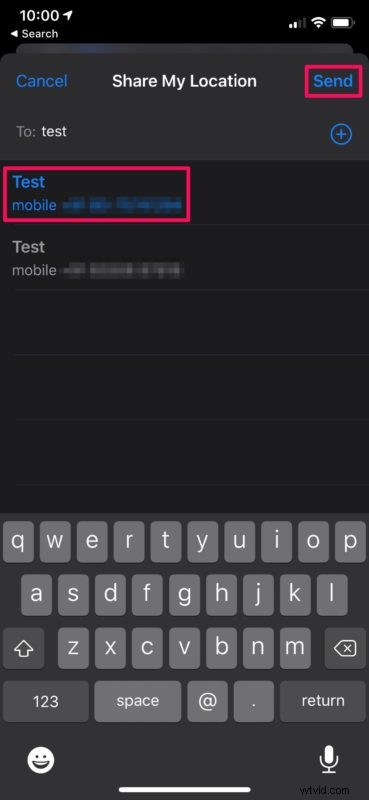
- This will open up your contacts list. Select the contact you want to share your location with and tap “Send”.
- Now, you’ll have the option to choose how long you want to share your location with that particular contact. Select one of the three available options as shown below. Your name will now show up in the contact’s People section within the Find My app.
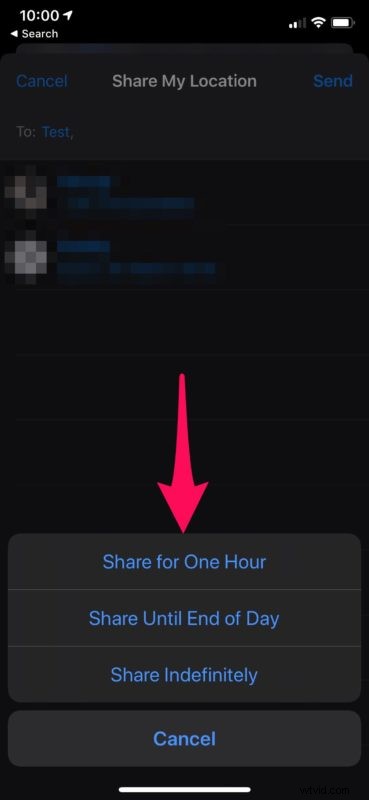
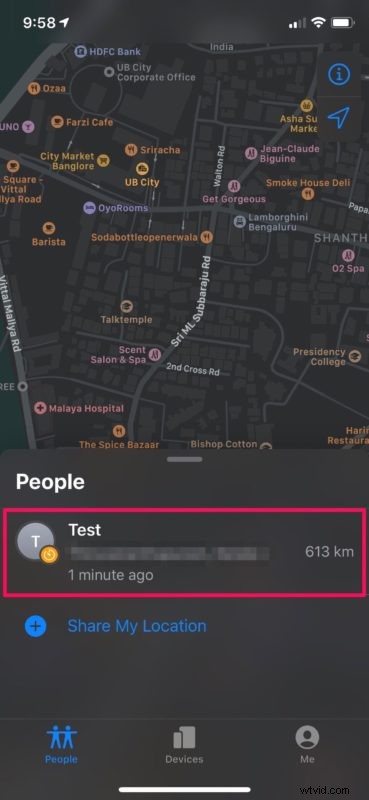
- Once they’ve started sharing their location, select the contact’s name as shown in the screenshot below.
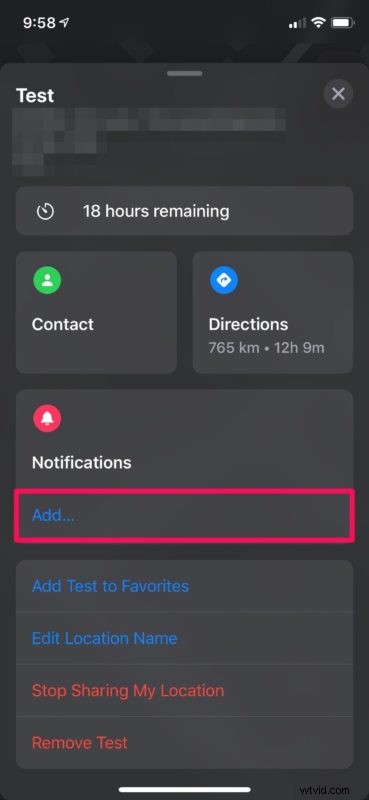
- Here, tap on “Add” located right below Notifications.
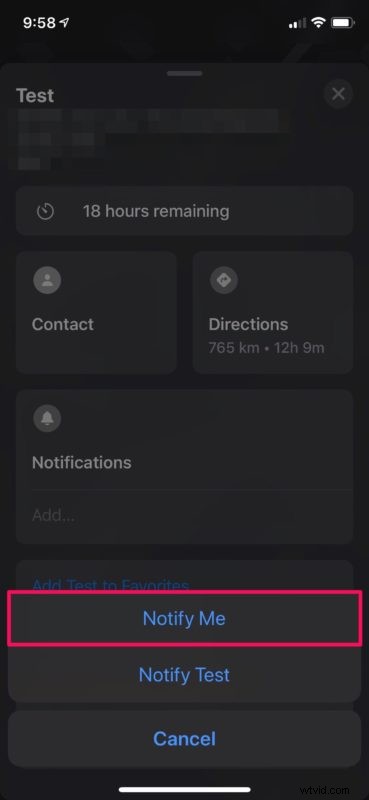
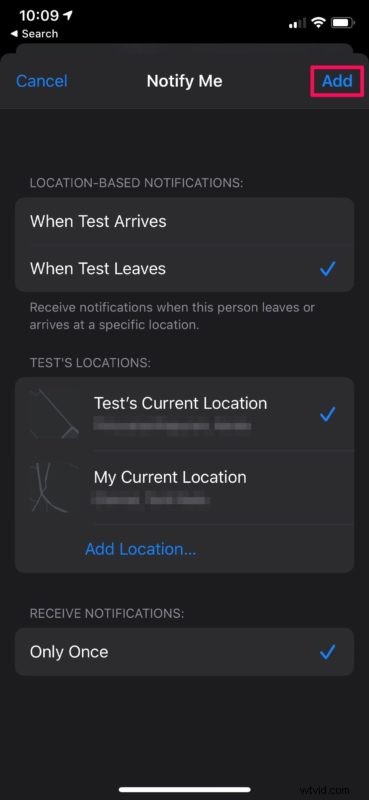
- Now, choose “Notify Me” to begin configuring location-based notifications for the selected contact. Additionally, you also have the option to notify the contact as you arrive or leave a particular location.
- Here, you will be able to select a specific location and pick when you want to receive the notification. Once you’re done configuring, tap on “Add”.
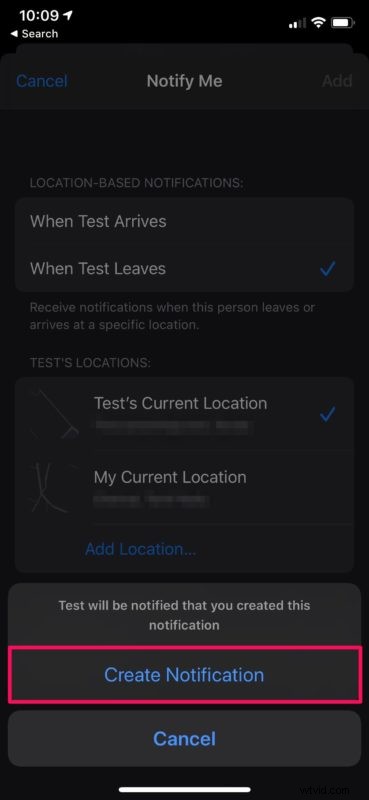
- Tap on “Create Notification” to confirm your action and finish the setup.
Assuming you followed the steps properly, you now know how to set up location-based notifications with Find My app on your iPhone and iPad.
Once you’ve properly set this feature up, you will receive a notification once your contact has arrived or left a designated location right on your device’s lock screen. This comes handy when you’re trying to pick up your friends or family members from a particular location. It can be also used as a parental control tool to keep an eye on your children, and make sure they haven’t left the house, school, or some other location. And many people, partners, and friends use this feature for many other purposes too. It’s quite useful!
Similarly, you can also notify your contacts as you enter or exit a selected location. So, you can configure notifications for someone else in your contacts list, who don’t necessarily have the technical knowledge.
If you want to remove the notifications feature at any point, simply head over to the notifications section for a particular contact within the Find My app.
Aside from sharing your location and finding other people with Find My, you can also track down misplaced devices finding them from iPhone or iPad or by using the Find My Mac app to locate the last recorded location of your missing iPhone, iPad or Mac too, all within a matter of seconds.
Did you manage to set up location based notifications on your iPhone or iPad with the Find My app? How often do you use this feature to locate your friends or family members? Let us know your thoughts and experiences in the comments!