
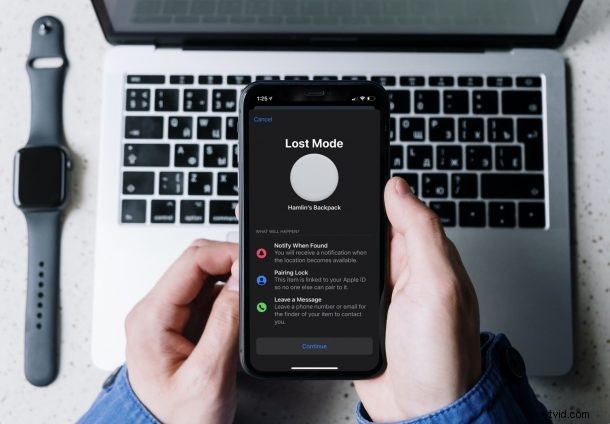
Did you completely lose one of your AirTags? To be more specific, are you only able to see its last location on the Find My app? You’ve tried making them play a sound, you’ve used Precision Finding, but still no luck. In that case, it’s time to put your AirTag in Lost Mode, which goes beyond the typical finding feature. While it may not magically bring your AirTag back right away, it can help to a great extent.
While your AirTags may have the standout Precision Finding feature that can pinpoint its location, it only works as long as you’re in the Bluetooth range, which is 30 feet more or less. When you step out of this range, Find My network will approximately locate it on the map. Now, before you ask how someone can lose a device that shows on the map, it’s worth noting that Find My requires an Apple device to be in the same area as your AirTag. If not, Find My will only tell you where it was last seen on the map.
By putting your AirTag in Lost mode, it will be able to communicate with other Apple devices anonymously and notify you of its updated location when it’s within the Bluetooth range of these devices. Here, we’ll be taking a look at how you can put your AirTag in Lost Mode on your iPhone and iPad.
How to Put Your AirTag in Lost Mode
The Find My app on the iPhone and iPad makes it extremely easy to put your AirTag in Lost Mode. Here’s what you need to do:
- First, launch the Find My app on your iPhone and iPad.

- This will list out all your Find My devices but not accessories like AirTags. Head over to the “Items” section from the bottom menu.
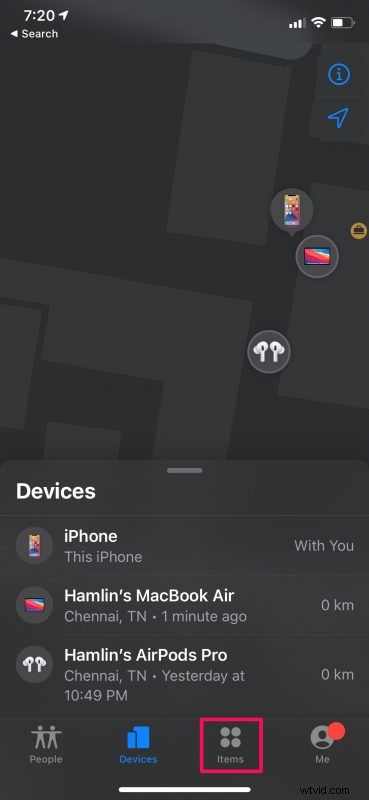
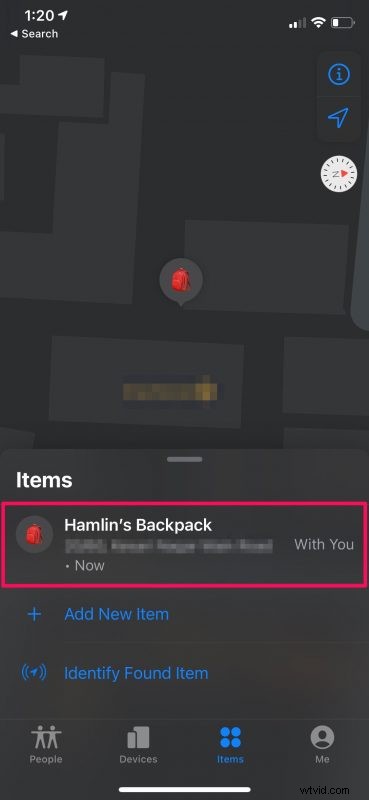
- Next, simply select the AirTag that you lost to see your typical Find My options.
- Now, swipe up on the card to bring up all the available options.
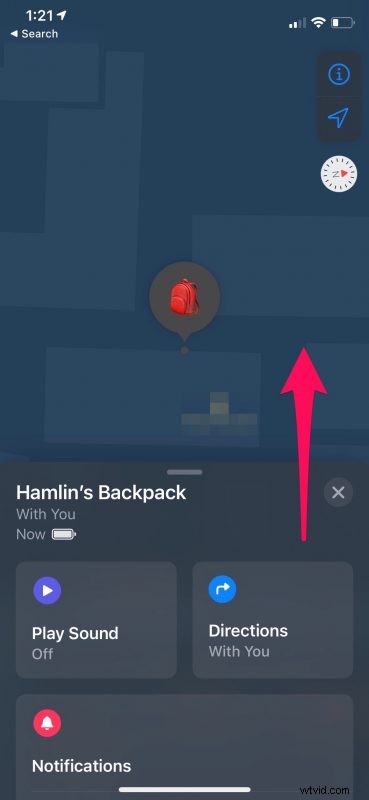
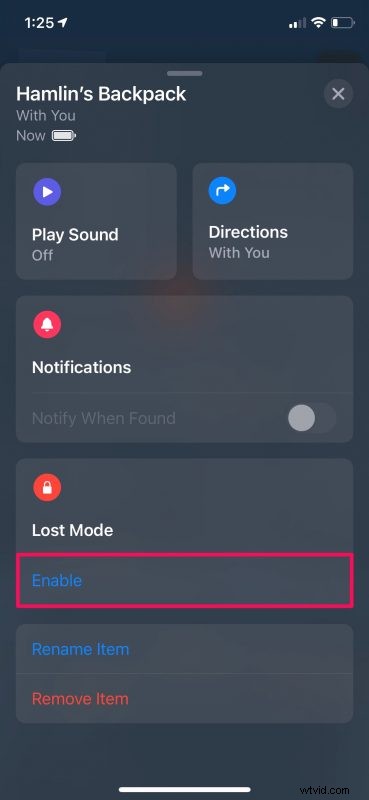
- Here, you’ll find the Lost Mode option right below Notifications. Tap on “Enable” to get started.
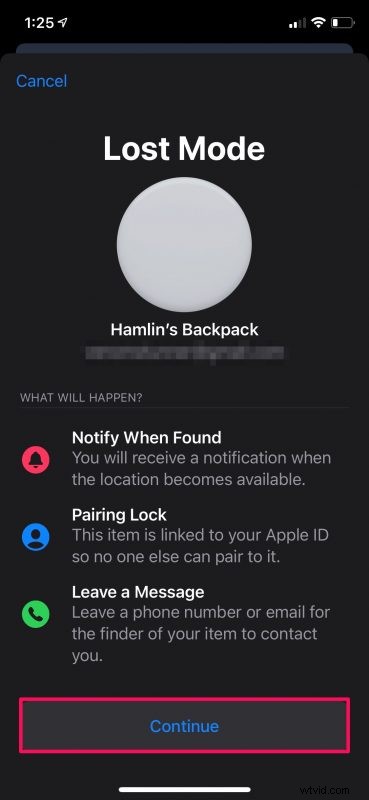
- Now, you’ll be given some brief information about this particular feature. Tap on “Continue” when you’re done reading.
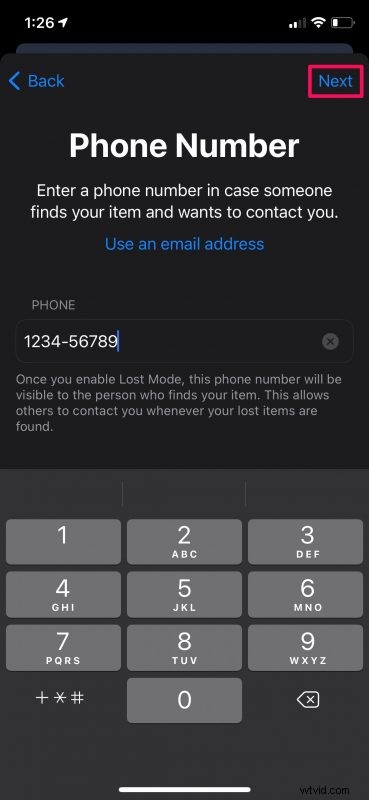
- In this step, you’ll be able to type in your phone number that will be shared if someone finds your AirTag and wants to contact you. You can opt to use an email address too. Tap on “Next” to proceed.
- Now, you’ll see the message that’ll be displayed if someone finds your AirTag. Leave the Notify When Found toggle enabled and tap on “Activate” as shown in the screenshot below.
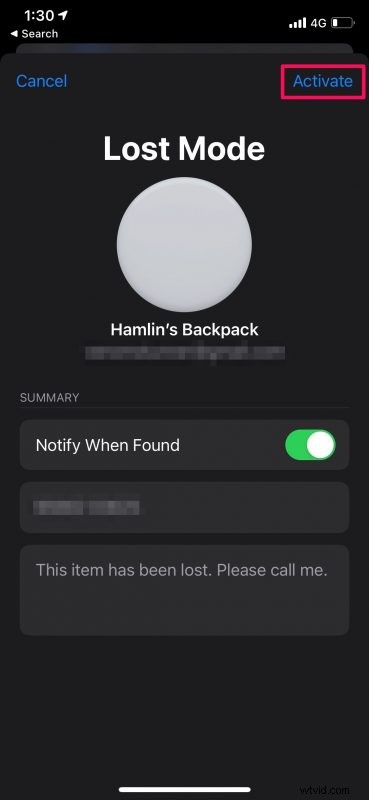
That’s it. You’ve successfully put your AirTag in Lost Mode. Pretty straightforward, right?
Turning Off Lost Mode on AirTags
If you found the AirTag on your own and you no longer need any help, you can turn off Lost Mode from the Find My app. Just follow these simple steps:
- Select your AirTag from the Find My app and bring up the card to access all the options. Tap on “Enabled” below Lost Mode.
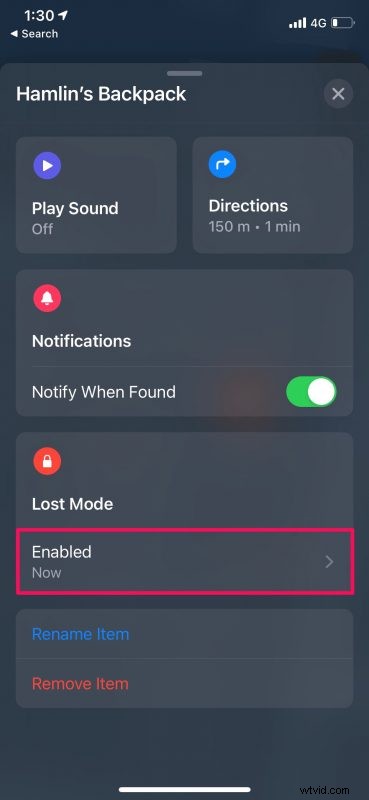
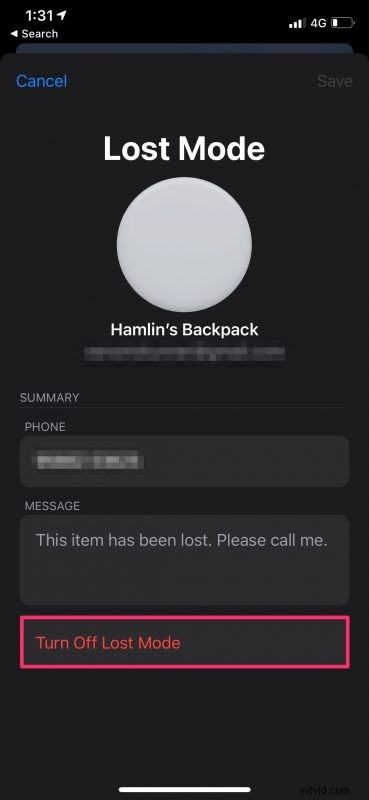
- Now, simply tap on “Turn Off Lost Mode” which is located at the bottom.
- When you get a confirmation prompt, choose “Turn Off” and you’re good to go.
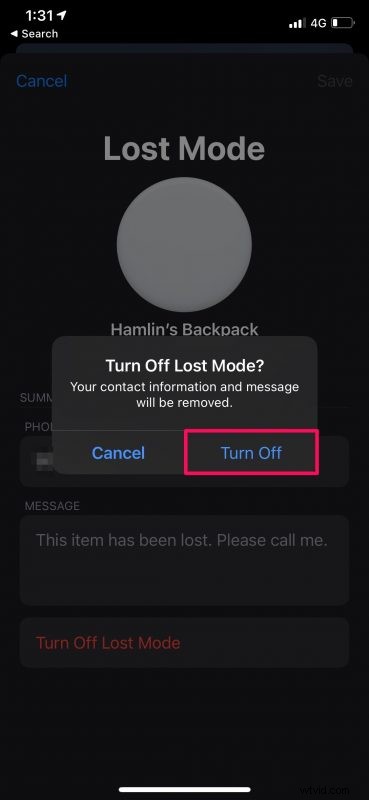
As you can see, turning off Lost Mode is just as easy as enabling it.
Once you disable Lost Mode, you’ll no longer be notified of its location when it’s within the Bluetooth range of someone else’s Apple device.
Privacy buffs may be wondering how secure this feature is. Don’t worry. The Apple user who comes in range of your AirTag that causes it to share its location and notify you will have no idea that they’re helping you find it since it all happens anonymously in the background
On the other hand, if someone physically finds your AirTag, they can just pick it up and tap it with their iPhone to see the contact details that you chose to share while putting it in Lost Mode. What if it’s an Android user, you ask? Well, they’ll be able to grab the same information too by scanning the AirTag with their NFC-enabled smartphone.
Hopefully, you’re able to find your lost AirTag as soon as possible with help from other Apple devices on the Find My network. Has it been a while since you lost it? Let us know how long it took for you to find it once you do and share your personal experiences in the comments. Don’t forget to leave your valuable feedback as well since we love to go through them.