

Are you having trouble finding your AirTags despite having an idea where it is? In that case, the built-in speakers on the AirTags can be your savior. With your iPhone or iPad, you can play a sound on your missing AirTag, making it easier to locate them. The audible signal is helpful even with Precision Finding, so let’s check it out.
AirTags are tiny button-shaped devices that can be attached to keychains, put in a backpack, or a wallet, or anything else, for helping you locate them when they go missing. 4 pack of AirTags cost about $99 so they’re an affordable way to help track your stuff. By using Apple’s Find My service, AirTags provide you multiple different ways to locate them, and depending on the distance, the method you use may vary. Most of the time, when you know your AirTag is nearby, playing a sound on it is more than enough to reveal its exact location.
Let’s cover how to play a sound to help find your AirTag.
How to Play a Sound on AirTags to Help Locate Them
We’ll be making use of the built-in Find My app on your iOS/iPadOS device to play a sound on the AirTag you’re unable to find. Now, without further ado, let’s take a look at the necessary steps:
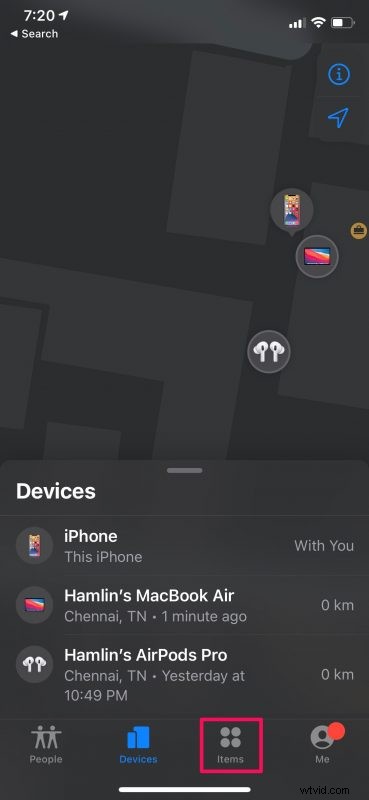
- Start off by opening the Find My app on your iPhone or iPad. You’ll see all your Find My devices like your iPhone, iPad, Mac, AirPods, and Apple Watch upon launch. Head over to the “Items” section from the bottom menu to view your AirTags.
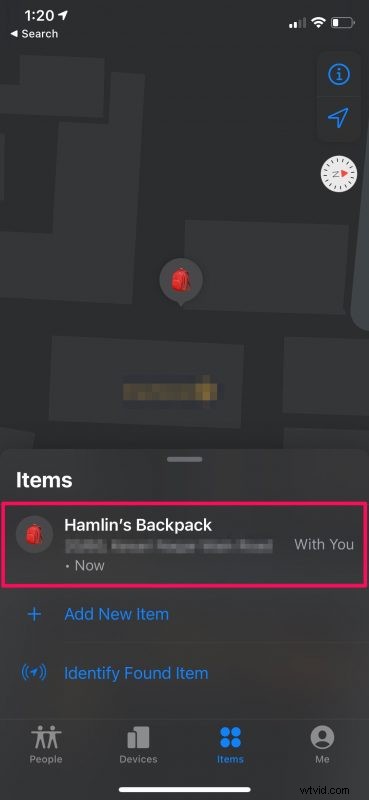
- Now, select the AirTag that’s missing to access all the available Find My options.
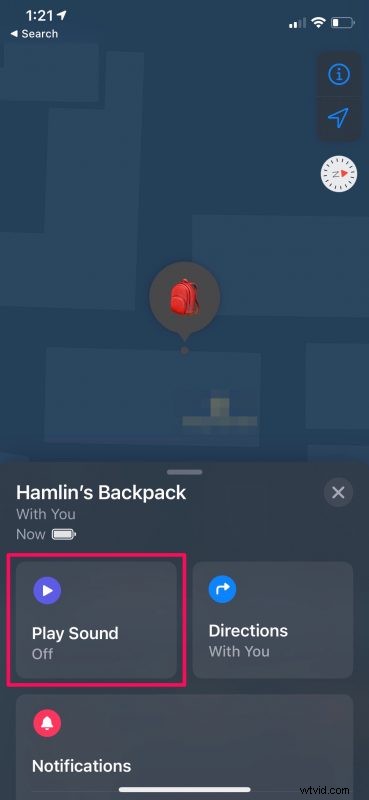
- Here, tap on “Play Sound” as shown in the screenshot below.
- The option will now be highlighted in purple indicating that a sound is being played on the AirTag. Try to be quiet and listen carefully for a faint pinging sound. When you’ve found the AirTag, just tap on “Stop Sound”.
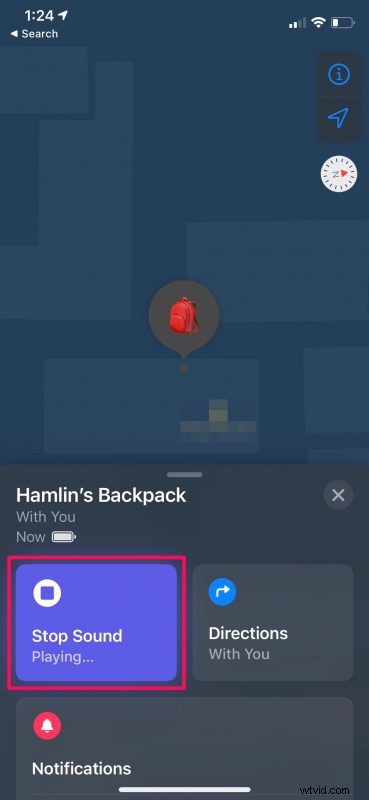
There you have it. As you can see, it’s really easy to ping and find a nearby AirTag.
Do keep in mind that your AirTags are tiny devices. Due to their sheer size, the internal speakers on these things aren’t loud or powerful enough for you to be able to hear them from the next room.
Thankfully, this is just one way to find your AirTag. If you own an iPhone 11 or a newer model, you can use Precision Finding to get a directional guide in Find My and pinpoint the location of your AirTag’s whereabouts. This is made possible with the help of Apple’s U1 chip.
Having discussed all this, you’ll be surprised to know that there’s an even simpler way to ping your missing AirTags. You can just ask Siri to play a sound on your AirTags. You can say something like “Hey Siri, where’s my Backpack” or “Hey Siri, play a sound on my AirTag”.
We hope you were able to use the pinging feature to quickly locate your AirTags. Have you tried out the Precision Finding feature if you failed to find it after playing a sound? How many AirTags do you have? What do you think of adding AirTags to the other Find My features? Let us know your experiences, drop your personal opinions on Apple’s new hardware, and share your feedback in the comments section down below.