
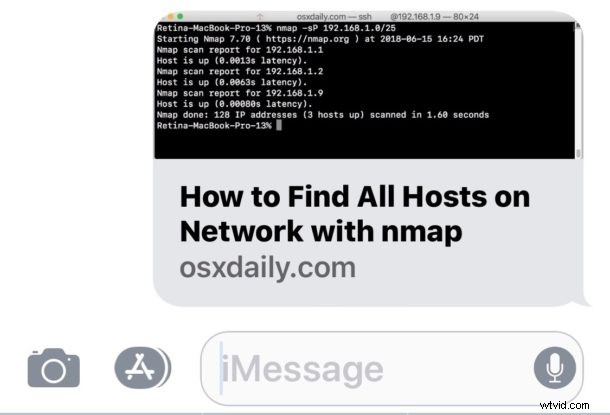
The Messages app in newer releases of iOS and MacOS will attempt to render a small preview of any webpage URL or link that is shared within the Messages app. Usually the link preview will pull the title of the article or webpage, an image, and the domain of the URL being shared, all in a little compact thumbnail preview seen in the Messages thread on an iPhone, iPad, or Mac. The Message link previews are useful to many people, but some users may not like the URL previews, and some more cautious users may prefer to see the full URL of a link at all times, especially before clicking on it.
We’ll show you a few tricks to disable the link previews of URLs sent and received in the Messages app of iOS and MacOS.
First, if you’re looking for a switch or setting for this, you won’t find one because it does not exist. So be aware that the approaches covered here are effectively workarounds, as there is no method of disabling the URL link previews in Messages app completely, either on the Mac, iPhone, or iPad. But with that said, you can effectively disable URL link previews in Messages on a per-message basis by using a few text tricks.
How to Prevent URL Link Previews in Messages for iOS and Mac OS
This comes down to a simple text trick. Essentially, you need to wrap the URL in text. You can do that in several different ways:
Option 1: Put the link in a sentence, or between words
- Put a URL in the middle of a sentence like this https://osxdaily.com and then share it as usual
Simply placing the link being sent through Messages in between words or in a sentence will remove the message preview on an iPhone, iPad, or Mac.
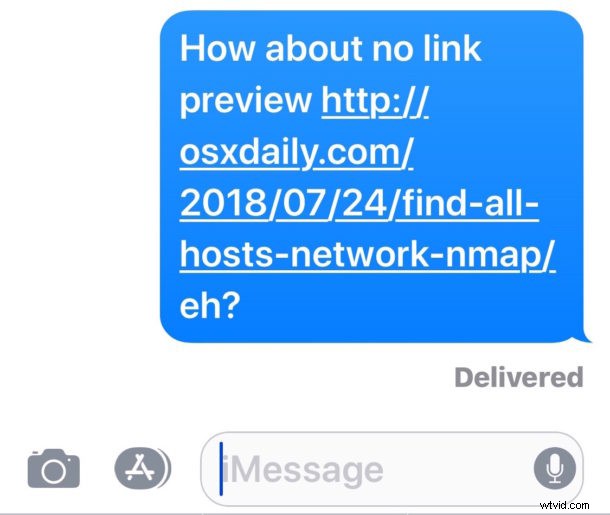
Just note that the words or text must appear on both sides of the URL to work as intended. Basically anything like “words URL words” will do the job and disable the Message URL preview, and instead show the full URL.
Option 2: Place periods on both sides of the link being shared
- Place periods on the beginning and end of a URL being shared, like this: “.https://osxdaily.com/.”
Just wrap the URL in periods and send the link as usual. This is just a variation of the above trick but rather than placing the URL in a sentence or between words, you’re placing the URL between periods.
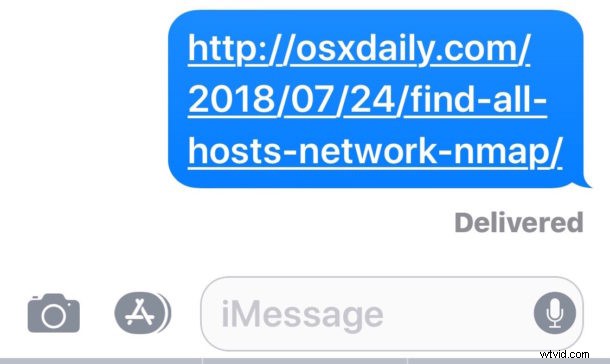
Interestingly, if you use periods on both sides of the URL, then Messages in both iOS and MacOS will strip the periods out, as long as they surround a complete URL like so:
.https://osxdaily.com/.
This means that, once the message with the URL is sent, it will appear as so:
https://osxdaily.com/
And yes, without the iMessage preview.
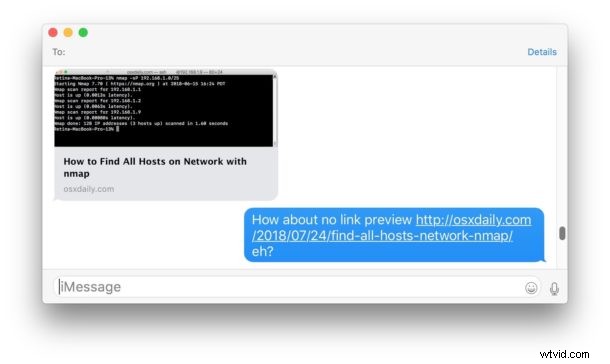
While the above screenshots focus on the iPhone and iPad by demonstrating the iOS Messages app, the tricks work identically on the Messages app for Mac, where the same techniques will disable the URL preview on the Mac side of things too (for both sending and receiving). The screenshot below demonstrates this with a link preview, as well as a link without the URL preview on the Mac:
And note this is NOT the same as disabling message previews with Notifications in iOS lock screens or MacOS, which is a completely separate feature that disables the preview text of a message
By the way, if you’re interested in seeing the full link in Messages, you probably also would prefer to see the full URL of a link in Safari on Mac too, which is curiously not the default.
If you know of any other tips, tricks, solutions, or workarounds to disabling the iMessage link previews, share with us in the comments below!