

AirDrop is the excellent wireless file transfer feature available to Mac, iPhone, and iPad, and with it you can easily and quickly transfer pictures, movies, documents, and whatever else between any iOS or Mac OS device. Being on the receiving end of AirDrop, have you ever wondered where AirDrop files go on a Mac or on an iPhone or iPad? Wonder no more, we’ll show you exactly where AirDrop files are saved to and how you can access their location in iOS and Mac OS.
Obviously you’ll need to have received an AirDrop file on a Mac or iPhone or iPad to be able to track down where AirDropped files go and are located, so if you want to try this yourself you’ll probably want to quickly AirDrop a file to yourself from another device. Otherwise, read on so you know where to look in the future for data transferred by AirDrop to Mac OS or iOS.
Where AirDrop Files Go on the Mac
Using AirDrop to move files between Macs is fast and easy done entirely through Finder, but have you ever wondered where those AirDrop files are saved? It turns out that AirDrop files on a Mac go into the user Downloads folder by default.
Thus, if someone sends you a file via AirDrop to your Mac, you will want to look in your Downloads folder. There are multiple ways to access the Downloads folder on a Mac, perhaps the quickest way for most users is to use the Dock or the Finder.
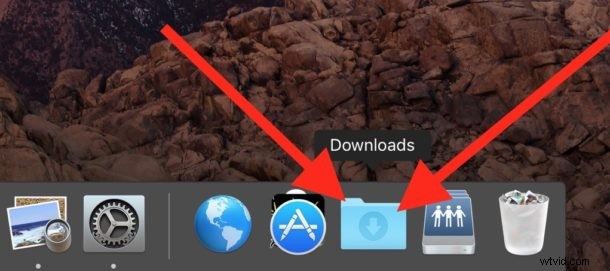
This applies to all file types transferred by AirDrop to a Mac, whatever they are, whether movies, photos, word documents, texts, presentations, PDF files, images, you name it, all files from AirDrop go into the ~/Downloads folder.
Where AirDrop Files Go on iPhone, iPad
Using AirDrop to move files and pictures to iPhone, iPad, and iPod touch is also super easy and accessible from Control Center as well as the Photos app and Sharing functions. Because iOS does not have an official user accessible file system however the AirDropped files will go to different locations depending on the file type being transferred. This might sound a little confusing since there is not a central location for AirDrop files in iOS, but the way it is presented to the user is quite simple.
Where AirDrop Photos, Videos, Images, and Movies are Saved in iOS
Photos and videos transferred to an iPhone or iPad via AirDrop will appear in the Photos app and your camera roll.

Where Other AirDrop File Types Go in iOS
Other files, like PDF, doc file, text, etc, will bring up a little menu with different options available on the iPhone or iPad to open and store the file that has been AirDropped.

Once you get an AirDrop file to an iOS device, you just need to choose an app to open it in, and the file will then be copied and available to that app. If the file is a PDF or something similar, iBooks is probably the best location for it, whereas other files may be better stored in DropBox or another similar app that mimics file system access. Perhaps in the future AirDrop in iOS will allow storing files received in iCloud Drive?

Because of the way iOS handles AirDrop files, some users may think it’s not working properly when it actually is (by the way, if you actually do have a problem with the feature we have two excellent guides on troubleshooting AirDrop not working issues in iOS here and here if AirDrop isn’t showing up at all in iOS). Just remember, with photos, videos, movies, and images, they go into the Photos app by default, whereas other file types will reveal the pop-up menu to show where the user chooses to send the file to.