
 The Mail app in iOS is one of the most used applications for many iPhone, iPad, and iPod touch owners, and that means it’s likely only a matter of time before you inadvertently delete or accidentally archive an email on the device that you didn’t necessarily intend to. This is fairly easy to do since it just requires a user to tap on the little nondescript box button in iOS Mail app, which by default sends the mail message into the alternate inbox called Archives.
Since that accidental arching (or deletion) of a message can be a frustrating Mail experience, an excellent choice is to enable an optional dialog box which will ask to confirm the deletion of an email message, or confirm an email is to be archived, before performing the action in iOS.
I find this particularly useful in combination with the quick email navigation trick to prevent accidental relocations of messages. The setting for this is simple to enable, but the way it’s labeled makes it easy to overlook in the Mail Settings.
How to Enable “Ask Before Archive & Delete” Confirmations in Mail for iPhone and iPad
This setting is the same for all iOS devices:
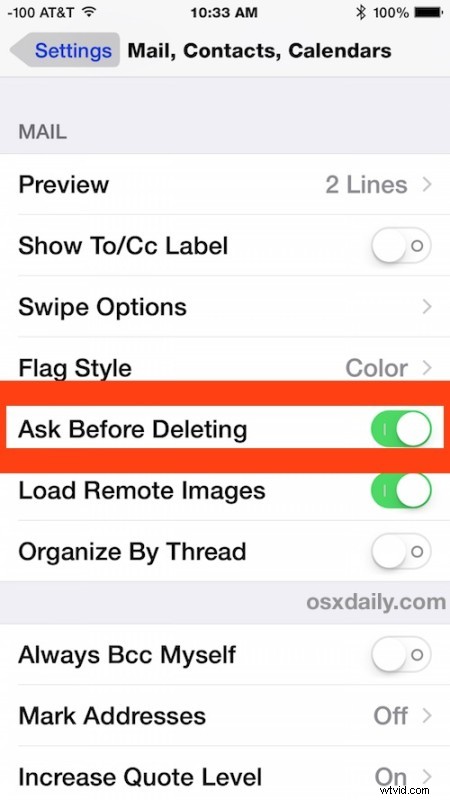
- Open the “Settings” app on the iPhone, iPad, or iPod touch, then go to “Mail, Contacts, Calendars”
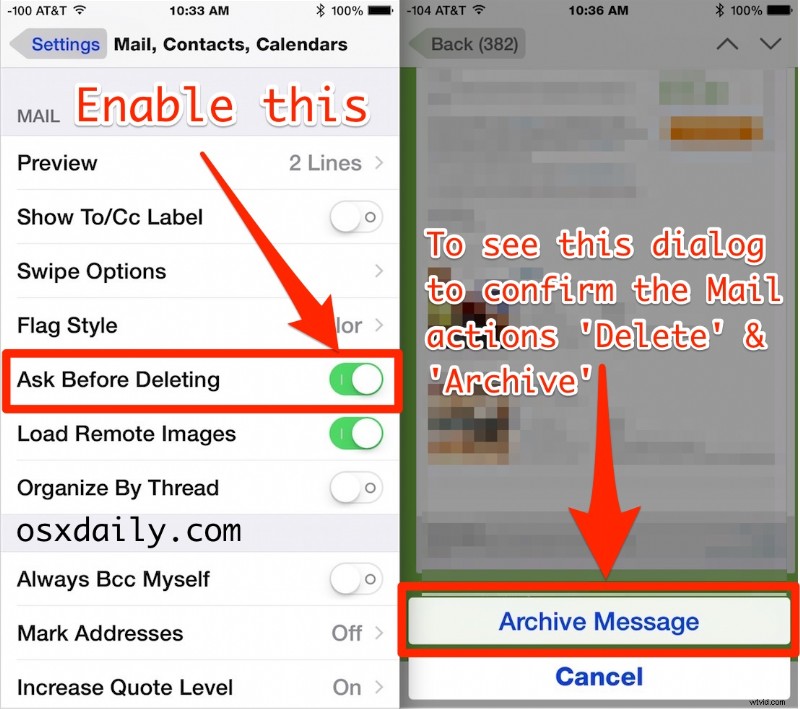
- Under the “Mail” section, toggle the switch for “Ask Before Deleting” to the ON position – yes this applies to both the Archive function and the Delete function in Mail app
- Exit out of Settings and return to Mail app to see the difference
The setting takes effect immediately, now if you go back to Mail app and have a selected or opened email message, hitting the little box icon will no longer automatically send the message into ‘archives’ or ‘Trash’, it will prompt you to confirm that is what you actually want to do. That little pop-up confirmation box looks like this if you have the setting to ‘Archive’ a message enabled on iOS Mail app:

This is so useful for iPhone newcomers that it should probably be enabled by default, but even those of us who have been using the iPhone since it came out can regularly hit the little box button accidentally and send an email into no mans land. There’s a pretty good chance if an email suddenly disappeared on your iPhone, iPad, or iPod touch, into the Archives or Trash by that little automatic button action without a confirmation is probably exactly where it went.
For what it’s worth, you can also shake to undo the action (And yes, since many are unfamiliar with this, literally shaking the phone around in your hand is how you activate the equivalent of an Undo and Redo button on iPhone, kind of fun and playful, but also not exactly intuitive or easy for some users. Meanwhile, iPad users get actual undo and redo buttons on their keyboards for those tasks… but anyway).
As usual, if you decide you don’t like this confirmation dialog in Mail app, simply returning to settings and toggling the “Ask Before Deleting” option back to the OFF position will remove it in Mail app for tapping the little box button.