
You can change video speed on iPhone without installing any third-party app. How to speed up a video on iPhone? How to increase video speed more than 2X on iPhone? This post shares 3 practical methods with you and shows you how to speed up video more than 20X on Windows using MiniTool MovieMaker.
Speed Up a Slo-mo Video on iPhone Using the Photos App
If you want to remove the slow-motion effect from your video and convert it to normal speed on iPhone, use the Photos app. It lets you return slow-motion videos to regular speed.
Here’s how:
Step 1. Open the Photos app.
Step 2. Tap on Albums at the bottom of your screen.
Step 3. Find the Slo-mo folder and open it. Browse these slow-motion videos and click the slow-motion video you want to speed up.
Step 4. Click the Edit button at the top right corner.
Step 5. Drag the two white lines together to transfer the slow-motion video into a normal speed video.
Step 6. Click the Playback button to preview the video. If you don’t want to make other changes to this video, tap on Done to save the video.
Speed Up a Video on iPhone Using iMovie
iMovie is a video editing app with many editing features, such as cropping, splitting, adding music, applying effects, etc. It also can be used as a video speed controller to slow down or speed up a video on iPhone. Take the following steps:
Step 1. Run iMovie.
Step 2. Click on Create Project and choose Movie to create a new project.
Step 3. Tap Media at the top left corner and go to Video > All to select the video you’d like to accelerate. Then click Create Movie.
Step 4. Choose the video clip in the timeline and the editing tools will appear at the bottom of the screen.
Step 5. Tap the Speed button and move the speed slider to the right. iMovie can only speed up your video up to 2X.
Step 6. When you are done, tap Done and export the video.
Speed Up a Video More Than 2X on iPhone
Wonder how to speed up video on iPhone more than 2X. Here are two solutions. One is using iMovie to increase the video speed and repeat until you get the wanted speed, and the other is using a third-party video speed editor.
Tip: How to Speed Up a Video More Than 20X on Windows
Speaking of video speed changers for Windows, MiniTool MovieMaker is highly recommended to help you achieve the speed you want. It lets you increase the video speed to 50X or decrease the speed to 0.01X.
Here’s a quick guide.
Step 1. Open MiniTool MovieMaker.
Step 2. Close the popup window and import the video.
Step 3. Drag and drop the video to the timeline.
Step 4. Click the speed controller button and choose Fast. Then select the desired speed option.
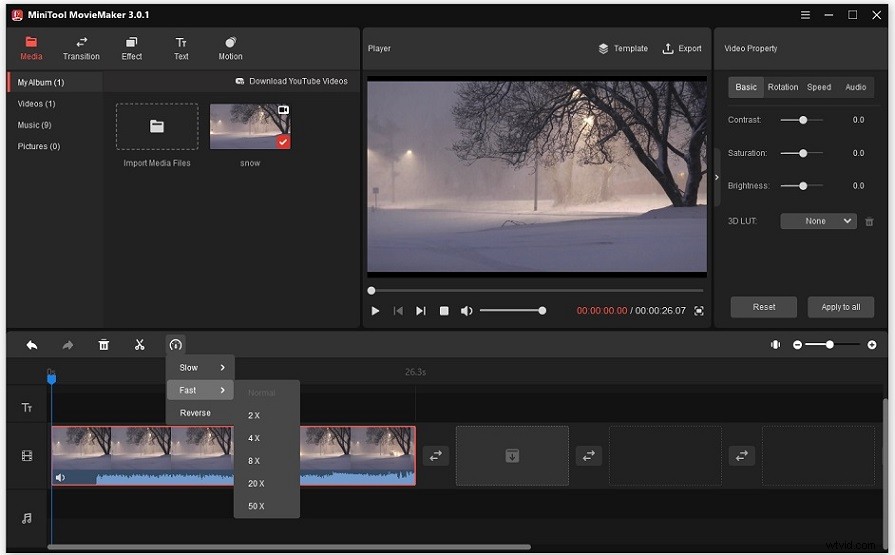
Step 5. Edit the video as needed. After that, click Export.
Step 6. Adjust the export settings and save the video.
Conclusion
Try the above methods to speed up video on your iPhone. If you have other suggestions, share them in the comments section!