If you're looking for a web application to create and edit your videos, WeVideo is perhaps what you need. This online platform enables you to create videos in the cloud. That is to say, every single feature is accessible online, so you don't have to download other software. Below is a get-starting guide for WeVideo. Follow it to easily create videos online.
#1 Sign in WeVideo
It's free to get started with WeVideo. You just need to make an account by providing an email address, and creating a username and password. You can also sign in with your preexisting Facebook, Yahoo or Gmail account.
#2 Import your photos or videos to WeVideo
Then click Upload Media in the Storyboard tab or go to the Upload tab to import the photos and video clips from your computer or media accounts. You can also hit Record and connect your own camera device to record a video clip.
Tip: WeVideo provides three editing modes (Storyboard, Standard Timeline and Advanced Timeline). You can switch between modes by clicking the triangle icon in the upper right corner of the screen in the editor.
#3 Polish your WeVideo creation
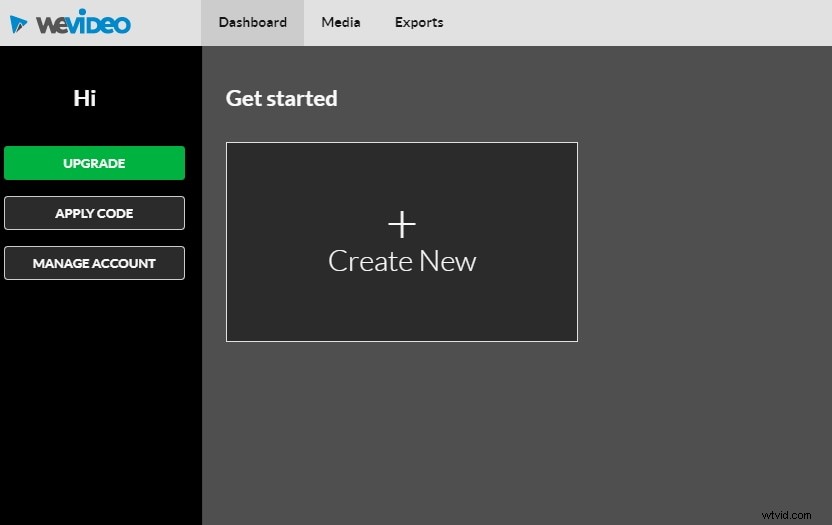
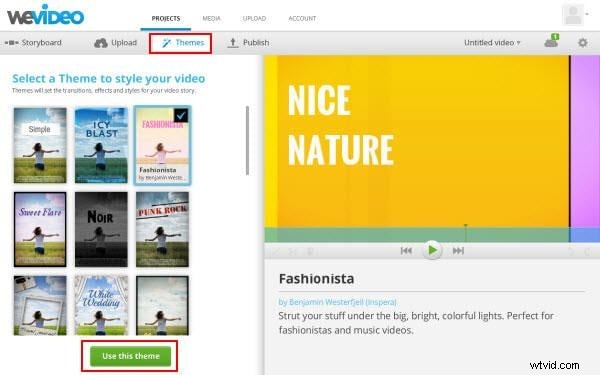
After that, drag and drop your contents in any order you want. This will help you to organize your contents. Then you edit the video as you like. For example, you can trim your video clips to focus on some key moments or and cut a long video into smaller ones. You can also add text, effects, music, and graphics to your videos. Or go to the Theme tab to add some creative themes to your creation.
#4 Publish your videos
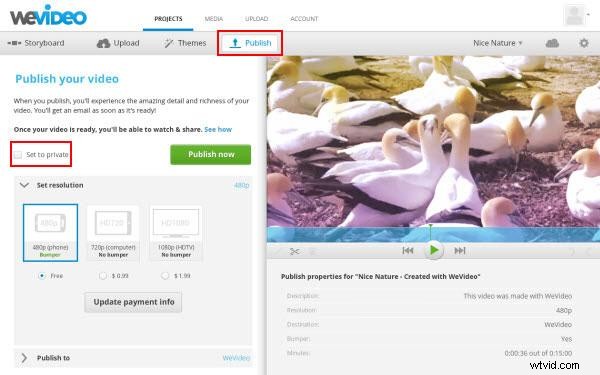
After finishing your creation, go to Publish to upload your videos directly to YouTube, Google Drive, Facebook, and Twitter. You can even change the video resolution or set your content’s visibility by choosing options like “private or public”.
Although WeVideo provides some basic video editing functions, there are many features present in desktop video editors that WeVideo doesn't offer, such as slow and fast motion and noise removal, to name a few. If you want to create a more professional video, Wondershare Filmora (originally Wondershare Video Editor) is highly recommended. This user friendly video editing tool has a bunch of special features which allow you to easily put together your video clips, text and music. You can apply different effects like filters, picture-in-picture, transitions and many more to get that professional look out of your videos in mere minutes. Here you can get more details about this Video Editor.