Whether you want to share a video with colleagues, customers or students, Google Drive is the best tool to host your videos in the cloud.
Based on YouTube’s video player, the platform also provides a built-in subtitle feature for your content. This is especially handy when you need to make your message more memorable, or if your audience is deaf or hard of hearing.

Here’s how you can subtitle efficiently your videos on Google Drive, especially with a lot of volume.
Why add subtitles to your Google Drive videos?
Google Drive is one of the most popular cloud hosting platforms, with Microsoft OneDrive, Icloud or Dropbox. Businesses especially like the ease of use and low cost of Google’s solution.
The platform is also a good tool to quickly host and share videos for a presentation, communication or hiring offers. With its expertise with YouTube, Google has also considered its video player accessibility, providing a screen reader and keyboard shortcuts adapted for people with visual or hearing impairments.
But they also have built-in subtitle feature. Here’s what subtitling can do for you:
- You increase the impact of your courses or your video communication, by giving a readable visual support to certain information.
- You open your videos to an audience of languages and nationalities different from your own.
- You make your videos accessible to people with hearing or comprehension problems.
- You allow your students or collaborators to react directly to what you have said and to continue the conversation.
Does this sound interesting to you? Here are the different ways to make your subtitles.
Google Drive closed captions : the different solutions
There is actually only one way to subtitle your videos on Google Drive. To do the job, you can upload a subtitle file (VTT or SRT) to the platform. Here is the step-by-step method :
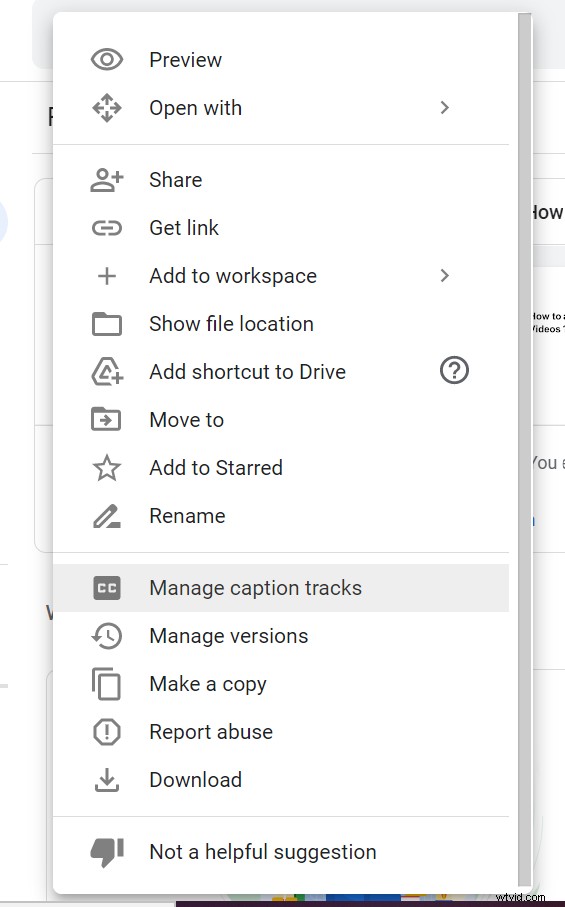
Click on the tab near your video and select “manage caption tracks” from the drop-down menu.
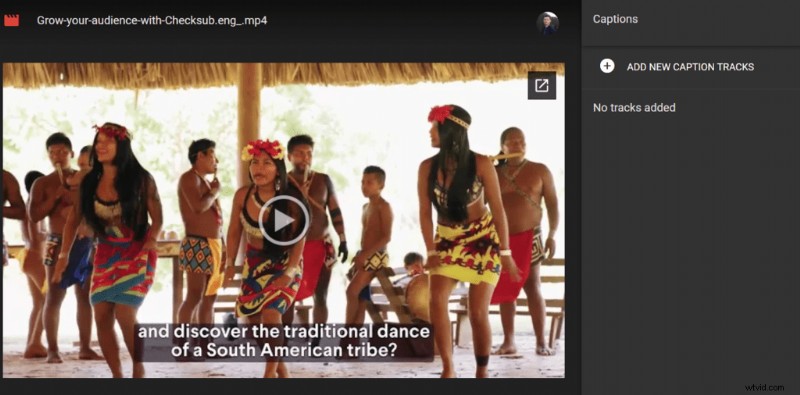
Then press “add a new caption track”.
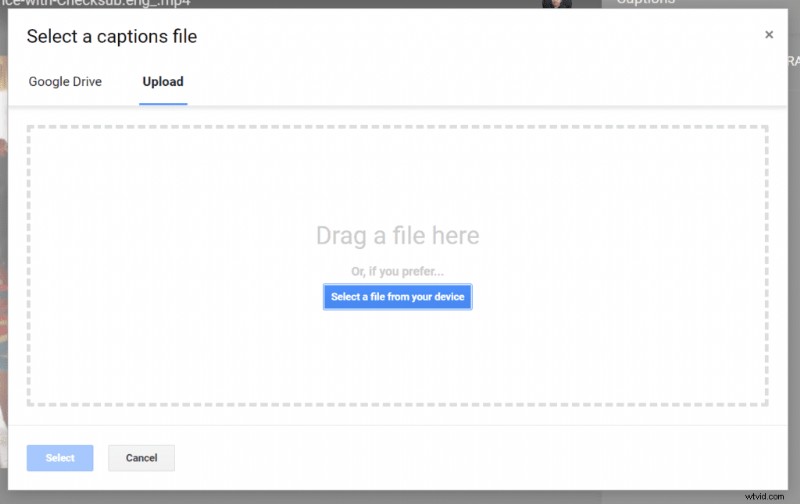
You can then upload the file you want from your computer.
To create these files, you have three possibilities :
- Either transcribe your video by yourself and create the file manually according to a specific coding. This is obviously a method that requires time and specific skills. We only recommend it for really short videos.
- You can use an automatic subtitling solution, which will do the work of transcription and synchronization. Even if the result is often to be optimized, you save a lot of time in the task. We recommend it if you have a video project with a modest volume, and you have some time ahead of you.
- You can opt for a professional subtitling service. This is the safest solution and ensures you a quality result.
For the last two options, we present here our solution that combines voice recognition and professional expertise to take care of your subtitles.
How to use an automatic subtitle generator on Google Drive?
As speech recognition technologies have become generalized, many automatic subtitling solutions have appeared on the market. Based on deep learning, they transcribe or even translate your videos with the utmost accuracy and in no time.
We show you here a way to subtitle your video with our Checksub solution. This tool allows you to :
- Transcribe your videos automatically and with great accuracy (Advanced Speech Recognition API)
- Collaborate with professional subtitlers and translators to manage your video project.
- Translate your video into more than 128 languages (translation based on in-depth learning)
- Easily change and customize the appearance of your subtitles
1# Add your video on the interface
To get started, register on the Checksub platform. Select your content and indicate its original language. You can also choose from a wide range of languages to perform translation if necessary.
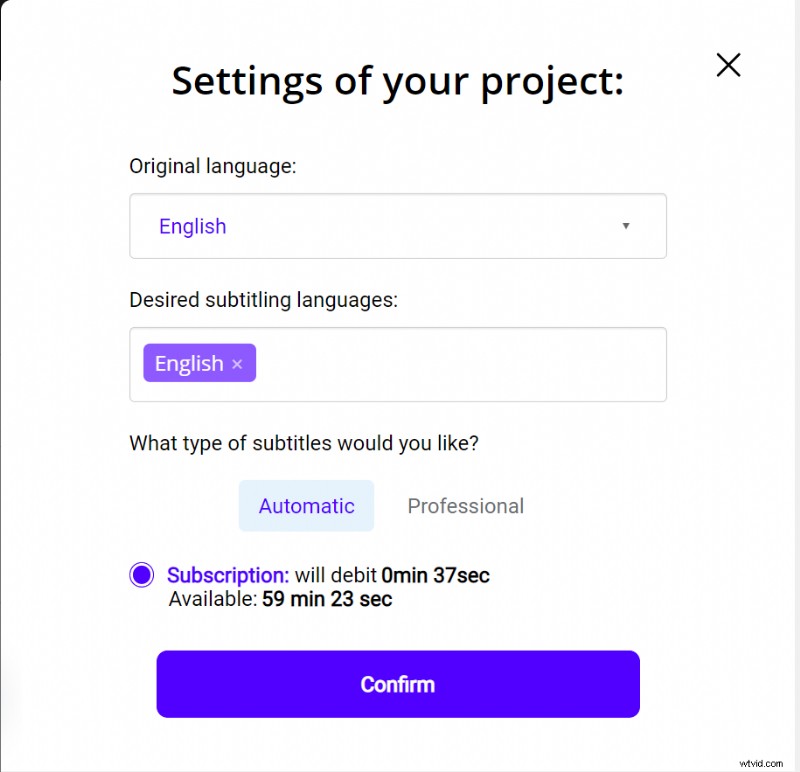
You have 10 minutes to test the platform. If this time is not enough time for your first video, you can buy credits at a low price.
The API will then perform the speech recognition and provide you with the result in a few minutes.
2# Check and adapt the result
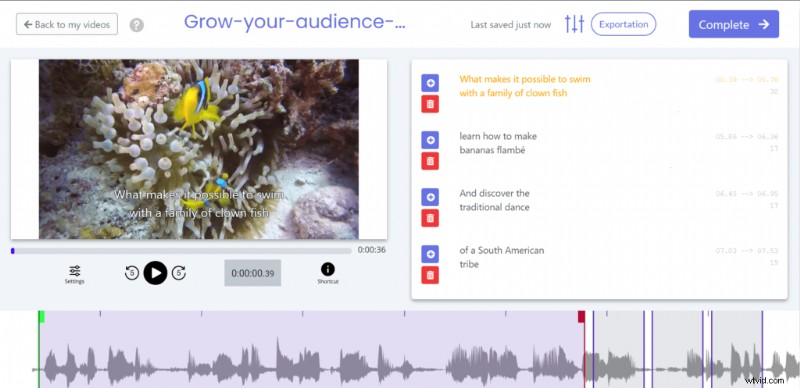
When the result is ready, click on the language of your video and access the dedicated subtitle editor to check the synchronization.
3# Export the SRT, VTT file to Google Drive
When you are satisfied with the transcript, you can then download the subtitle file at your convenience. To do so, click on the “Export” button and choose the format that suits you. All you have to do now is uploading the file using the method explained above!
Using a professional subtitle service
As you can see, doing subtitles is quite complex. This is even more true if you have a large volume of Google Drive videos that are difficult to transcribe (ambient noise).
Fortunately, there are also professional services that can take care of your Google Drive video projects. With the help of proven human expertise, they will deliver your projects in a short period of time and with high quality. For example, our subtitling experts are at your service!
Otherwise, we hope we’ve helped you get your ideas across !