
Creating videos for LinkedIn is a great opportunity to connect with other professionals and share your expertise with the world. However, did you know that you could improve the value of your LinkedIn videos with captions?
Adding captions to video content provides a meaningful SEO boost, increases video watch time and retention, and leverages a positive user experience, making it easy for the hearing impaired and those browsing LinkedIn on mute to enjoy your content.
There are two primary forms of captions for social videos: closed captions & open captions. Closed captions are what you are used to on your T.V., they can be toggled on/off by a setting. Open captions are "burned" into the video itself and are always visible, regardless of what video player is used.
The good news? You can use Zubtitle to add open captions to your video or generate an .SRT file for closed captions!
To add closed captions to your LinkedIn video, there is an easy way you can generate an SRT file to upload alongside your video. An SRT file is simply a video caption file, including your transcribed text and the correct timing that lines up with the speach in your video.
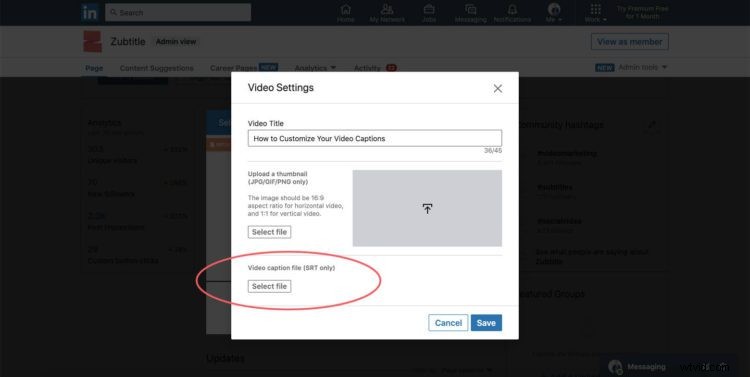
The guide below will show you how you can use Zubtile to produce an SRT file for LinkedIn videos or any other use.
How to Generate an SRT File for Your LinkedIn Video
Step #1: Upload Your Video
To begin, log in to your Zubtitle account. If you don't have an account, you can create one by clicking here.
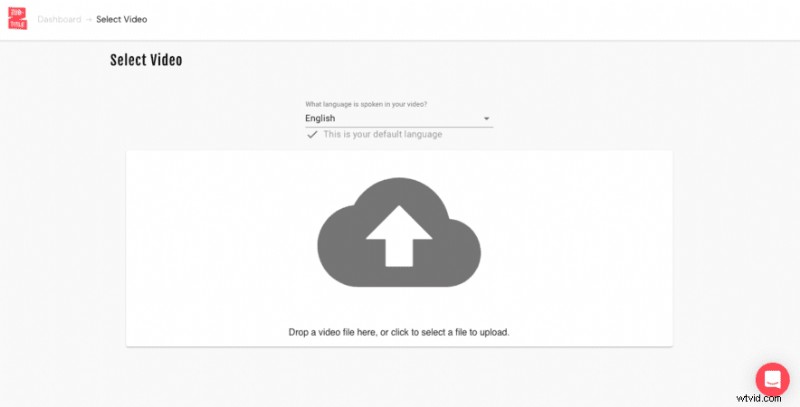
After you successfully log in, you should automatically see the "My Videos" page. On the right side of the page, there should be an "Add New Video" button.
Click this button and you'll be directed to a portal where you can upload your video. Click the upload button to select a file from a location on your computer. Alternatively, you can drag the file to the page to begin the upload process.
(If you are having trouble uploading your video if it was captured on an Apple iPhone device, please read this article for support.)
Step #2: Edit Captions & Change Time Stamps
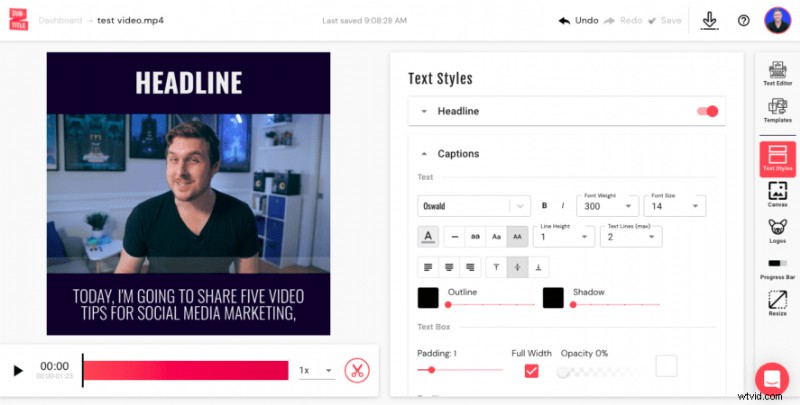
Zubtitle allows you to not only generate an SRT, but also to "burn in" captions right on your video custom styles to match your branding.
When your video is finished uploading, select the Text Styles option from the right-hand menu to style your captions and headline.
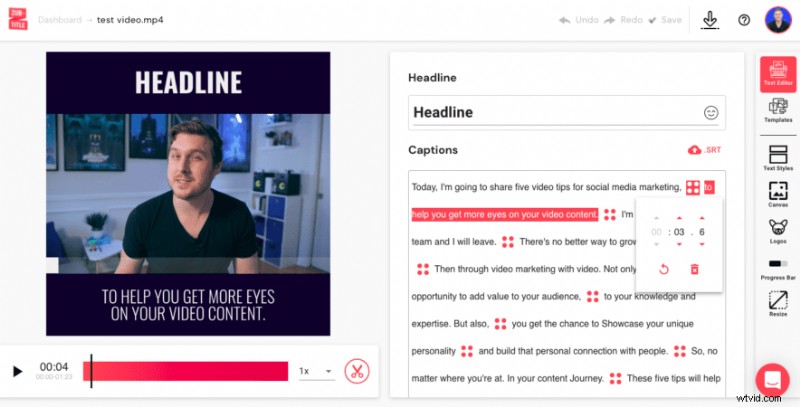
You can also change the time stamps for the captions by selecting the Text Editor menu. By clicking the grid icon next to the caption text, you can alter the time the selected caption is displayed.
For example, if you would like to decrease the amount of time a caption appears, you can click the grid icon next to the selected caption and lower the time.
In this step, you should also double-check your caption text for any misspellings or mistakes. Zubtitle's transcription technology is very powerful, however, it is not always 100% correct.
Once you are satisfied with your captions, you can move on.
Step #3: Render Video & Get SRT File
After you are done editing your video, click the down arrow Download symbol. This process will generate your SRT file and also provide a new version of your video with the open captions added.
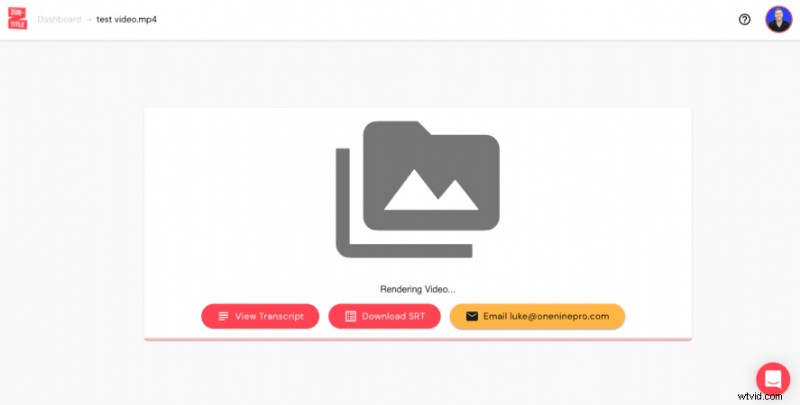
Once your video is complete, you can download the SRT file of your video. You can choose to upload the SRT file straight to LinkedIn, or you can download the video with the captions already applied.
LinkedIn's built-in captions tend to be more generic, and LinkedIn does not provide any additional styling features to help you stand out. If you want to make your video's captions more stylish and presentable, you now have the option to upload your Zubtitle-captioned-video directly to LinkedIn!
All of this, of course, is included with your SRT file!
Sign Up For Zubtitle Today!
To create impressionable videos quickly and easily with captions, Zubtitle is always your best choice.
To begin adding captions to your videos, create an account with Zubtitle today.