
Snapchat is an instant messaging app. It will automatically delete the uploaded pictures once they are opened or expired. Want to take a screenshot on Snapchat? How to screenshot on Snapchat without them knowing? Read this post and find the answer.
In general, if you take a screenshot on Snapchat, Snapchat will notify the person who owns the picture you’ve captured. So how do you screenshot on Snapchat without them knowing? Here are four ways of secretly taking screenshots on Snapchat (Want to make a Snapchat video? Try MiniTool MovieMaker).
How to Screenshot on Snapchat without Them Knowing
- Using Airplane mode
- Using a screen recorder
- Using Google Assistant
- Using another phone
#1. Using Airplane Mode
The simplest method to save others’ snaps without sending them notifications is by turning on the Airplane mode. Take these steps to screenshot on Snapchat secretly.
Step 1. Launch the Snapchat app and ensure all the snaps are loaded.
Step 2. Turn off the cellular data, Wi-Fi and Bluetooth. After that, enable the Airplane mode and open Snapchat again.
Step 3. Then open the snap you wish to save and take a screenshot.
How to take a screenshot on Android: Press and hold the Power and Volume down buttons.
How to take a screenshot on iOS: Press the Side and Volume up buttons at the same time.
Step 4. After a few minutes, connect to the internet.
See also: Solved - How to Crop a Screenshot on Windows/Mac/Android/iPhone
#2. Using a Screen Recorder
To capture a screenshot on Snapchat, you can use the built-in screen recorder to record the snap and take a picture from the recorded video. If it still sends notifications to the owner, you can try third-party screen recorders like ShotSaver and AZ Screen Recorder.
Here’s how to record a video on Snapchat.
Android:
Step 1. Open Snapchat and disable the internet connection after loading the snaps. Open the snap.
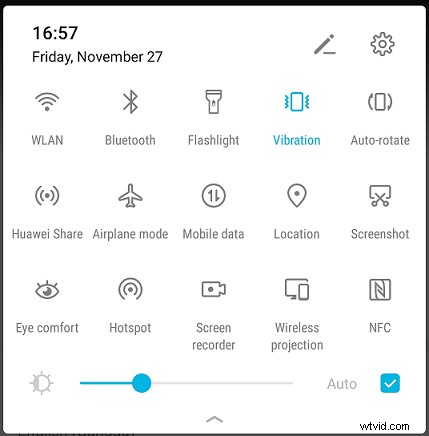
Step 2. Then swipe down the status bar and click on the Screen recorder to record the snap you want to save. End the recording after serval seconds.
iOS:
Step 1. Open Snapchat and make sure the snap you’d like to capture is loaded.
Step 2. Turn off the internet connection and open the snap.
Step 3. Open the Control Center and tap on the Record button to start recording.
Step 4. After recording the snap, you can open the recording and take a screenshot of the video.
To learn more, see this post: How to Take a Picture from a Video? Here’re 3 Ways
#3. Using Google Assistant
You can screenshot on Snapchat without letting them know by using Google Assistant.
Here’s how to screenshot on Snapchat without them knowing.
Step 1. Run the Snapchat app and open the snap you want to take a screenshot of.
Step 2. Call out Google Assistant and ask it to take a screenshot. Then save the Snapchat screenshot.
#4. Using Another Phone
Actually, the quickest and safest way to take screenshots on Snapchat without notifying the owners is by using another phone. Just open the snap and take a picture of it with another phone.
Conclusion
How to screenshot on Snapchat without them knowing? Try the above-mentioned methods! If you have other suggestions, please leave comments below!