
Do you like podcasts? Are you often listen to podcasts? Have you ever thought of enjoying podcasts offline? In this post, you will learn how to download podcasts to computer and several websites to listen to podcasts for free.
Want to download podcasts for offline playback? Here are 3 solutions.
- Download podcasts from the iTunes Store
- Download podcasts from YouTube (To upload podcasts to YouTube, you can use MiniTool MovieMaker to convert MP3 to MP4)
- Download podcasts from websites
Download Podcasts from the iTunes Store
Available for Windows and macOS, iTunes is a popular media player where you can play music, and listen to podcasts. There are different kinds of categories in the iTunes Store, such as Comedy, News, Education, Business, Sports, Science, History, etc. Podcasts are free to enjoy and download.
How to download podcasts to computer? Follow these steps!
Step 1. Launch iTunes. If you don’t have iTunes, download and install it on the computer.
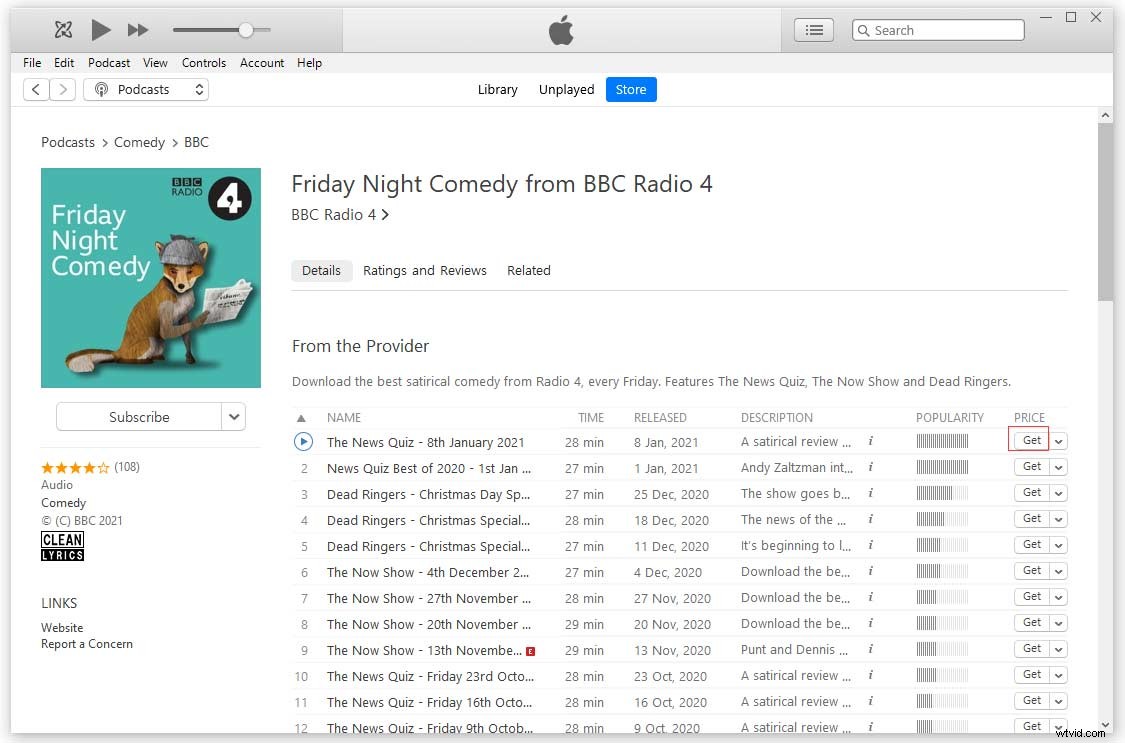
Step 2. Once you get the main interface, change Music to Podcasts in the top left corner of the window. Later, all the podcasts in the iTunes Store show up.
Step 3. You can browse podcasts by categories, top episodes, top shows, or featured providers. Or go to the search bar and search for the podcast that you want to download.
Step 4. Find the wanted podcast and click on it. Then you can see all the episodes are listed here.
Step 5. Then click the Get button behind the episode that you want to save. It will start downloading the episode. Repeat this step and download these episodes as many as you want.
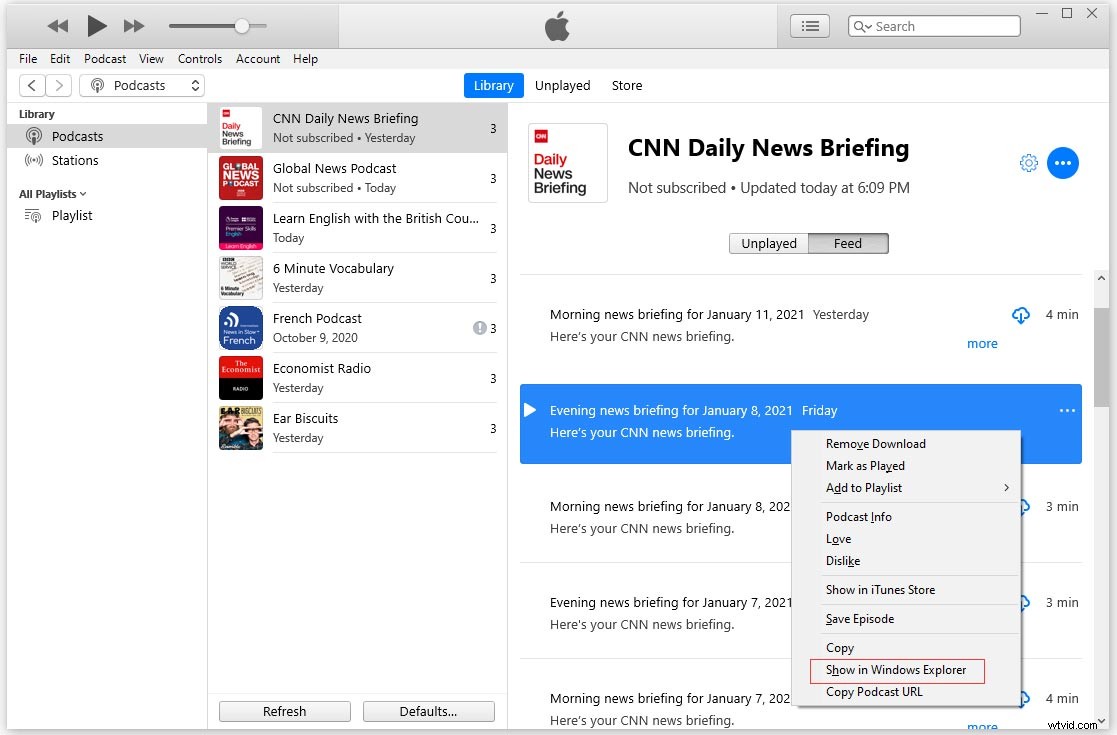
Step 6. After downloading the podcast, switch to the Library tab and find the podcast you just download.
Step 7. Right-click on a downloaded episode and select Show in Windows Explorer from the popup window. Then you will see all the downloaded episodes.
Warning:
This post is demonstrated for personal fair-use only. It’s illegal to download copyrighted materials from distribution, and other commercial purposes.
Download Podcasts from YouTube
On YouTube, you can also find some interesting podcasts. If you want to your favorite podcasts from YouTube, you can try the best online YouTube audio converter - YTMP3.
It can convert YouTube to MP3 and MP4.
Here’s how to download podcasts from YouTube in MP3 format.
Step 1. Visit the YTMP3 website.
Step 2. Go to YouTube and copy the URL of the podcast you want to download.
Step 3. Go back to YTMP3 and enter the copied link in the box. Hit the Convert button to process the file.
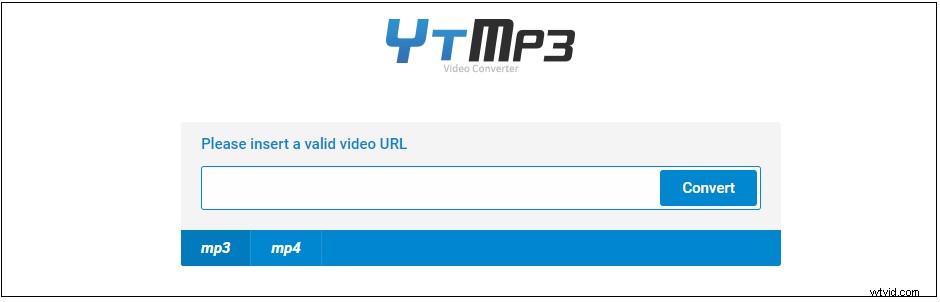
Step 4. When the conversion is done, click the Download button to download the podcast to computer, or save it to Dropbox.
Download Podcasts from Websites
Can’t download your favorite podcasts from a podcast hosting website? Here recommend a streaming audio recorder – OBS Studio. It can record podcasts, lectures, gameplays, and live streaming.
Here’s a quick guide.
- Launch OBS Studio that you’ve installed on the computer.
- Click the + in the Sources section and choose Audio Output Capture to continue.
- Open your browser, find and play the podcast you want to record.
- Go back to OBS Studio and press on Start Recording.
How to Listen to Podcasts for free online
How to listen to podcasts free online? Here’s a list of 5 podcast hosting websites.
- SoundCloud
- Stitcher
- Radio.com
- Podbay
- Earwolf
Conclusion
This post shows you how to download podcasts to computer. If you have any questions about this post, leave a comment below!