
Plex is a digital media player and organizer that allows users to access, organize, and stream all content on the computer or other compatible devices. When you watch movies or shows on Plex, you may want to get the dubbing subtitles or add your subtitles. How to do that? This post will show you how to use Plex subtitles.
With Plex, it’s easy for users to watch movies, TV shows, and web shows. Whether you need subtitles for a better understanding or learning a foreign language, Plex makes it simple to download subtitles while watching videos. Like other media servers, Plex also offers several subtitle options like downloading source subtitles and adding local subtitles.
The following part will show you how to use Plex subtitles. Want to make a video for free? Try MiniTool MovieMaker.
How to Enable Plex Subtitles Download Automatically?
If you do not have any local subtitle files for your videos, you can find subtitles with a third-party service. This part will show you how to get subtitles on Plex with OpenSubtitles.org for free.
Step 1. Open Plex, click the Settings icon from the top right from the home page.
Step 2. Move to the SETTINGS section, and click the Agents.
Step 3. Select Movies then click the Plex Movie (Legacy), and check the OpenSubtitles.org box, and you can also drag it to the top of the list.
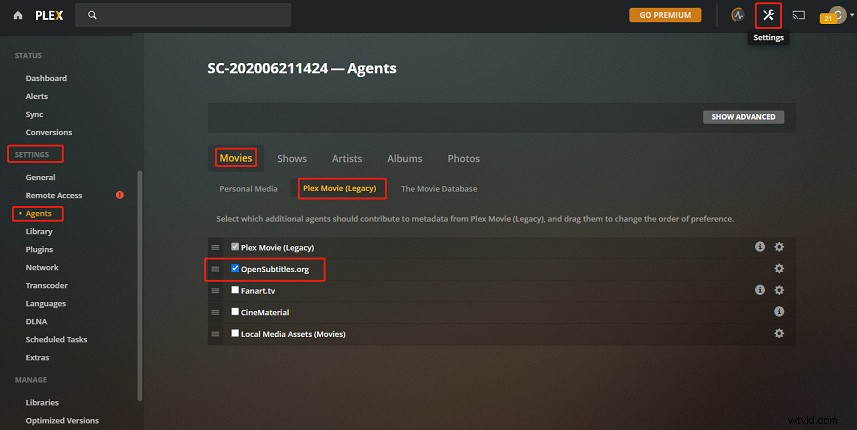
Step 4. Tap on the Settings icon of OpenSubtitles.org to log into it and choose preferred subtitle languages, and click Save.
Step 5. Then choose the Shows > TheTVDB, then tick the check box of OpenSubtitles.org, and repeat step 4.
Note: To add subtitles to the existing movies or shows, you need to locate the library on the left of the Plex home page, then click the three-dot icon, select the Manage Library > Refresh All Metadata.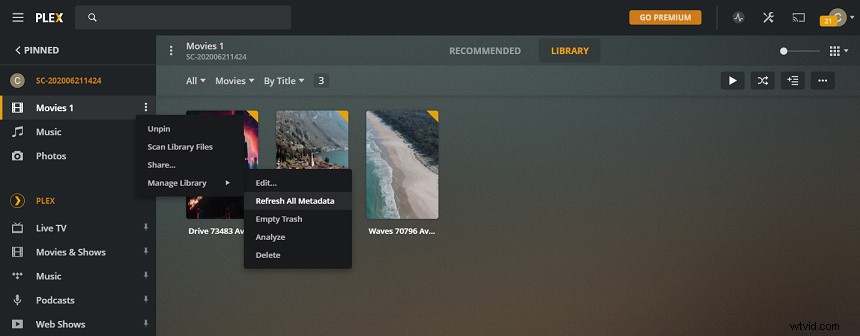
How to Turn on Plex Subtitles by Default?
After you get the needed subtitle files, how to watch them with videos? Now, look at the following guide.
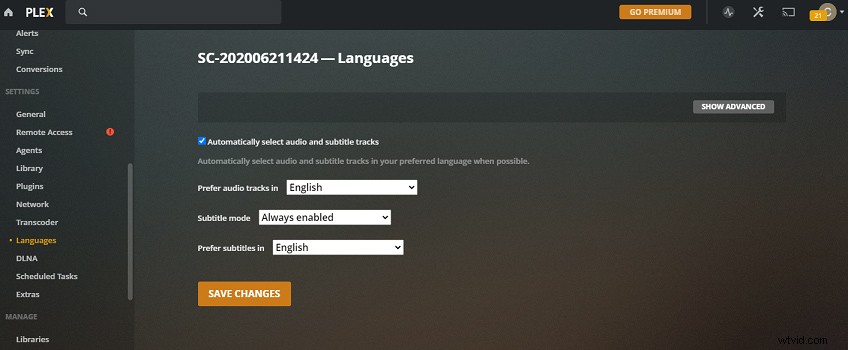
Step 1. At the Plex home page, click the Settings icon, then move to the Languages under SETTINGS.
Step 2. Check the box of Automatically select audio and subtitle tracks, then choose the preferred audio language, set subtitle mode as Always enabled, and select the desired subtitle language, and click the SAVE CHANGES.
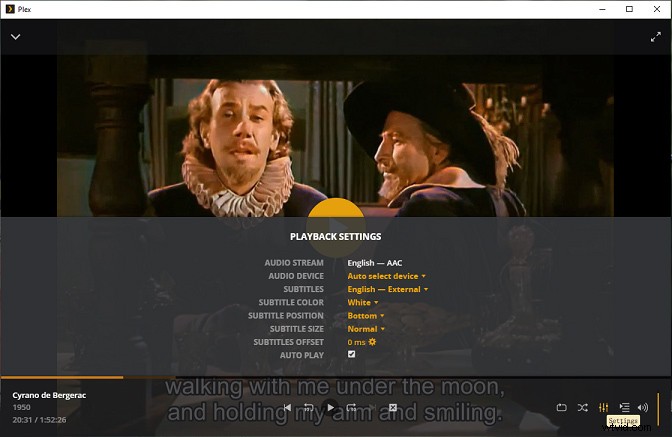
How to turn on external subtitles during the playback on Plex? When you watch a movie or show, click the Settings icon at the bottom left of the screen, in the Subtitle bar, click the dropdown arrow to get the available subtitle file. Then the subtitles will appear on your video. And you can also change the subtitle color, position, size, etc. To turn off the subtitles, tap on the None in the dropdown list of Subtitle
Related article: How to Download YIFY Subtitles and Hardcode Them to Movies
Conclusion
Now, follow the above steps and try to make the Plex subtitles download automatically. And if you have any suggestions for using Plex subtitles, you can share them with us in the below comments area.