
To enhance your viewing experience in Kodi, now it offers built-in subtitles support. Have you ever tried this feature? Do you know how to get subtitles on Kodi? And this post will show you clear steps on how to get Kodi subtitles. Want to add text to the video for free? Try MiniTool MovieMaker.
Kodi is a free and open-source media player available on Windows, Mac, iOS, Android, Linux, and Raspberry Pi. With this software, you can stream movies, TV shows, pictures, videos, and listen to music, listen to the radio, and more. How to enable Kodi subtitles when you watch a video? Just follow the steps below.
How to Get Kodi Subtitles? The processes are divided into 3 parts.
- Install substile add-on.
- Set up subtitles service on Kodi.
- Display the subtitles in a video.
Kodi offers several subtitles add-ons, OpenSubtitles.org, Addic7ed.com, LegendasDivx.com, Napisy24.pl, Shooter, and Super Subtitles. And this part will show you how to get Kodi subtitles using OpenSubtitles.org.
How to Install Subtitles Add-ons in Kodi?
Step 1. Launch Kodi on your device, then click on the Settings icon.
Step 2. In the System window, select the Add-ons button.
Step 3. Choose and click the Install from repository.
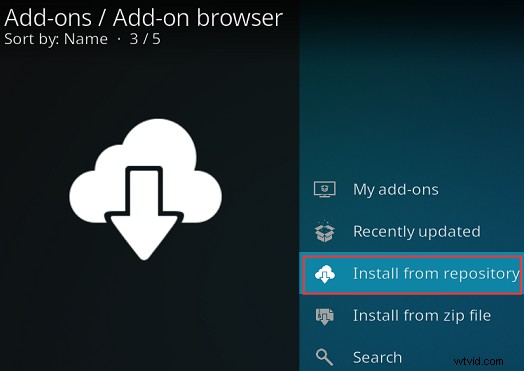
Step 4. Next, scroll down to the Subtitles option.
Step 5. Choose and click your preferred subtitle add-on.
Step 6. Tap on the Install to install this subtitle add-on.
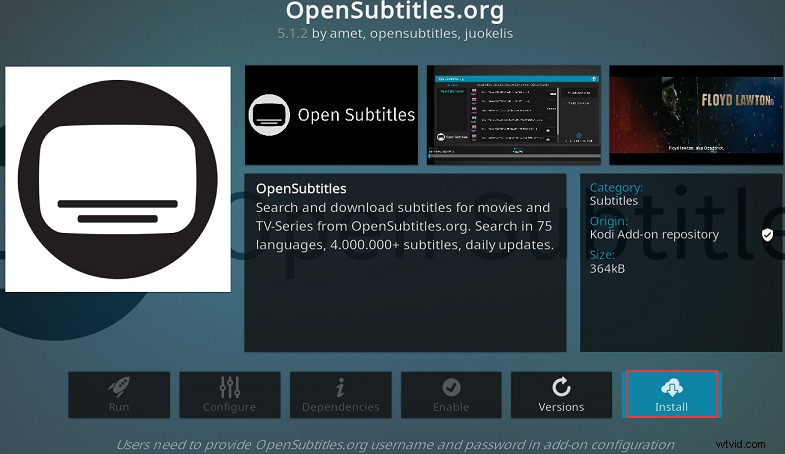
Step 7. Visit the OpenSubtitles.org website and register for a free account.
Step 8. Click on OpenSubtitles.org again, select the Configure, then enter the username and password from step 7, and click the OK.
How to Enable Subtitles in Kodi?
Step 1. Go to the homepage of Kodi, tap on the Settings icon.
Step 2. Select and click on Player to open the Settings / Player window.
Step 3. On the left of the menu tab, choose the Language, go to the Download Services section.
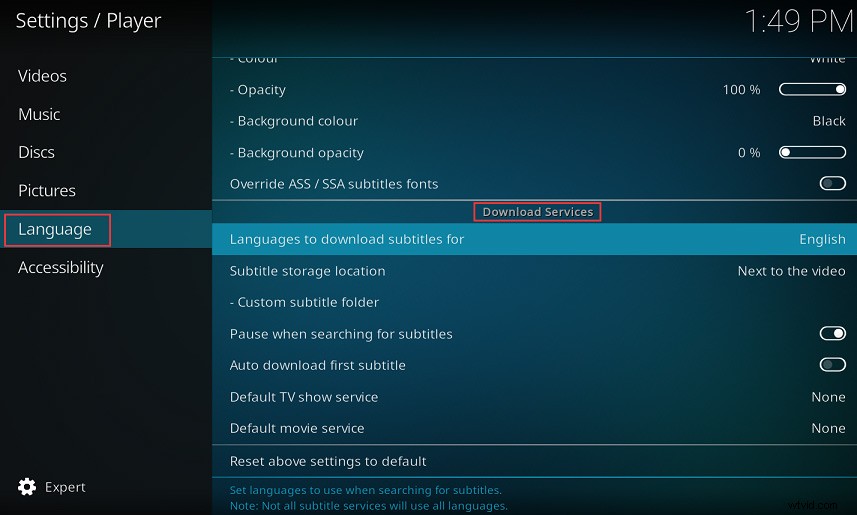
Step 4. Click the Languages to download subtitles for to select a language and click the OK.
Step 5. Select the Default TV Show service and then choose OpenSubtitles.org.
Step 6. Tap on Default movie service and choose OpenSubtitles.org.
How to Display Subtitles in a Video in Kodi Manually?
Step 1. Play the movie or TV show you want subtitles for.
Step 2. In the bottom right corner of the screen, tap on the Subtitles icon.

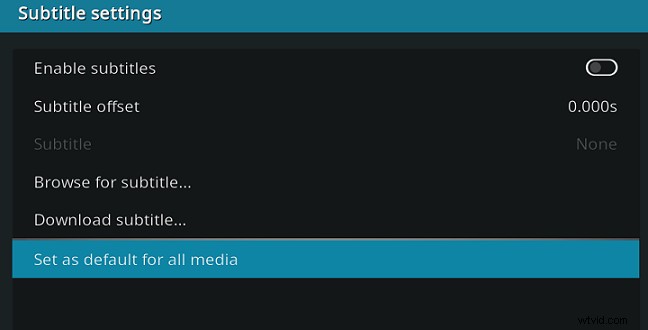
Step 3. Next, click the Download subtitle…
Step 4. Choose a subtitle file from the list of available subtitles.
Step 5. Subtitles should appear on the video.
How to Turn off subtitles in Kodi by default?
Step 1. When you play a video, click Settings.
Step 2. Choose the Subtitle Settings.
Step 3. Click on Save as default for all videos.
Also read: 7 Best Free Websites to Download Anime Subtitles
Bonus Tip- Top 8 Subtitle Addons for Kodi
Here’s the list of the best 8subtitle addons to search English subtitles in Kodi.
Top 8 Subtitle Addons for Kodi
- OpenSubtitles.org
- Podnapisi
- XBMC Subtitles
- Addic7ed
- Subscene
- BSPlayer Subtitle
- Super Subtitles
- Divxplanet
Conclusion
Now, you’ve learned how to get Kodi subtitles. It’s your turn to practice. Follow the above steps and try to get subtitles in Kodi when you watch a movie.