
Motion blur is the streak-like effect that happens while shooting a video or still image due to either long camera exposure or rapid movement of moving subjects. This effect can also be seen in human eyes. The image will have a motion blur if your eyes moves past an object. The motion blur should be added to video as it will highlight the movements and direction of subject and add more personality to images in the video. So it will make your video standout from the others who are not using motion blur. You might be thinking that giving a motion blur effect to video with Sony Vegas Pro is a very difficult task but it is not like that as you can achieve it with great ease.
There are many people who cannot use Vegas Pro due to its high cost and incompatibility with Mac. So Wondershare Filmora can help those people by providing video editing tools at affordable price. It supports Mac as well as Windows operating system. It is also easy-to-use thus people who are new to video editing can utilize this software in a convenient manner. So what are you waiting for, start downloading the free trial version of Wondershare Filmora by clicking on the link given below.
How to create Sony Vegas motion blur effect
The motion blur effect can be used in Vegas Pro by following the steps given below.
1. Importing video file
The first step begins with importing a video file into Vegas Pro and then dragging it into timeline. It is also necessary that the chosen video must be motional.
2. Adding motion blur to video:
You need to follow the steps given below for adding motion blur to your video.
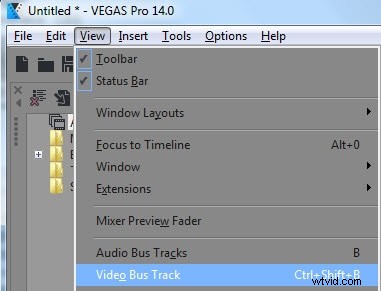
- The very first step is to go to View tab and select Video Bus Track. You can also press Shift + Ctrl +B for choosing it. After this, a Video Bus Track will be seen below your original video track. This tool will be used for adding motion blur.
- Next step is to right click the Video Bus Track and then select Insert/Remove Envelope. On selecting it, you will see Motion Blur Amount.
- Choose it. After that, a pink line will be appeared over the Video Bus Track representing Motion Blur length.
- Now drag this line up to 10 and in the video preview box, you will observe that it has become a very shaky looking footage. You will have a more blurry look if you will bring this bar to the top.


3. Adjusting the motion blur effect
Many setting options will be there on the head of Video Bus Track that can help you in adjusting motion blur effect. Now tap on the Animation Settings icon so that Vegas Pro can give you permission to fade the track. After this, drag it down for applying a bottom color fade and up for top color fade. The motion blur length and fade for particular part can also be set if you will double click on that part.

4. Preview
A dynamic RAM preview can be built by the following steps.
- Firstly, you have to look for a bar with a little yellow triangle to accentuate the areas (Looping Region).
- Now drag that across the video.
- After dragging, go and search "Tools" and tap it. Once you are finished with this task, play the footage. It will produce a little bit smoother looking clip.
5. Saving your video
If you like video preview then save it. The transition effects can also be added to video in Sony Vegas in addition to motion blur.
Video tutorial on how to use Sony Vegas Pro Motion Blur: