
Any enthusiast in multimedia graphics designing would be familiar with the term Motion blur. In this article, we attempt to help you understand what is motion blur and how you can make motion blur using Adobe Premiere Pro.
What is motion blur and why does it occur
Motion blur is the appearance of long thin lines in photos or images due to the movement of objects while shooting. This can happen even in videos or other animations. In videos, this happens when the object moves fast and the shutter is unable to capture the video. When the camera is focused on a close object you can see that the background is blurred. The best example for this is the picture shot while you are travelling or the photo of a moving object. In animations and movies, you can simulate this effect. Even our human eye can see pictures with motion blur and sometimes it can be uncomfortable for the viewer.
How to Make Motion Blur in Adobe Premiere Pro?
There are two ways to do this. Just follow the steps below to achieve the motion blur in Adobe Premiere Pro.
Method 1: Using the Transform Effect
1. Open the Video effects toolbox and check whether you have the transform option there (By default the transform effect will not be present).
2. Go to effects (in the bottom part of the screen) and search for "Transform". You will find the option under video effects -> Distort.
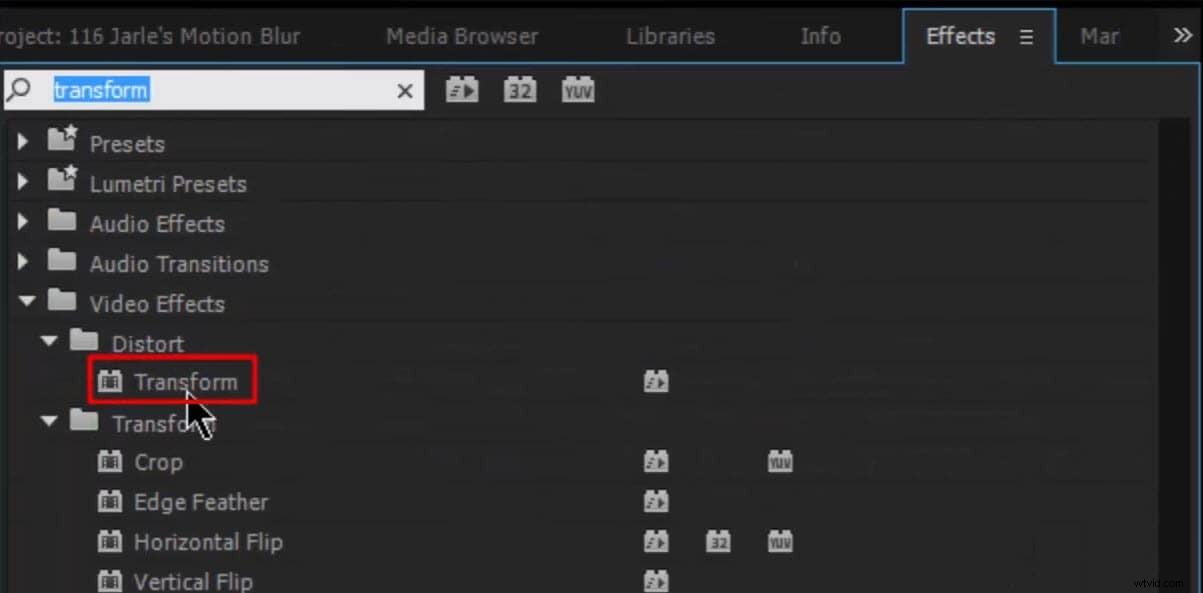
3. Drag that to the toolbox on top. Uncheck the box "Use composition's Shutter Angle" and then change the shutter angle value.
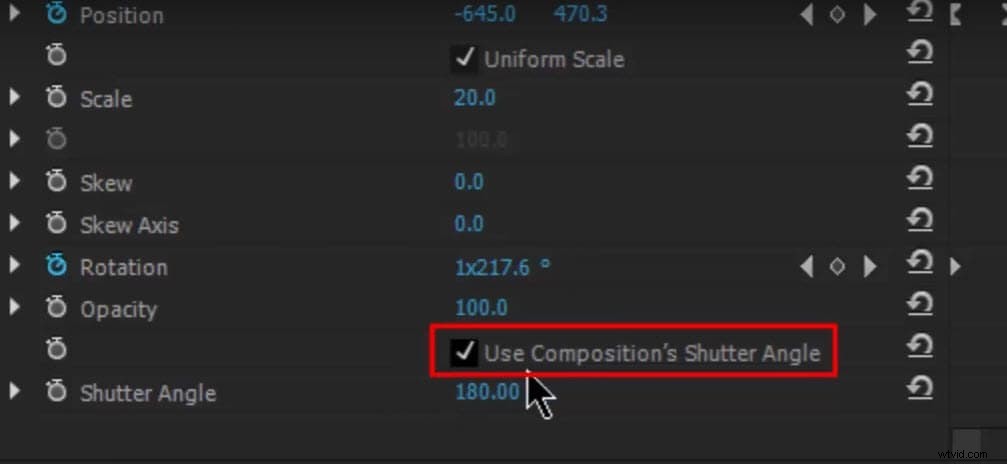
4. Now you can see that the video on the right starts to give the blur effect.
Check the video tutorial below to know the detials
Method 2: Using Direction Blur
Another way to give the blur effect is to use the "Directional blur" in the video effects. In that, you can adjust the Direction and Blur Length to achieve the blur effect you need.
1. Search Directional blur in the Effect search panel.
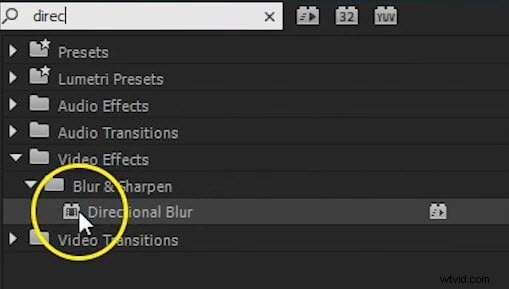
2. Drag that on to the video selected in the timeline.
3. Go to Effect Controls, change the parameters from the Directional Blur effect.
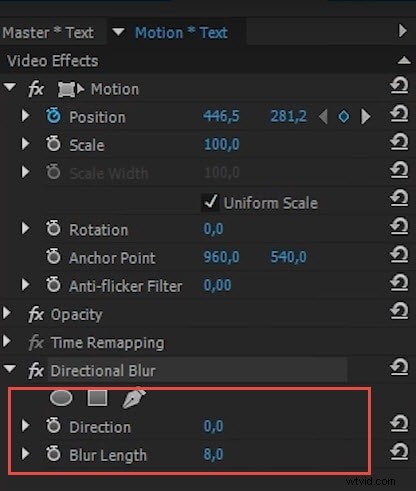
4. Adjust the Direction and Blur Length to check the effect you like.
Check this video tutorial to know more:
You can use the motion blur effect for your animation titles and graphics.
Best Adobe Premiere Pro Alternative for Beginners
While professionals may love to work using the Adobe Premiere Pro, the same cannot be true when it comes to new folks. Some may at times get lost with the number of features available. For beginners, the need is to have a simple, yet effective application. In such cases, Filmora turns out to be the best bet. It supports many formats while being easy to use as well.