
Slow motion effect is one of the most popular video effects. Fortunately, Windows Live Movie Maker provides this useful function for you to slow down your videos either for better presentation or better video effect. It is very easy to use Windows Live Movie Maker slow motion function. Just get Windows Live Movie Maker installed and follow the below guide to use slow motion effect in Windows Live Movie Maker.
How to slow down videos in Windows Live Movie Maker
Step 1. Add photos and videos to Windows Live Movie Maker
Click "Add videos and photos" to browse and select videos and photos from you computer to add. You can also drag and drop videos and photos to the storyboard.
Step 2. Slow down videos in Windows Live Movie Maker
To slow down videos, select the video clip and on the Edit tab under "Video Tools" choose a speed (depending on how much you want to speed the video up or slow it down).
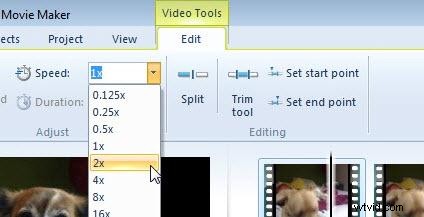
For more Windows Live Movie Maker tips, please go to how to edit videos in Windows Live Movie Maker.
By the way, Windows Live Movie Maker is really a good free video editing software. However, compared with other video editing software, it lacks some features. Have your thought about any video editing software better than Windows Live Movie Maker, which can slow down the motion effects and with powerful edting tools at the same time?
More Powerful Video Movie Making Can Slow Down Videos
For video movie making, you can use Wondershare Filmora to make a stunning movie from your home videos. All popular video formats are supported and lots of free video transition effects are provided for your to make your videos more smooth. With an intuitive interface, even beginners can make stunning movies with this video editor software.
Besides, you can directly upload your video to YouTube for sharing with family and friends. What's the best? There are more special editing features like Scene Detection, Close-up, Jump Cut, Mosaic, Tilt Shift, Picture-in-Picture, Face off, Audio Separation, Playback Speed. Hurry to free download Wondershare Filmora to edit your stunning videos now!