
Taking your video to the next level doesn’t have to be over complicated. Video Transitions are an incredible and effective tool to help you ignite that creative spark within your video.
Transitions are simple yet powerful, they can really bring your creation to life by connecting one frame to the other in a fun and exciting way.
In this blog, we wanted to highlight an all-time favorite – the Spin Transition. Don’t get dizzy! Here’s what we’re covering in this blog:
What are Video Transitions?
What is the Spin Transition?
How to add and edit the Spin Video Transition to your video
Free video transition templates to enhance your videos
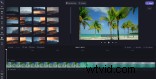
What are Video Transitions?
A Video Transition is a simple editing technique using an effect that is applied between two clips of a video. It’s used while video editing during post-production to connect two shots or frames.
There are a variety of Video Transitions to choose from, and they can be as simple as one frame being replaced by another. However, in this blog we cover one of our favourite and more artistic types of Video Transitions – the Spin Transition.
What is the Spin Transition?
Like its name suggests, the Spin Transition will rotate your shot and transition into the other with a 180 degree spin! Two shots (at the transition point) will rotate into each other, which adds a fun and artistic effect that can be used many times in the one video without feeling repetitive.
The length of this video transition can determine the passing of time between two scenes or the change of location. The Spin Transition adds dramatic effect and would best be used to make a statement in your video.
How to add and edit the Spin Transition to your video
Step 1: Create an account
If you haven’t already, register for a free Clipchamp account to get started.
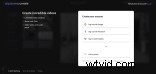
Step 2: Start a new editing project
Once you’ve logged in, select the Create a Video button and choose a format for your project, then the Clipchamp Create editor will open.
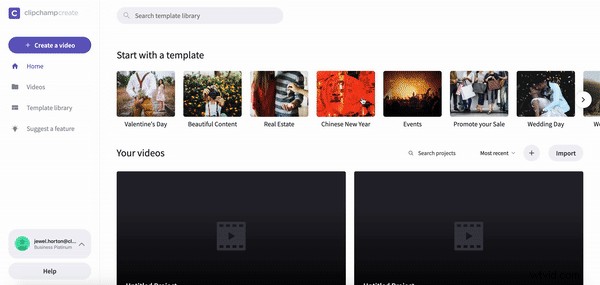
Step 3: Import media
Click the ‘Add Media’ button in the left toolbar and select the media you want to use in your project. Once uploaded, your clips will appear in the editor. Alternatively, you can explore and select media from our extensive stock footage library by selecting the Stock button in the left toolbar.
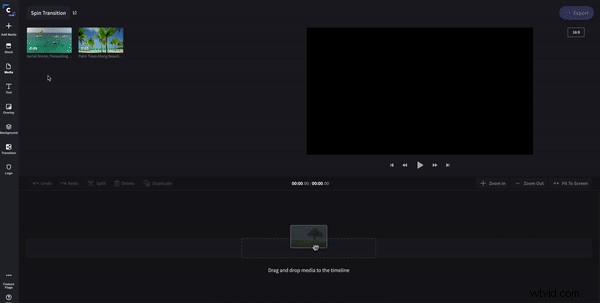
Step 4: Arrange your clips
Arrange your clips by dragging and dropping them on the editing timeline.
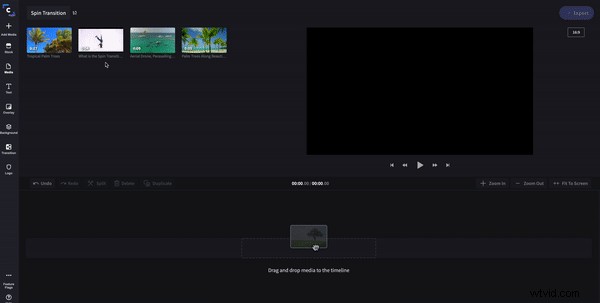
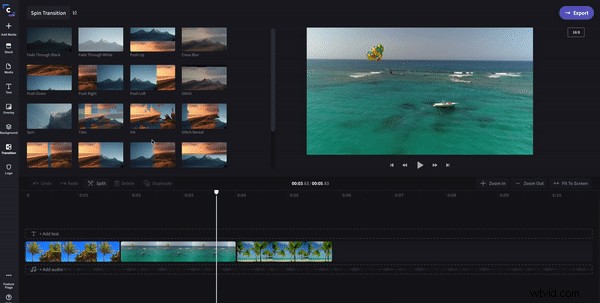
Step 5: Select the Spin Transition
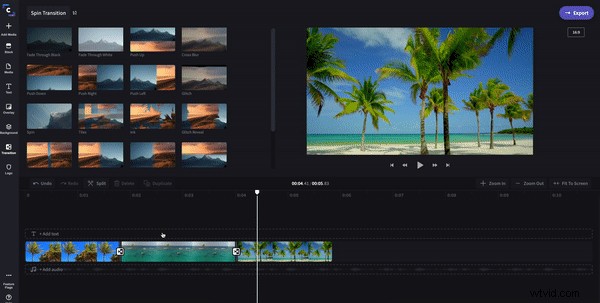
Select the Spin Transition by clicking on the transition button in the left toolbar.
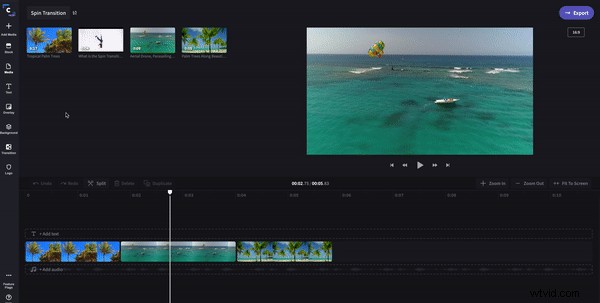
Step 6: Place the transition
Once you’ve selected the Spin Transition, drag and drop it to your timeline between two clips (a green highlight will appear between your clips to direct you where to drop the transition).
Step 7: Edit the Spin Transition
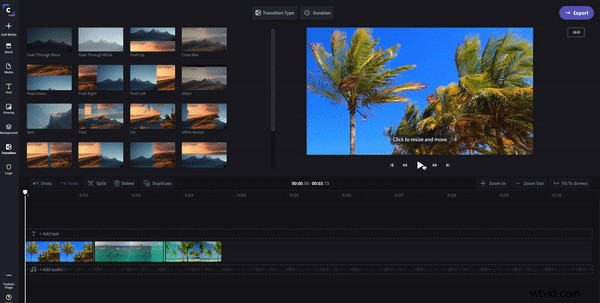
Click on the Spin Transition icon in your timeline to edit it. Here, you can adjust the duration (in seconds), and even the transition type.
Step 8: Review, complete, export
Now you can review the transitions you’ve added and ensure you’re happy with your video. After you’ve completed your other editing, export your project and you’re done!
Now that you know about spin video transitions, it's time to try it out yourself! Hop into our free online video editor which has no watermark and all the pro features! If you run into any editing challenges, our Video Editing for Beginners Tutorial is a great resource to have on hand.