
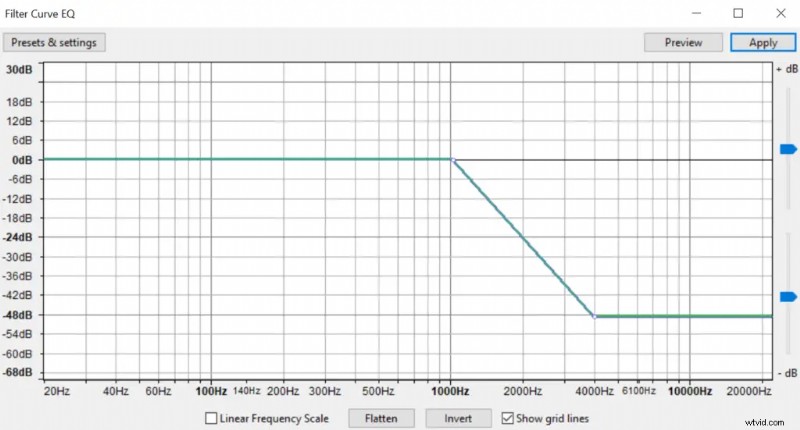
A muffled recording sounds as if it were captured behind a barrier: high‑frequency detail is reduced, while low frequencies remain intact. In Audacity, you can emulate this effect by selectively attenuating frequencies above 1–3 kHz using the Filter Curve EQ.
Follow these steps to apply a muffled effect:
- Select the portion of the waveform you want to alter.
- Navigate to Effect → Filter Curve EQ.
- In the EQ window, lower the gain of frequencies above the 1–3 kHz range. You can drag the curve downward or click individual points to shape the cut.
- Click Preview to hear the change, then hit Apply to commit the effect.
The depth of the cut determines how muffled the sound becomes. A steeper drop yields a stronger muffling. Use the blue slider on the right to fine‑tune the dB reduction for precise control.
Also, you can experiment with a gentle high‑pass filter or a low‑pass to shape the envelope further.
Normal audio:
Muffled audio: