
REC

Recommended: Video Production, Editing & Gear Maintenance Guide

 WTVID >> WTVID >  >> Video Editing >> Adobe Audition

Achieve Muffled Audio in Adobe Audition: A Voiceover Guide

You can make your audio sound muffled using a built-in equalizer in Adobe Audition. Muffled audio contains more of the lower-end frequencies as these are much better capable of passing through objects compared to higher-end frequencies. Therefore, we’ll cut out higher-end frequencies using an equalizer to achieve a muffled audio quality such that you would hear when speaking from under a duvet or in another room.

Here’s a step-by-step guide:

  • Select the part of your audio recording you want to be affected
  • Go to Effects->Filter and EQ->Scientific Filter
  • Choose Types: Butterworth and Modes: BandPass
  • Set Order: 3, Cutoff: 0
  • Set High Cutoff to around 1200Hz

You can control High Cutoff to adjust how muffled your audio will become. Settings it lower will make your audio more muffled. Try different values to check what works best for you.
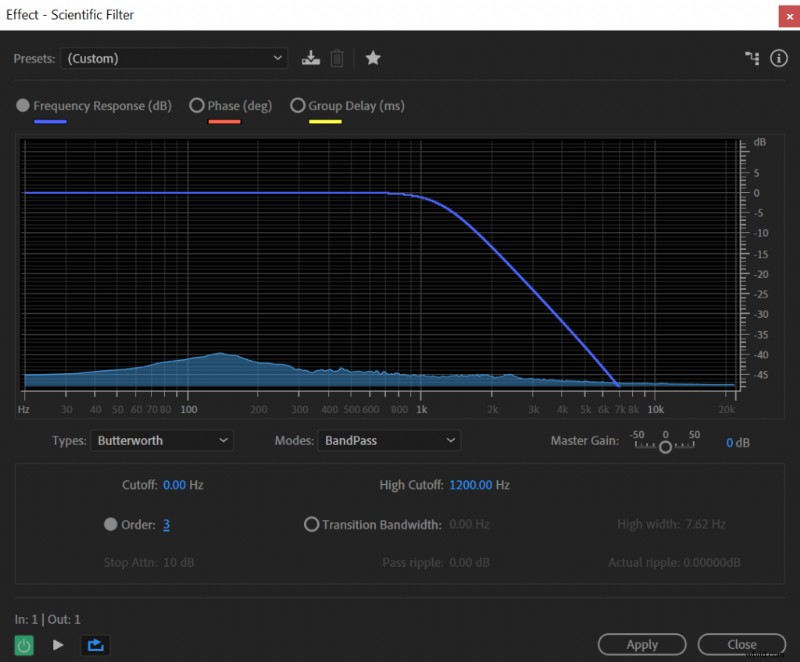
Achieve Muffled Audio in Adobe Audition: A Voiceover GuideAdjusting Scientific Filter settings in Adobe Audition to cutoff higher-end frequencies and make audio sound muffled.

Normal audio:

Muffled audio:


  1. Effortlessly Remove Breaths from Audio in Adobe Premiere Pro: Expert Guide

  2. Step-by-Step Guide: Install and Use ACX Check Plugin in Audacity

  3. Create a Professional Robotic Voice Effect in Adobe Audition: Step-by-Step Guide

  4. 1st Assistant Director: Key Responsibilities and Role in Film & TV Production

  5. How to Accurately Measure Noise Floor in Adobe Audition: Step-by-Step Guide

Adobe Audition
  1. Master Photoshop Overlays: Beginner's Step-by-Step Guide

  2. Master Split-Tone Effects in Lightroom Mobile: Step-by-Step Guide

  3. How to Fix Clipped Audio in Adobe Audition & Premiere Pro: Expert Guide

  4. Master Rembrandt Lighting in Lightroom: Create Dark, Moody Portraits Step-by-Step

  5. 5 Expert Tips to Set Up a Home Studio for Stunning Dramatic Portraits

  6. Download Filmora Video Editor Free - Easy Install Guide for Beginners

  7. Master Photoshop Blending Modes: Elevate Your Fine Art Portraiture

  8. Create Stunning Bubble Portraits in Photoshop CS3: Step-by-Step Guide