
REC

Recommended: Video Production, Editing & Gear Maintenance Guide

 WTVID >> WTVID >  >> Video Editing >> Adobe Audition

Premiere Pro: Create a Muffled Audio Effect - Voiceover Tutorial

A muffled sound quality is often achieved when you’re speaking from another room, under a blanket, pillow or behind some kind of object that absorbs your vocal frequencies.

This phenomenon happens because higher-end audio frequencies get blocked and absorbed. However, lower-end frequencies manage to get through, leaving you with low-end frequencies only.

We can mimic this effect in Premiere Pro using an equalizer to cut out the higher-end frequencies while maintaining the lower end.
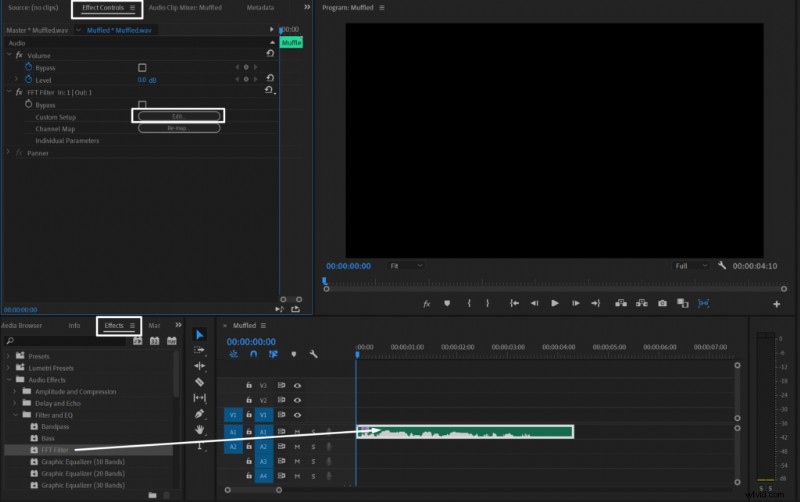
Premiere Pro: Create a Muffled Audio Effect - Voiceover TutorialApplying FFT filter effect in Premiere Pro

Here’s a step-by-step guide:

  1. Drag your audio onto the timeline
  2. Go to Effects
  3. Find the FFT Filter effect and drag it onto the audio clip
  4. Go to Effect Controls and click Edit next to Custom Setup
  5. Check the Spline Curves box for smoother application
  6. Create two extra points and adjust the curve to cut out frequencies above 1kHz (Example below).
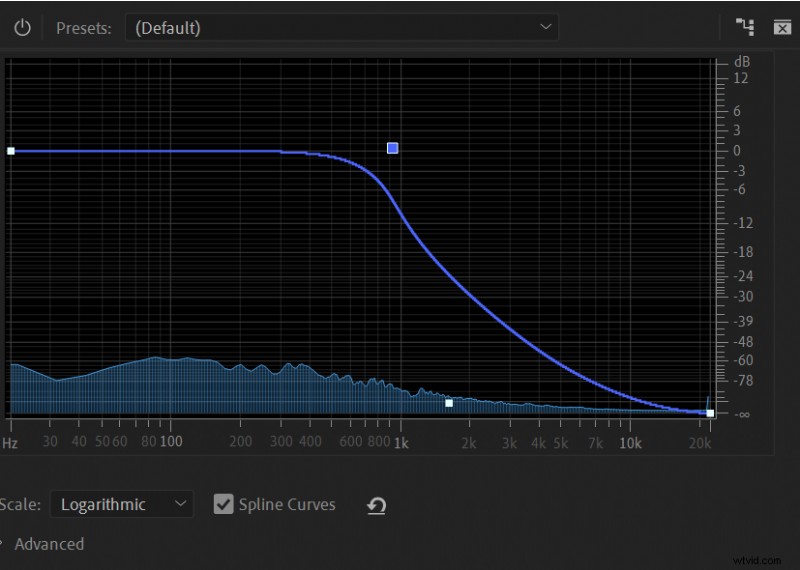
Premiere Pro: Create a Muffled Audio Effect - Voiceover TutorialFTT Filter effect EQ curve to make your audio sound muffled in Premiere Pro

Adjust the FFT Filter curve to your preference. Cutting out more of the high end will make your audio sound more muffled and incomprehensive.

Original audio:

Muffled audio:


  1. How to Raise Your Voice Pitch in Audacity: Step-by-Step EQ and Change Pitch Guide

  2. Expert Guide: Enhance Audio Quality in Adobe Premiere Pro with Built-in Tools

  3. 12 Expert Tips to Elevate Your Voice-Over Recording Quality

  4. How to Create a Demonic Voice Effect in Audacity: Step-by-Step Guide

  5. How to Isolate Vocals: Remove Music Background in Audacity (Step-by-Step Guide)

Adobe Audition
  1. How to Raise Your Voice Pitch in Audacity: Step-by-Step EQ and Change Pitch Guide

  2. WeVideo 2026 Review: User-Friendly Online Video Editing for All Levels

  3. Expert Photoshop Cleaning Techniques for Stunning Still Life Photography

  4. Expert Guide: Retouch Portraits Like a Pro with Lightroom's Adjustment Brush

  5. Photoshop Tutorial: How to Add Stunning Creative Overlays to Your Portraits

  6. Master Color Correction in Adobe Premiere Pro: The Ultimate Guide

  7. Master Split-Tone Effects in Lightroom Mobile: Step-by-Step Guide

  8. Create Stunning 'Soft Portrait' Presets in Lightroom 4: Step-by-Step Guide