
Distortion is usually avoided in speech recordings because it degrades clarity and comfort. Yet, deliberate distortion can add character to specific projects—retro soundscapes, meme‑style audio, or low‑fidelity signal effects that require a gritty, bad sound.
Adobe Audition provides several methods to create controlled distortion: the built‑in Distortion plugin, low‑bit depth and sample rate export settings, and intentional audio clipping.
Applying the Distortion Plugin
Navigate to Effects ► Special ► Distortion. The plugin is axis‑based, with the X‑axis representing input level and the Y‑axis representing output level. To maximize distortion, move both the green and red curves to the top of the graph, which yields the highest output for each input value and creates the greatest input‑to‑output ratio.
By default the dB Range is set to –60 dB. Raising the range to –120 dB gives you access to a broader spectrum of distortion.
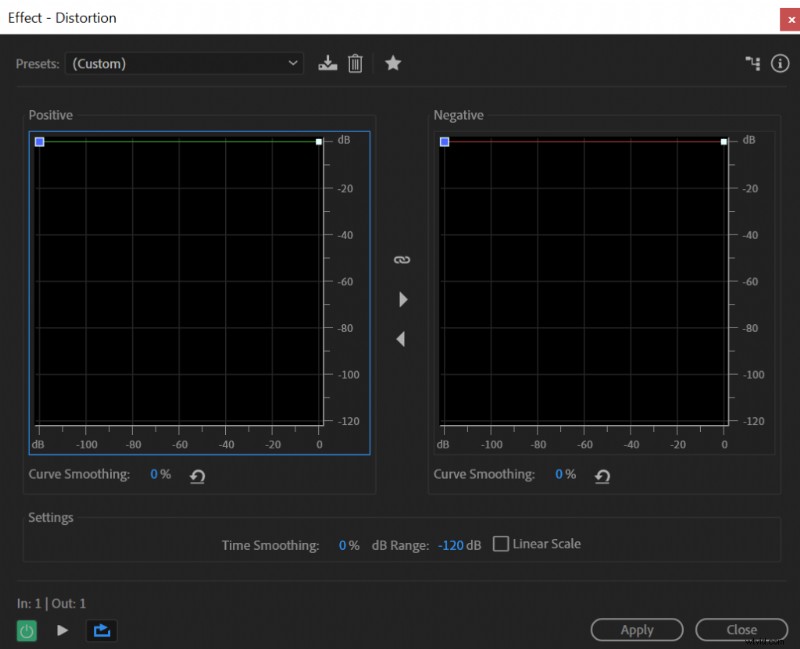
Adjusting the curves below the default diagonal line produces a subtler distortion, while moving them above it results in a louder effect.
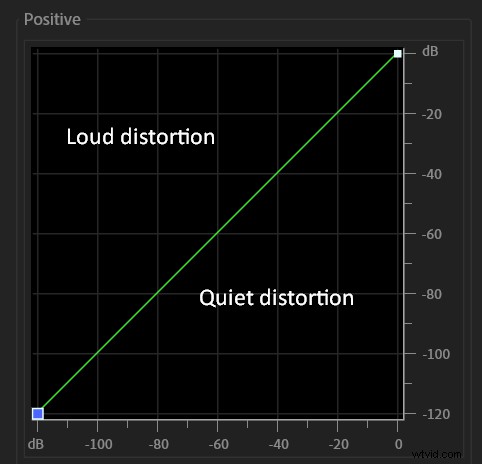
While the Distortion plugin can emulate the harsh clipping that occurs when overdriving a microphone, a moderate amount of distortion can give your mix the character of radio transmission or vintage audio gear.
Normal audio
Slight distortion (Snakeskin preset)
Maximum distortion (lower your audio volume before listening)
Simulating Low‑Quality Recording by Lowering Bit Depth and Sample Rate
During digital conversion, the sample rate determines how many times per second the audio is captured, and the bit depth dictates the detail of each sample. Higher values produce cleaner recordings, while lower values mimic older, lower‑fidelity equipment.
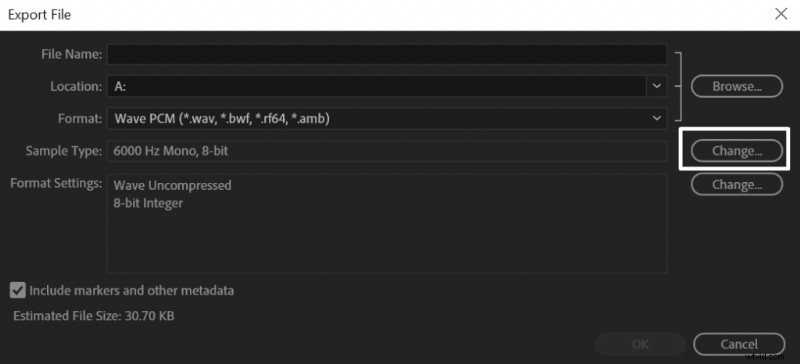
In Adobe Audition you can set the export sample rate and bit depth to emulate a vintage recording device. Lowering these parameters will give your track a nostalgic, distorted texture.
Normal audio
6000 Hz sample rate, 8‑bit bit depth audio
Creating Distortion Through Audio Clipping
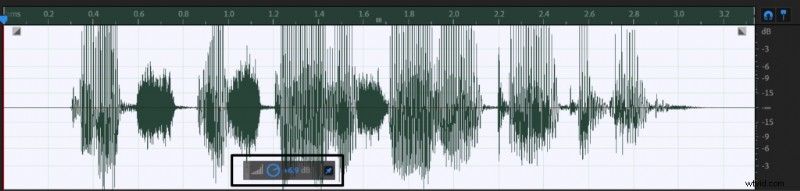
Clipping occurs when the audio signal exceeds 0 dB during recording or when you boost the level beyond 0 dB in the editing phase. Exceeding this threshold truncates the waveform, producing a harsh, metallic tone. The more you push past 0 dB, the more pronounced the distortion.
In Adobe Audition you can trigger clipping by using the Amplify effect. Once the waveform surpasses 0 dB, information is lost and the clip‑induced distortion becomes apparent.
Normal audio
Audio clipping